Cloud MCP server
The cloud MCP server provides AI agents with access to 2GIS services over the Streamable HTTP protocol. The MCP server is available at https://mcp-2gis.api.2gis.com/mcp.
Prerequisites
The following components are required to use the MCP server:
- An access key for the 2GIS API.
- An MCP client that supports Streamable HTTP and static custom headers. Clients that only support Plain SSE or
stdioare not suitable. - The ability to establish outbound HTTPS connections from your network to the MCP server address.
Available tools and APIs
The MCP server provides the following tools:
| Tool | Function | 2GIS API used |
|---|---|---|
search_places | Searching for places, organizations, and addresses | Places API |
geocode_address | Direct geocoding: converting an address to coordinates | Geocoder API |
build_route | Building routes for various transport types, calculating travel time and distance | Routing API |
calculate_distance_matrix | Calculating travel time and distance between pairs of points | Distance Matrix API |
render_static_map | Creating a static map with markers in PNG format | Static API |
auth_probe | Checking the access key and API availability | All APIs listed above |
The MCP server also provides utility tools that do not require an access key:
| Tool | Function |
|---|---|
server_info | Checking server metadata and readiness |
list_resources, read_resource | Retrieving reference documentation for API parameters |
1. Get an access key
-
Sign up in the Platform Manager dashboard.
-
Get a key for the required APIs:
- Get a free demo key (valid for 30 days, with request limits). The demo key has all the APIs required for the MCP server enabled automatically.
- Purchase a subscription. Select all the APIs required for the MCP server during the purchase process. The first access key is created automatically after the subscription is activated.
For more information about keys and subscriptions, see the account documentation.
For pricing details, see the Prices section.
2. Connect the MCP server to an agent
Specify the server address, https://mcp-2gis.api.2gis.com/mcp, and your API key in your development environment settings. The following sections describe how to configure common AI agents.
ChatGPT
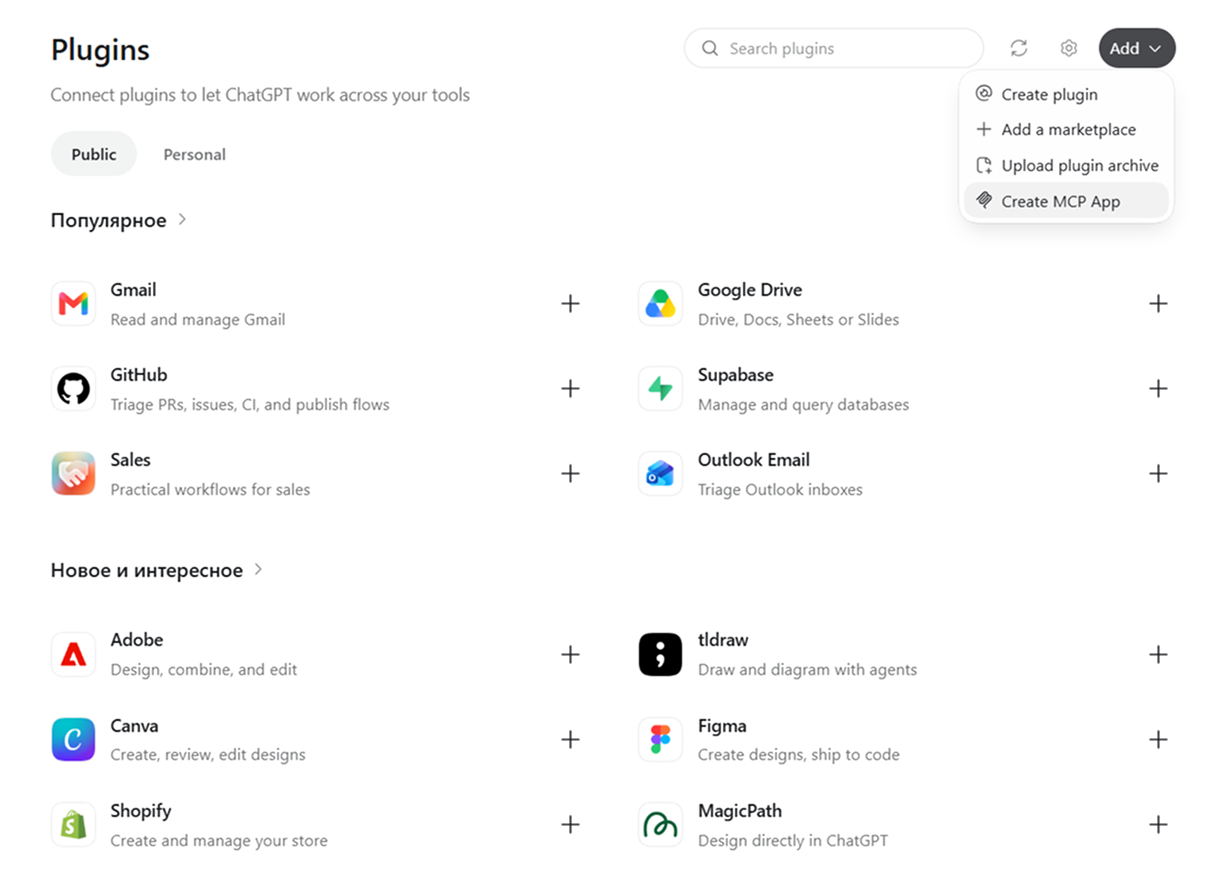
Add a new plugin in the ChatGPT interface:
-
In the Plugins tab, select Add > Create MCP App.
-
In the plugin creation window, enter its name and the MCP server URL:
https://mcp-2gis.api.2gis.com/mcp?key=YOUR_API_KEYWhere
YOUR_API_KEYis your API key for accessing 2GIS services.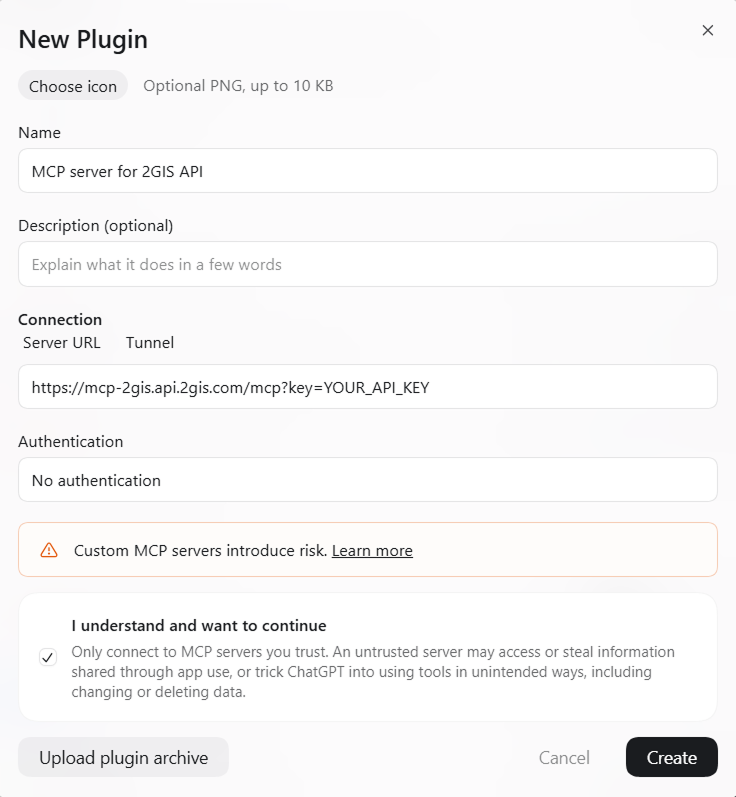
-
Click Create.
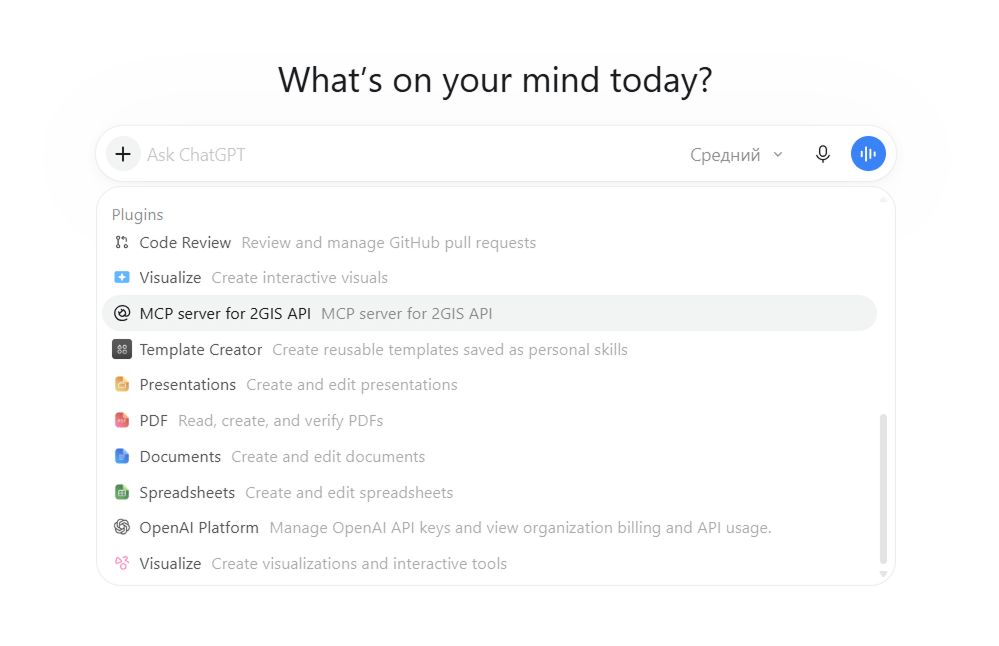
Now in a dialogue with ChatGPT, you can select the added plugin from the list of resources:
Claude
Claude Desktop
Add the MCP server to the Claude Desktop configuration in one of the following ways:
-
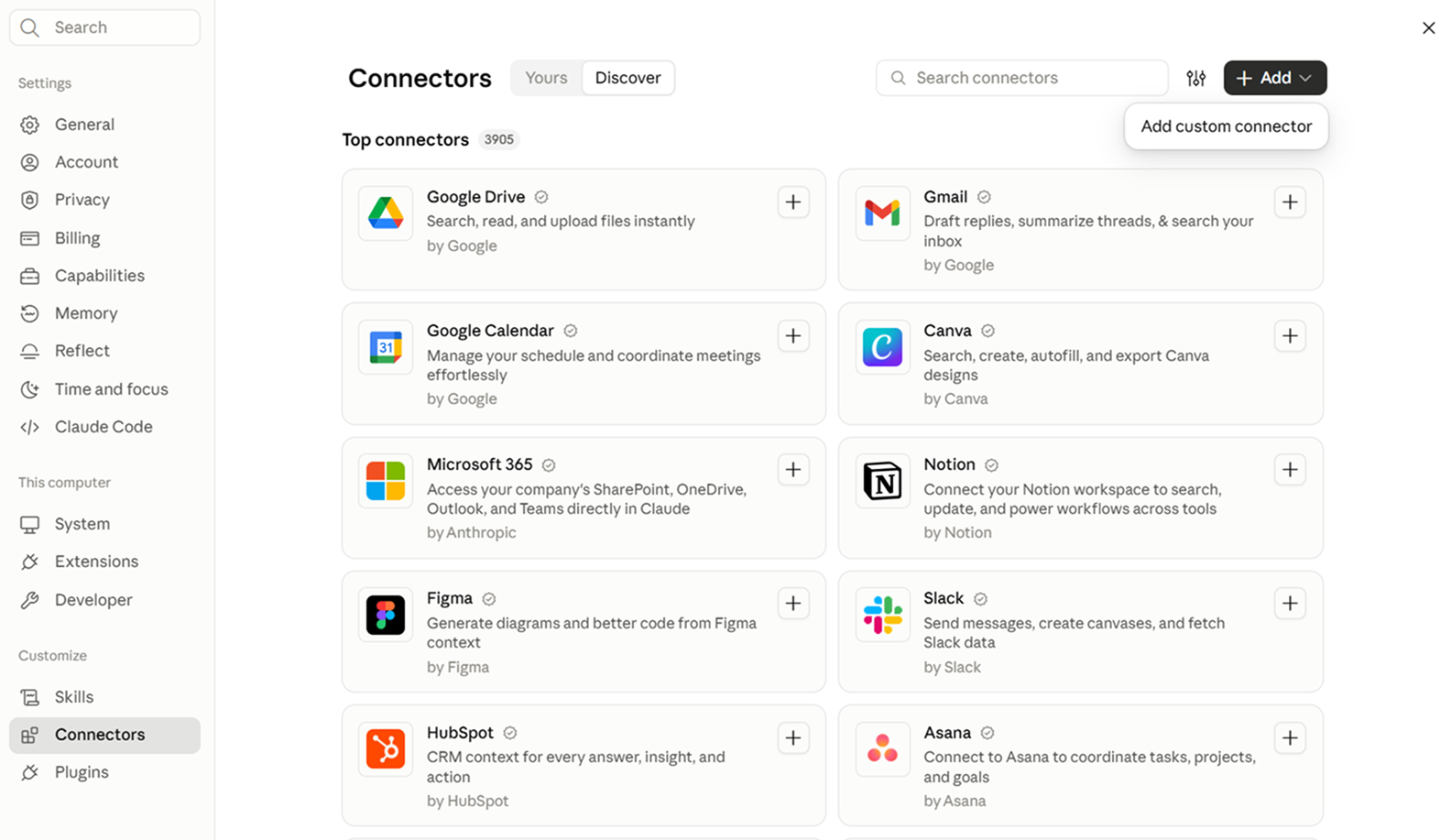
Add a new connector in the Claude Desktop interface:
-
In the settings menu, open the Connectors tab and select Add > Add custom connector.
-
In the connector creation window, enter its name and the MCP server URL:
https://mcp-2gis.api.2gis.com/mcp?key=YOUR_API_KEYWhere
YOUR_API_KEYis your API key for accessing 2GIS services.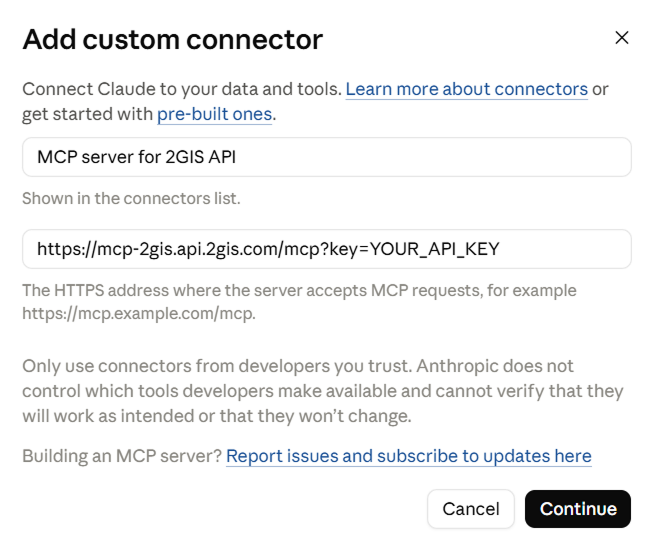
-
Click Continue and complete the connector creation.
-
-
Add the configuration to the
claude_desktop_config.jsonfile:{"mcpServers": {"2GIS": {"type": "http","url": "https://mcp-2gis.api.2gis.com/mcp","headers": { "Authorization": "Bearer <YOUR_API_KEY>" }}}}Where
YOUR_API_KEYis your API key for accessing 2GIS services.
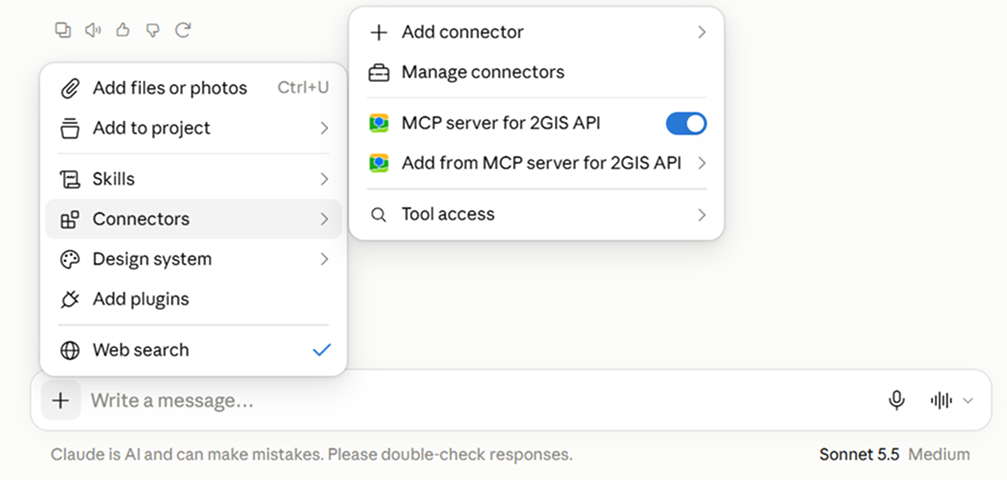
Now in a dialogue with Claude, you can select the added connector from the list of resources:
Claude Code
Add the MCP server to the Claude Code configuration:
claude mcp add --transport http 2gis https://mcp-2gis.api.2gis.com/mcp \
  --header "Authorization: Bearer $YOUR_API_KEY"
Where YOUR_API_KEY is your API key for accessing 2GIS services.
Cursor
Add the MCP server configuration to the global claude_desktop_config.json file or to the .cursor/mcp.json file in the root of a specific project:
{
  "mcpServers": {
    "2gis": {
      "url": "https://mcp-2gis.api.2gis.com/mcp",
      "headers": { "Authorization": "Bearer <YOUR_API_KEY>" }
    }
  }
}
Where YOUR_API_KEY is your API key for accessing 2GIS services.
VS Code (GitHub Copilot)
Create a .vscode/mcp.json file in the workspace root and add the 2GIS MCP server configuration:
{
  "servers": {
    "2gis": {
      "type": "http",
      "url": "https://mcp-2gis.api.2gis.com/mcp",
      "headers": { "Authorization": "Bearer ${input:YOUR_API_KEY}" }
    }
  },
  "inputs": [
    {
      "id": "YOUR_API_KEY",
      "type": "promptString",
      "description": "2GIS API key",
      "password": true
    }
  ]
}
Where YOUR_API_KEY is your API key for accessing 2GIS services.
Windsurf
Add the 2GIS MCP server configuration to the ~/.codeium/windsurf/mcp_config.json file:
{
  "mcpServers": {
    "2gis": {
      "serverUrl": "https://mcp-2gis.api.2gis.com/mcp",
      "headers": { "X-2GIS-API-Key": "<YOUR_API_KEY>" }
    }
  }
}
Where YOUR_API_KEY is your API key for accessing 2GIS services.
Cline / Roo Code
Add the 2GIS MCP server configuration to the mcp_settings.json file. Explicitly specify the streamableHttp connection type; otherwise, the entry may be interpreted as legacy SSE.
{
  "mcpServers": {
    "2gis": {
      "type": "streamableHttp",
      "url": "https://mcp-2gis.api.2gis.com/mcp",
      "headers": { "Authorization": "Bearer <YOUR_API_KEY>" },
      "autoApprove": []
    }
  }
}
Where YOUR_API_KEY is your API key for accessing 2GIS services.
Gemini CLI
Add the 2GIS MCP server configuration using one of the following methods:
-
Run the command:
gemini mcp add --transport http 2gis https://mcp-2gis.api.2gis.com/mcp \-H "Authorization: Bearer $YOUR_API_KEY" --timeout 30000 -
Add the configuration to the
~/.gemini/settings.jsonfile:{"mcpServers": {"2gis": {"httpUrl": "https://mcp-2gis.api.2gis.com/mcp","headers": { "Authorization": "Bearer <YOUR_API_KEY>" },"timeout": 30000}}}
Where YOUR_API_KEY is your API key for accessing 2GIS services.
GigaCode and AI assistant platforms
You can connect any client that supports the Streamable HTTP protocol and static custom headers to the server using the following configuration:
{
  "mcpServers": {
    "2gis": {
      "type": "streamable_http",
      "url": "https://mcp-2gis.api.2gis.com/mcp",
      "headers": { "X-2GIS-API-Key": "<YOUR_API_KEY>" }
    }
  }
}
Where YOUR_API_KEY is your API key for accessing 2GIS services.
Use X-2GIS-API-Key if Authorization is reserved. The auth_probe tool shows which header actually reached the server.
See the instructions for connecting the MCP server to the GigaCode platform:
Custom Python client
Example of connecting to the 2GIS MCP server:
import os
import httpx
from mcp import ClientSession
from mcp.client.streamable_http import streamable_http_client

headers = {"Authorization": f"Bearer {os.environ['YOUR_API_KEY']}"}
async with httpx.AsyncClient(headers=headers, timeout=30) as http_client:
    async with streamable_http_client("https://mcp-2gis.api.2gis.com/mcp", http_client=http_client) as (read, write, _):
        async with ClientSession(read, write) as session:
            await session.initialize()
            tools = (await session.list_tools()).tools
            print([t.name for t in tools])
Where YOUR_API_KEY is your API key for accessing 2GIS services.
Other host
Example of a manual request to the 2GIS MCP server:
curl -sS https://mcp-2gis.api.2gis.com/mcp \
  -H 'Content-Type: application/json' \
  -H 'Accept: application/json, text/event-stream' \
  -d '{"jsonrpc":"2.0","id":1,"method":"initialize","params":{"protocolVersion":"2025-11-25","capabilities":{},"clientInfo":{"name":"my-client","version":"1.0"}}}'
3. Verify the connection
-
Send the AI agent a request to check the key and the availability of each service in turn, for example:
Check that the key works and see which tools are available to meThe agent should call the following tool chain:
tools/list>server_info>auth_probe. -
Send a specific request to test the tools, for example:
Find three coffee shops near Red Square in Moscow and build a walking route to the nearest oneThe agent should call the following tool chain:
search_places>build_route.
Errors
| Error | Cause | Possible solution |
|---|---|---|
MCP_API_KEY_REQUIRED | API key is not specified | Get an API key and specify it when connecting the MCP server to an agent |
MCP_API_KEY_INVALID | The specified API key is invalid | Check the services enabled for the key and the limits of your subscription or demo key in your Platform Manager account |
MCP_2GIS_API_UNAVAILABLE | The 2GIS service is temporarily unavailable | Try again later |