Drivers
You can work with drivers on the Drivers tab:
- view information about drivers and task performance statistics
- add drivers to territories
- add drivers to groups
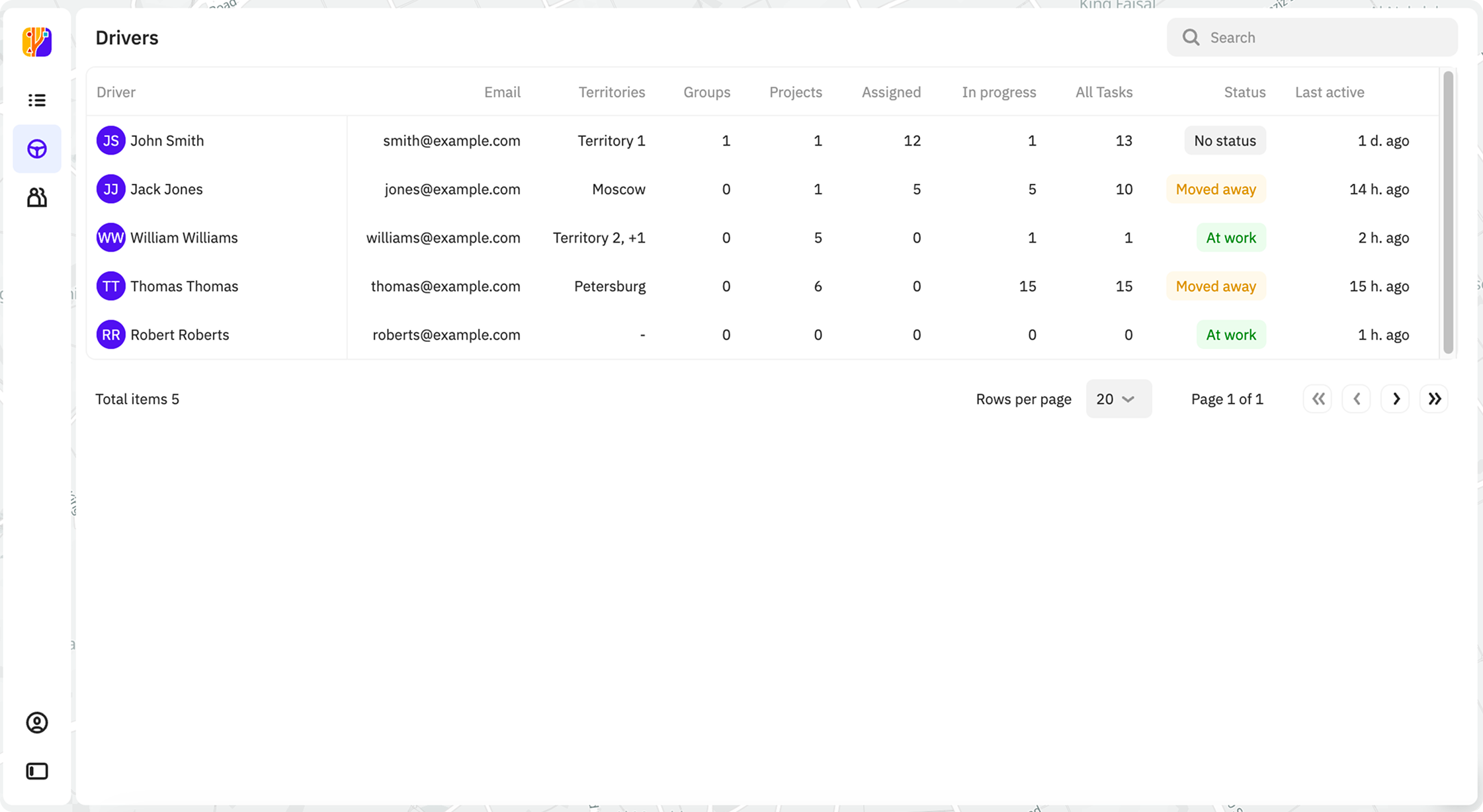
Viewing information about a driver
- Go to the Drivers tab.
- Open the card of the driver. You can also search for drivers by name in the list.
The driver card displays:
-
General information:
- Organization: organization the driver belongs to.
- ID: unique identifier of the driver.
- Email: email address of the driver.
- Number: phone number of the driver.
- Status: work status of the driver (see details in the Common settings section). Possible statuses:
- At work: is set automatically when the driver is actively using the application.
- Moved away: is set automatically when the driver locks their mobile device or closes the application.
- Not working, On vacation, and On sick leave: these statuses are set manually by the driver. You cannot assign tasks to drivers with these statuses.
- No status: default status that is set when you add a driver. You can assign tasks to drivers with this status.
- Last active: date of the last activity in the mobile application.
- Last Activity on Map: click to open the last task with the In Progress status the driver worked on. The map displays:
- The driver's latest geolocation.
- The completed part of the planned route (yellow).
- The remaining part of the planned route (blue).
- If the driver is currently working on the task, the current geolocation is displayed. Also, you can track their movement on the map in real time.
-
Territory: territories the driver is assigned to.
-
Projects: projects the driver is assigned to.
-
Tags: tags added to the driver. Tags identify the groups the driver belongs to, and you can use them to filter the drivers in the list when assigning tasks.
-
Tasks:
- All Tasks: total number of tasks.
- Assigned: number of tasks assigned to the driver (with the Assigned status).
- In Progress: number of tasks in progress (with the In Progress status).
- Completed: number of completed tasks (with the Completed status).
Adding a driver to a territory
To assign tasks to a driver, add them to one or more territories:
- Go to the Drivers tab.
- Open the card of the driver.
- In the Territories field, click
 icon.
icon. - Select territories.
- Click Save.
Adding a driver to a group
You can add drivers to groups to simplify the search for drivers when assigning tasks and filter them by groups. To do this, add a tag to the driver, e.g., related to the project or the territory name:
- Go to the Drivers tab.
- Open the card of the driver.
- In the Tags field, click +.
- Enter the tag and press Enter or select the tag from the list.