Tasks
Task is a planned route that a driver must follow to record and collect data.
For each task, the total length of roads and the estimated travel time by car are calculated automatically. For tasks with polygons, the area of the polygon is also calculated.
You can work with tasks for covering territories on the Tasks tab:
- create tasks and routes for them using different methods
- automatically split polygons into multiple tasks
- view information about tasks
- check the status of the created tasks
- edit tasks
- export polygons and routes from the task
- complete tasks
- cancel tasks
Creating a task
-
Go to the Tasks tab.
-
Open the page of the territory and project.
-
Click New task.
-
Create a route using one of the methods.
-
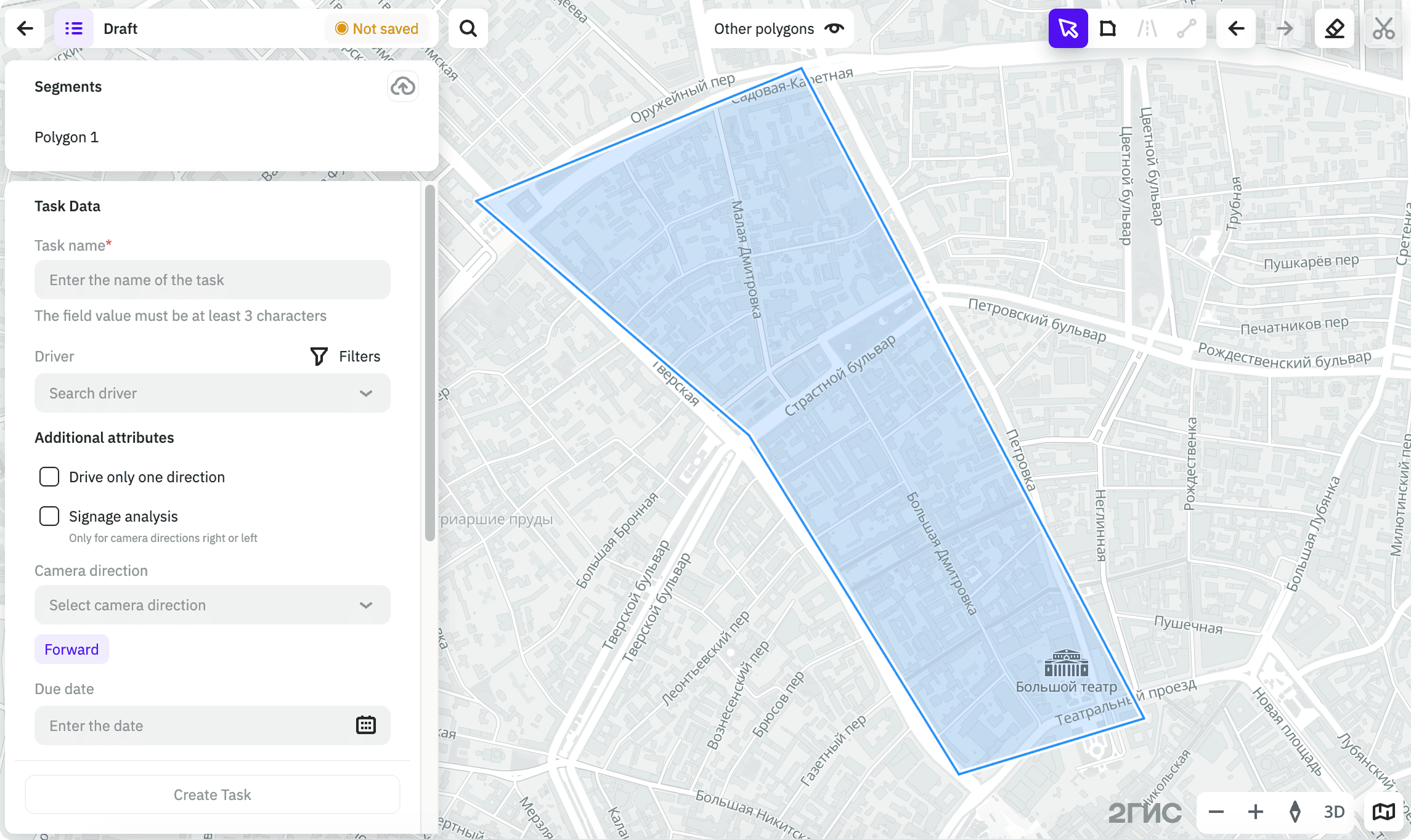
Specify task parameters:
-
Task data:
- Task name (mandatory parameter).
- Driver: driver assigned to the task. You can search drivers in the list and filter drivers by groups using tags. Only the drivers added to the territory are displayed in the list. You can skip selecting a driver and assign them later.
-
Additional attributes:
- Drive only one direction: select the checkbox if the driver must drive the route in only one direction (for example, when capturing signage from one side of the road).
- Signage analysis: select the checkbox if you plan to capture signage. To access the feature, contact your manager.
- Camera direction: car window the mobile device camera is pointed at. The default value is Forward.
- Due date: date the driver must complete the task.
-
Exclusion of roads: by default, all roads inside the polygon are included in the route. To exclude certain roads, for example, to move a part of them to another task, enable the option and select the filters:
-
Road class: main streets, federal roads, and others.
-
Road attribute: type of surface: asphalt, ground, and others.
-
Length of roads: maximum road length in meters. Roads longer than the specified value will be excluded from the route.
-
Exclude toll roads: select the checkbox to exclude toll roads from the route.
-
Exclude ferries: select the checkbox to exclude ferries from the route.
-
Exclude roads with closures: select the checkbox to exclude roads with closures from the route.
You can also exclude roads from the polygon manually by clicking them on the map.
-
-
Closed territories: by default, closed territories (areas bounded by barriers: gates, boom barriers, etc.) are excluded from the route. To include them in the route, enable the option and select the filters:
- Entry type: main, additional, or service.
- Entry cost: free, paid, or by pass.
- Barrier type: gate, boom barrier, turnstile, and others.
-
Save parameters for next tasks: select the checkbox to apply the same road exclusion and closed territory filters when creating next tasks. Other task parameters (task name, driver, due date, and others) are not saved.
-
-
Click Create task.
Automatic polygon splitting
You can speed up task planning by automatically splitting a polygon into multiple tasks. The number of tasks depends on the number of drivers and one of the selected parameters:
- the number of hours a driver can spend on a detour within one task
- the maximum route length for each task
For each driver, one task per working day is assigned. The default working day length is 8 hours, the value cannot be changed.
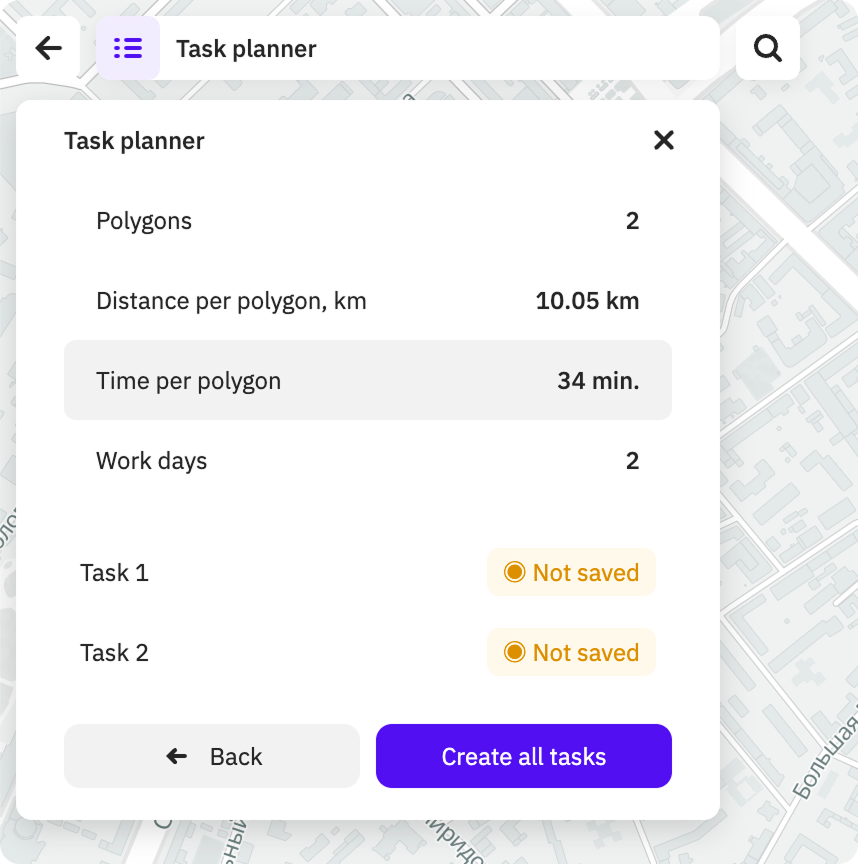
When splitting, the length of roads and the approximate time of detour by car are calculated for each polygon, as well as the total number of working days that is required to detour through all the polygons.
To automatically split a polygon into multiple tasks:
-
Go to the Tasks tab.
-
Open the page of the territory and project.
-
Click Task planner.
-
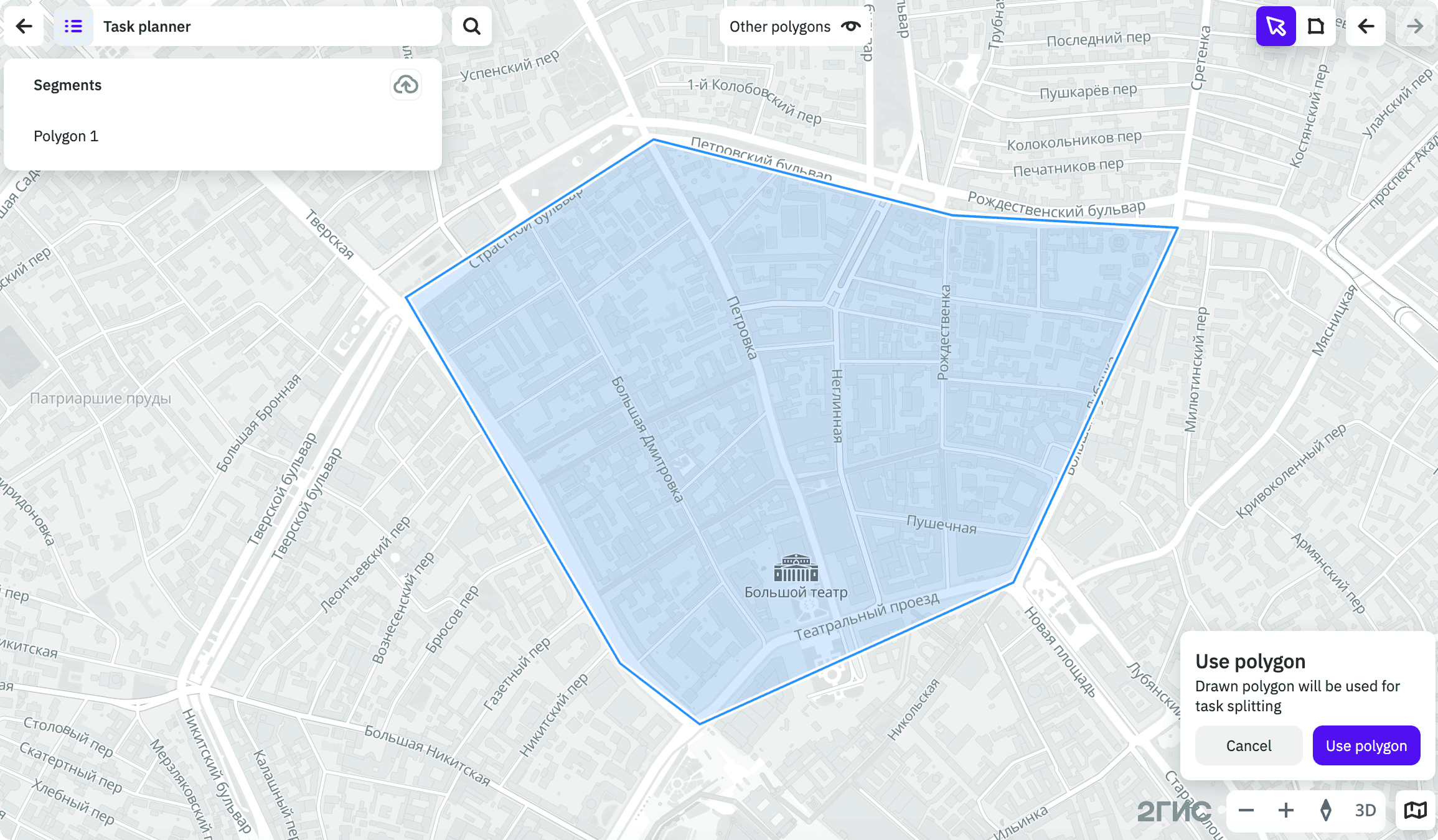
In the dialog in the lower-right corner, click Use polygon:
-
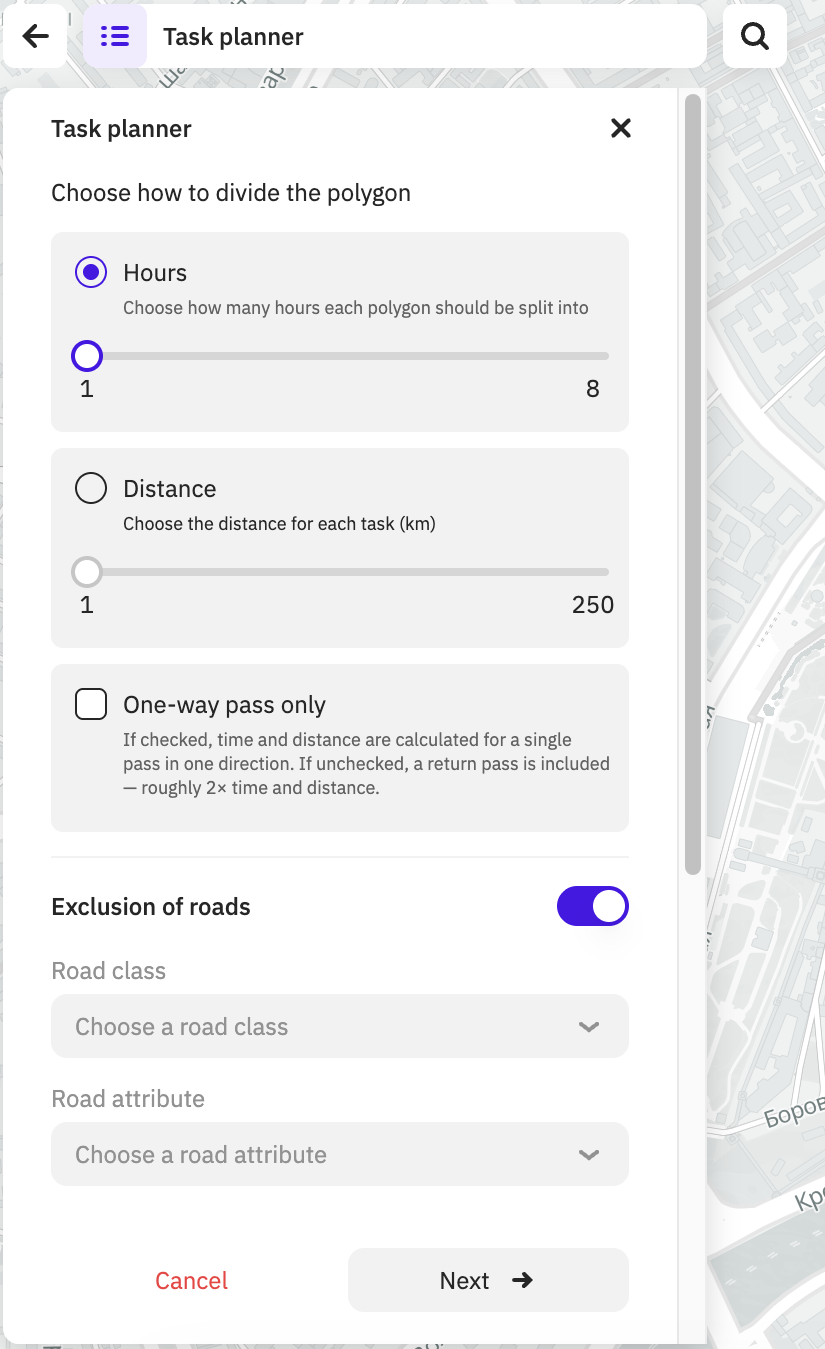
Specify planning parameters:
-
To split a polygon into multiple tasks, specify one of the parameters:
- Hours: number of hours to drive each polygon. When selecting a value, you can focus on the maximum number of hours that a driver can spend on a detour in a working day. Available values are from 1 to 8 hours.
- Distance: length of the route in kilometers for each polygon. Available values are from 1 to 100 km.
-
One-way pass only: select the checkbox if drivers must drive the route in only one direction (for example, when capturing signage from one side of the road). Time and distance will be calculated for a single pass in one direction. If the checkbox is not selected, the time and distance are approximately doubled.
-
Exclusion of roads: by default, all roads inside the polygon are included in the route. To exclude certain roads, for example, to move a part of them to another task, enable the option and select the filters:
- Road class: main streets, federal roads, and others.
- Road attribute: type of surface: asphalt, ground, and others.
- Length of roads: maximum road length in meters. Roads longer than the specified value will be excluded from the route.
- Exclude toll roads: select the checkbox to exclude toll roads from the route.
- Exclude ferries: select the checkbox to exclude ferries from the route.
- Exclude roads with closures: select the checkbox to exclude roads with closures from the route.
-
Closed territories: by default, closed territories (areas bounded by barriers: gates, boom barriers, etc.) are excluded from the route. To include them in the route, enable the option and select the filters:
- Entry type: main, additional, or service.
- Entry cost: free, paid, or by pass.
- Barrier type: gate, boom barrier, turnstile, and others.
-
Save parameters for next tasks: select the checkbox to apply the same road exclusion and closed territory filters when creating next tasks. Other task parameters (task name, driver, due date, and others) are not saved.
Click Next.
-
-
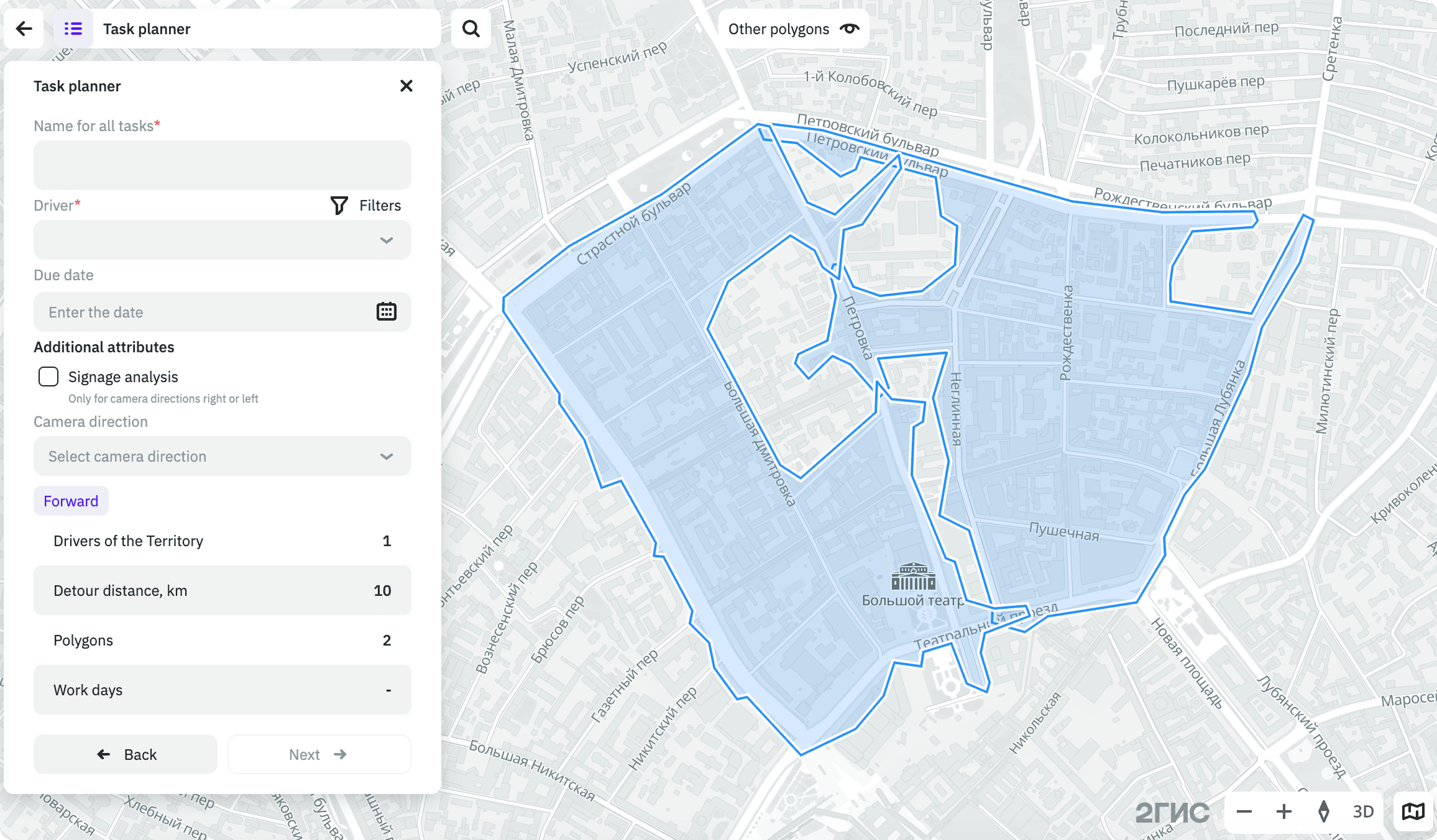
Specify parameters of tasks:
-
Name for all tasks (mandatory parameter): name of each task. A sequential number is added to the specified name (e.g.
Task 1,Task 2, etc.). -
Driver (mandatory parameter): one or more drivers assigned to the tasks. You can search drivers in the list and filter drivers by groups using tags. Only the drivers added to the territory are displayed in the list.
-
Due date: date the drivers must complete the tasks.
-
Additional attributes:
- Signage analysis: select the checkbox if you plan to capture signage. To access the feature, contact your manager.
- Camera direction: car window the mobile device camera is pointed at. The default value is Forward.
Click Next.
-
-
Review the task planning results. Click Create all tasks.
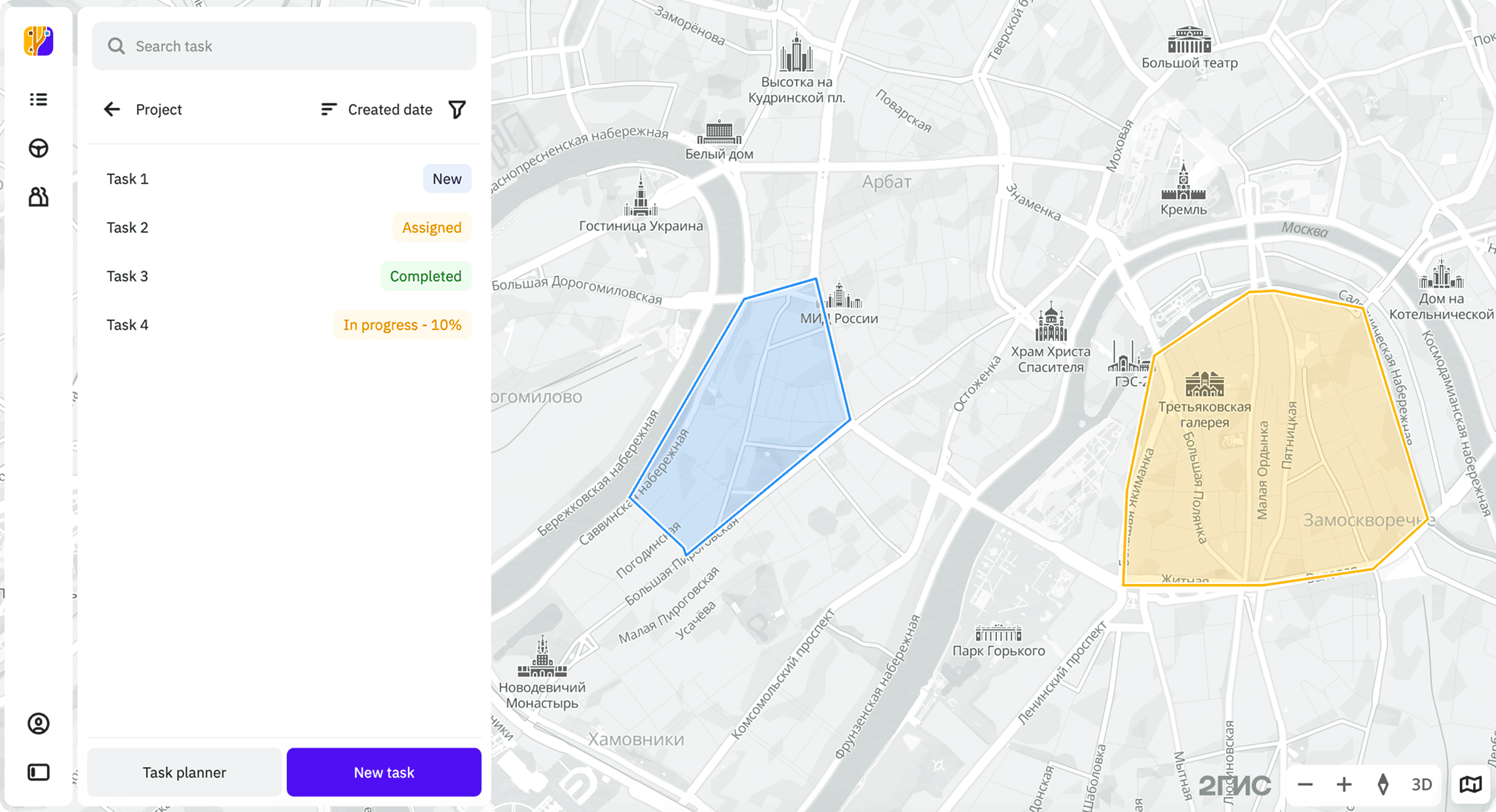
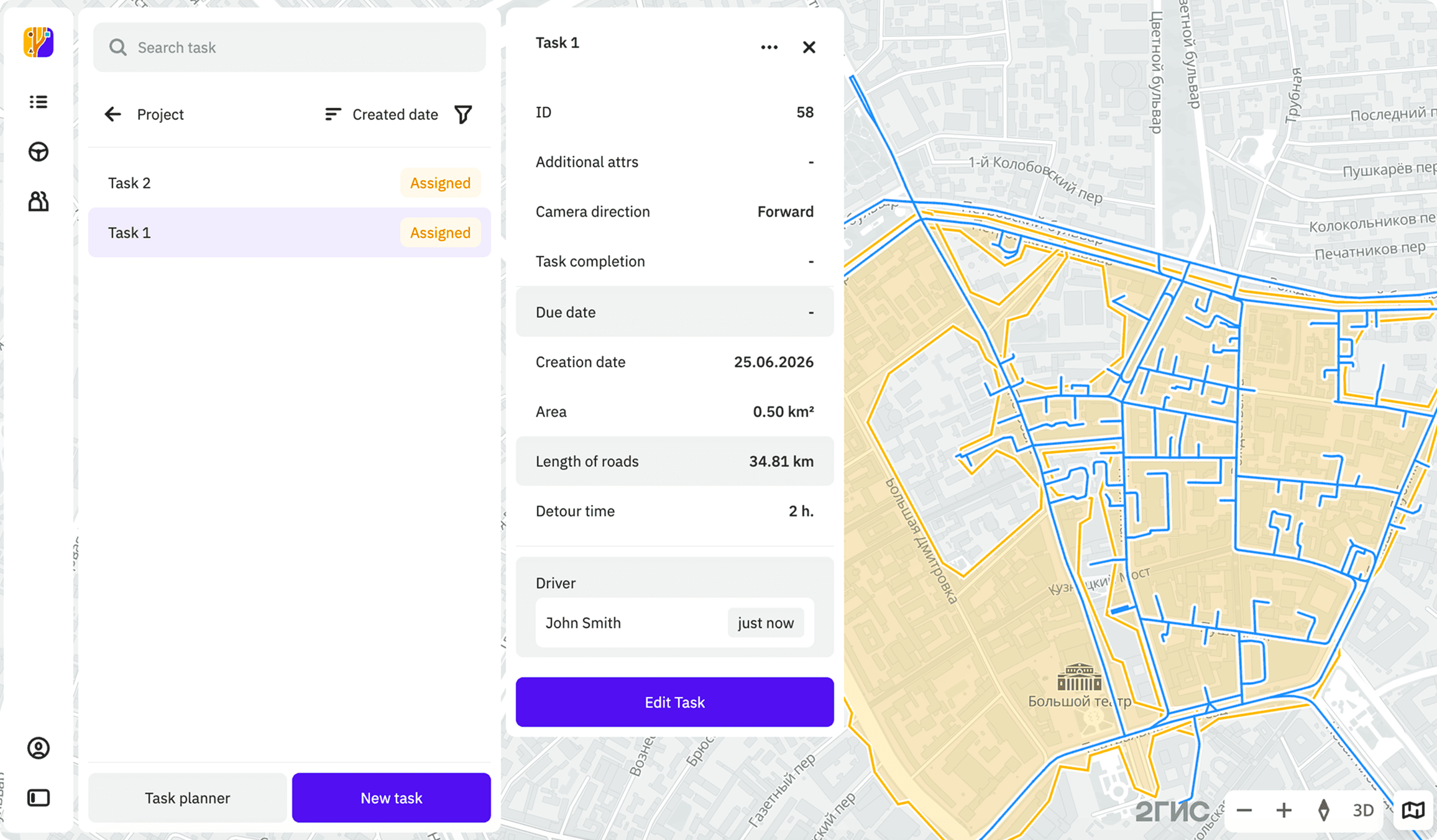
All created tasks appear in the list:
Route creation methods
To build a route, you can use:
-
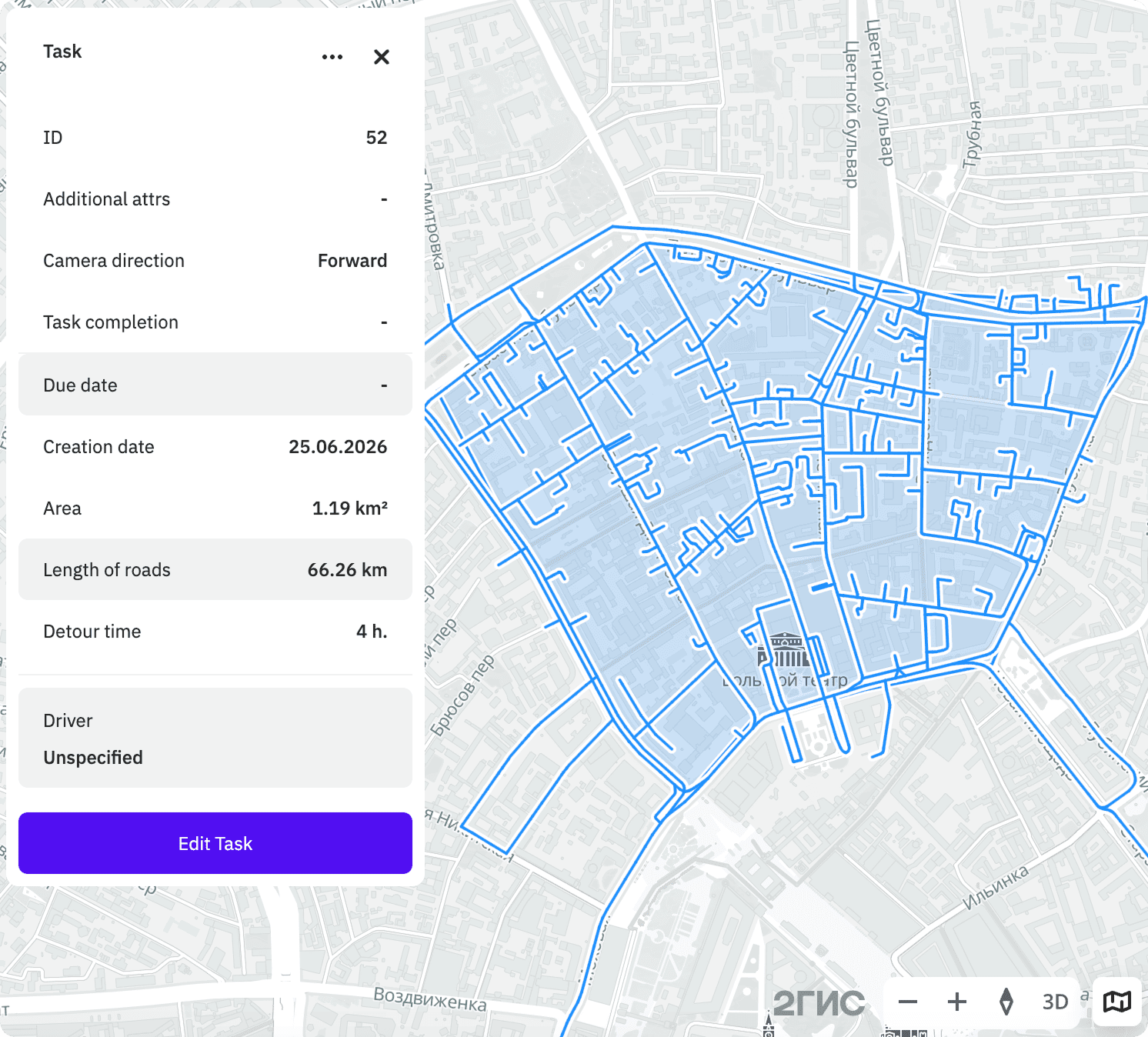
Polygons: draw polygons on the interactive 2GIS map or upload your own polygons with unique areas, regions, districts, and others. All roads inside the polygon are automatically included in the route. If necessary, you can exclude them.
You can also automatically split the polygon into multiple tasks depending on the number of drivers, time to complete the task, and the length of the route.
An example of a task with a polygon on the map:
-
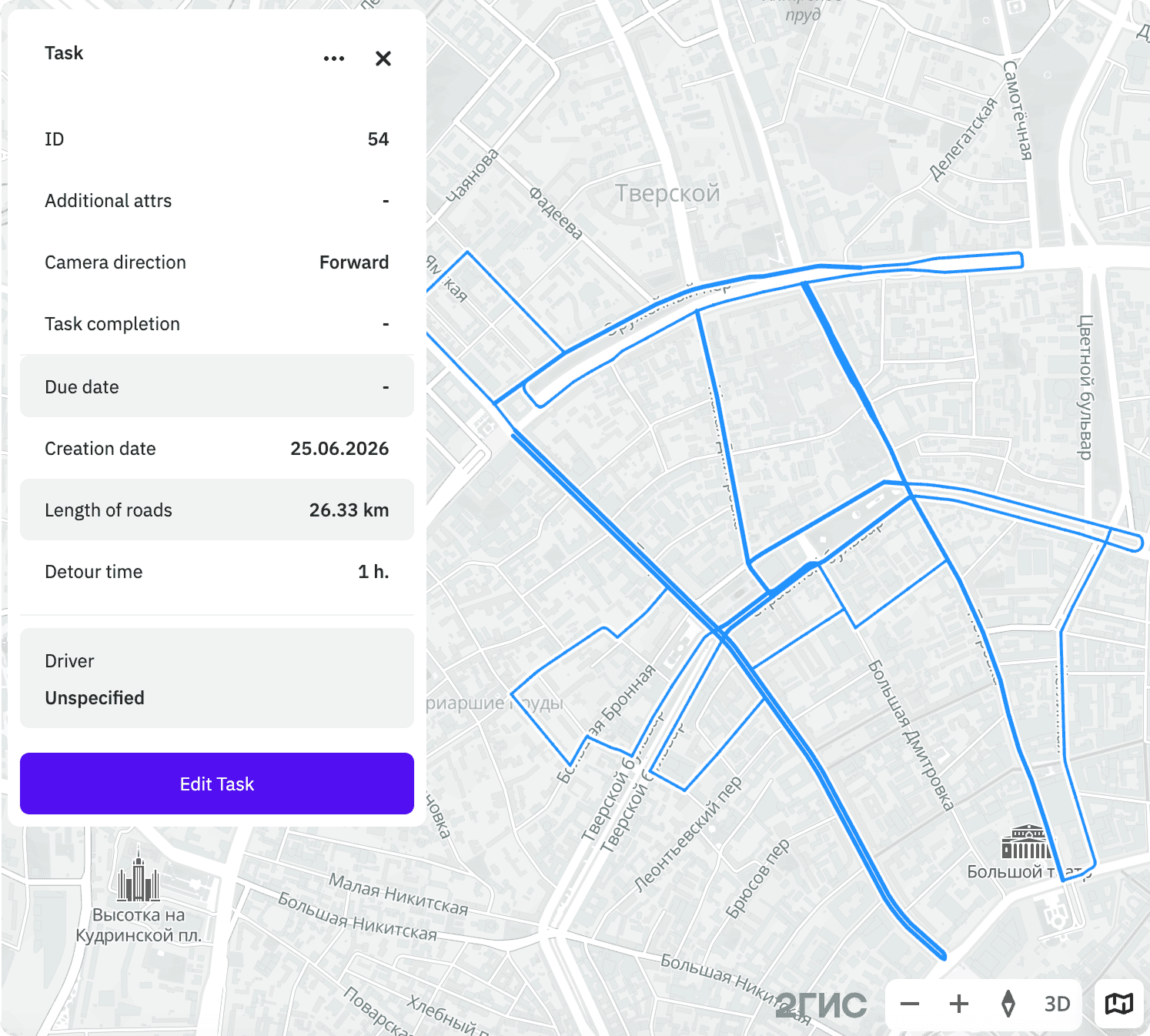
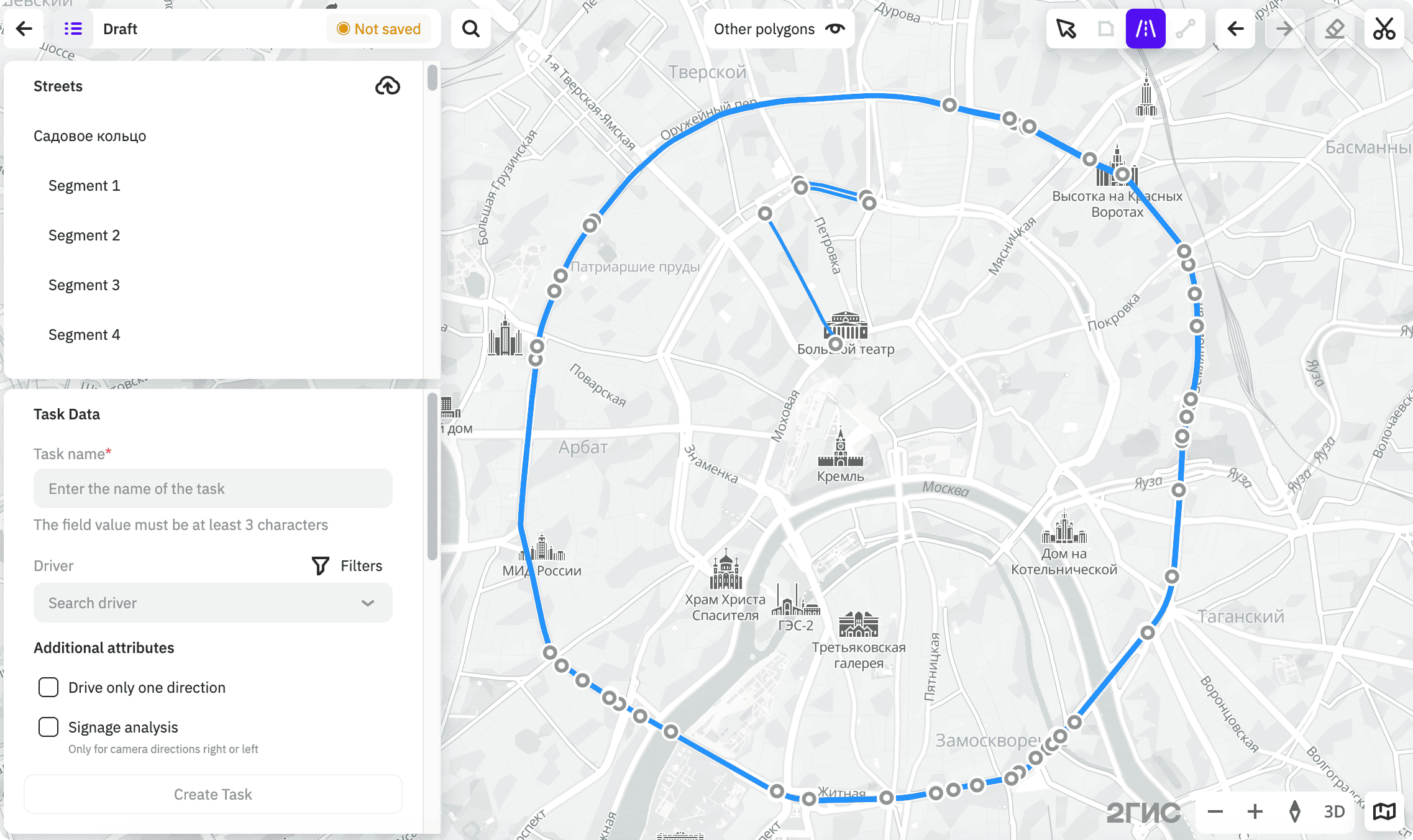
Roads: highlight roads of the route on the map. If necessary, you can select only the road segments you need.
An example of a task with roads highlighted on the map:
-
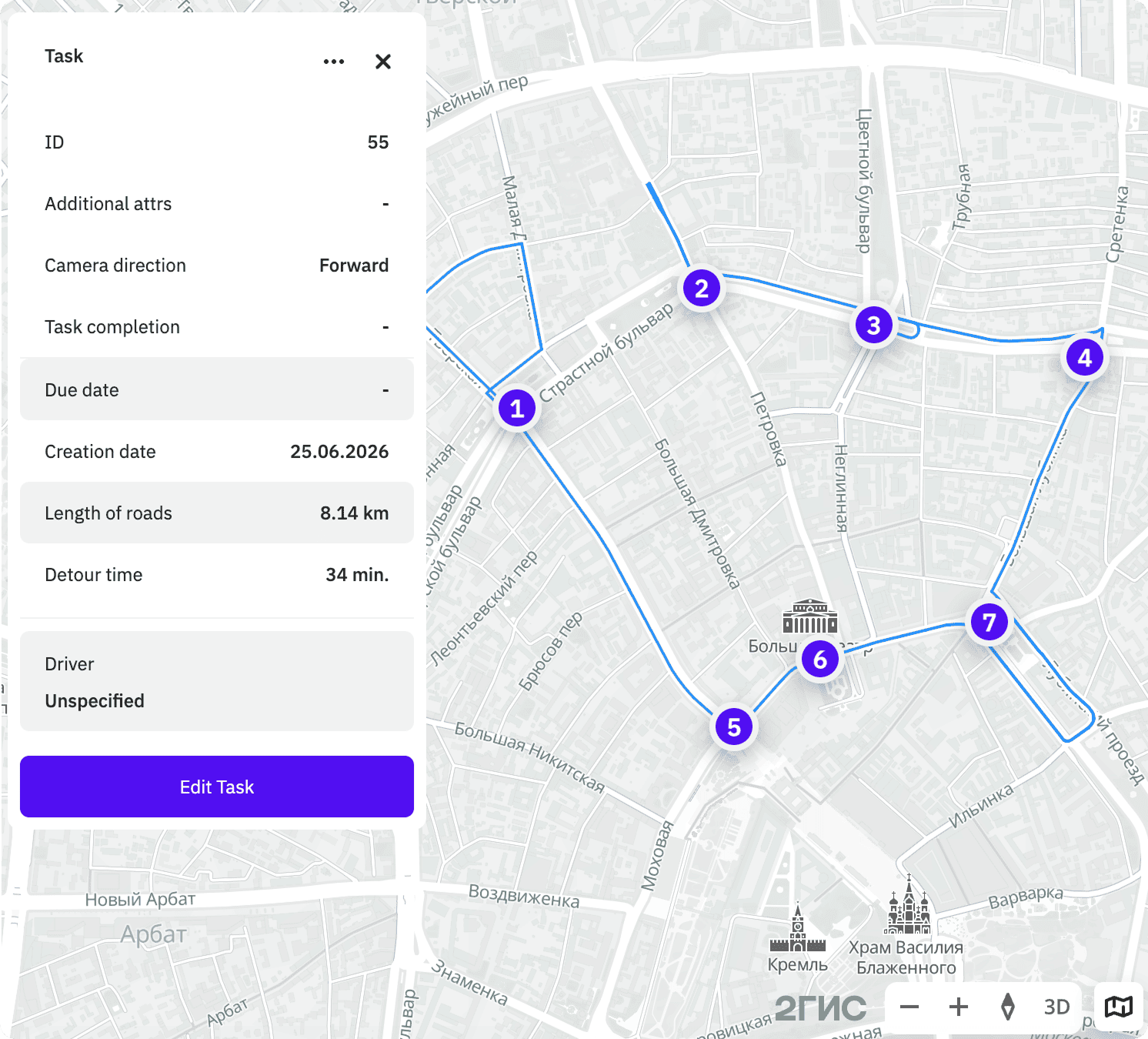
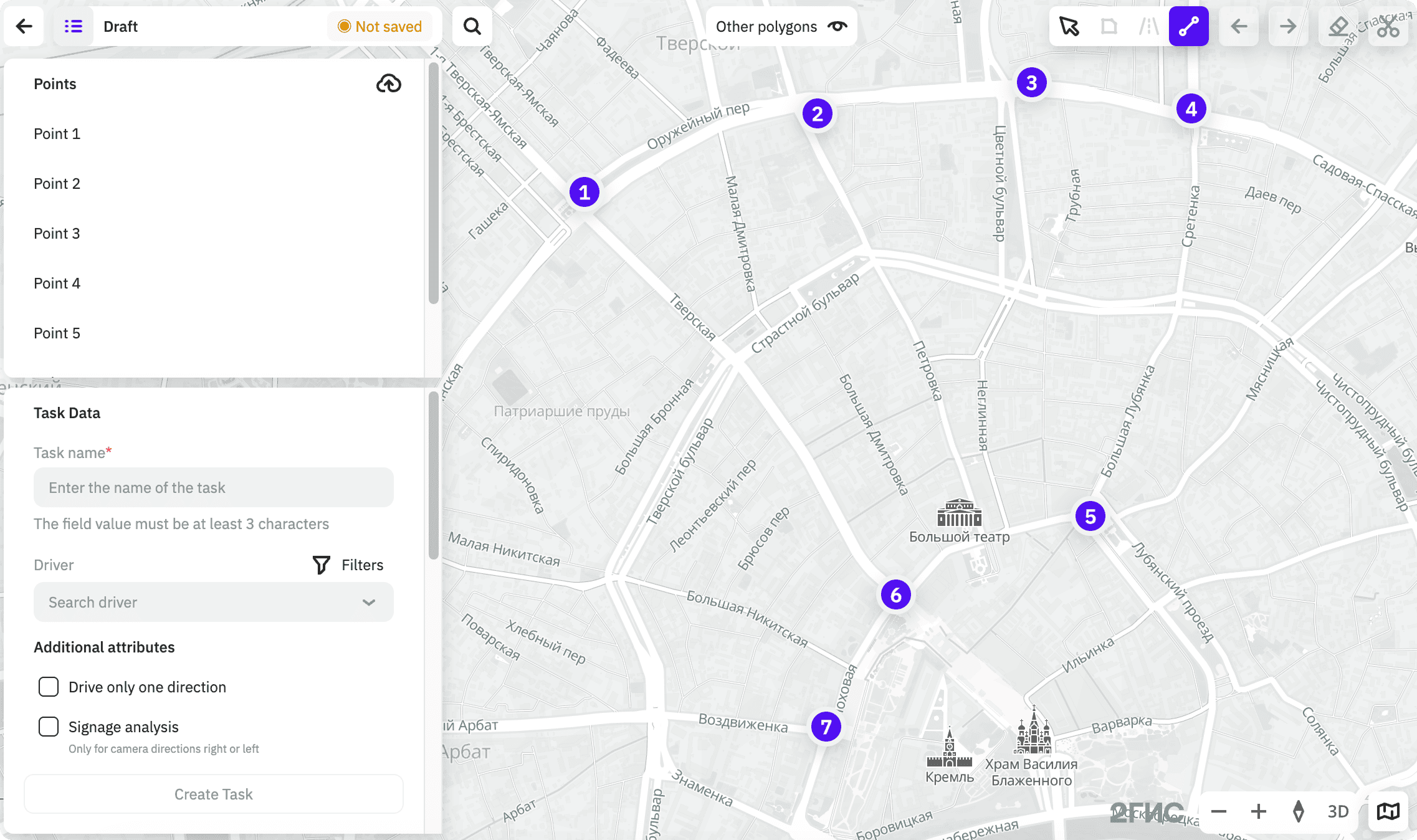
Points: click points on the map to visit within the task or upload points from a file. The shortest route by time passing through the points is calculated.
An example of a task with route points:
Polygons
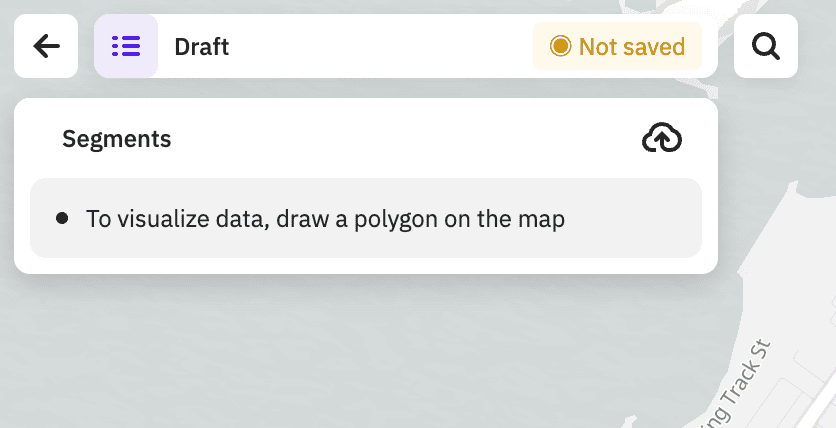
You can draw a polygon on the map or upload your own polygon from a file. You can also exclude roads from the polygons if necessary.
Creating a polygon on the map
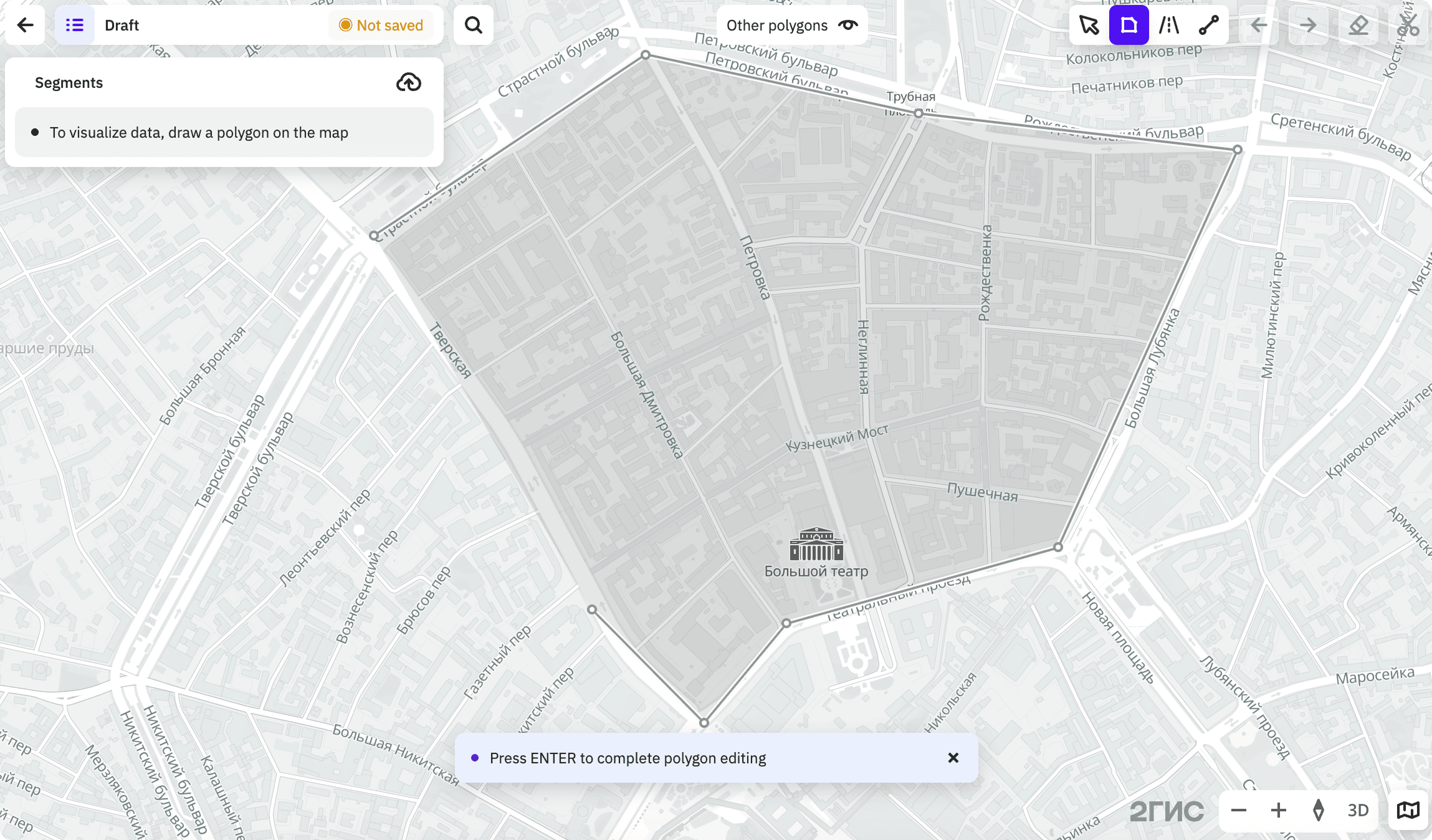
To create a polygon:
- Click
 icon.
icon. - Click at least three points on the map. The points are connected automatically, and the polygon lines must not intersect.
- To move a point, click and drag it to the required place on the map. To remove a point, hover over it and click
 icon.
icon. - To close the polygon, connect the start and end points or press Enter.
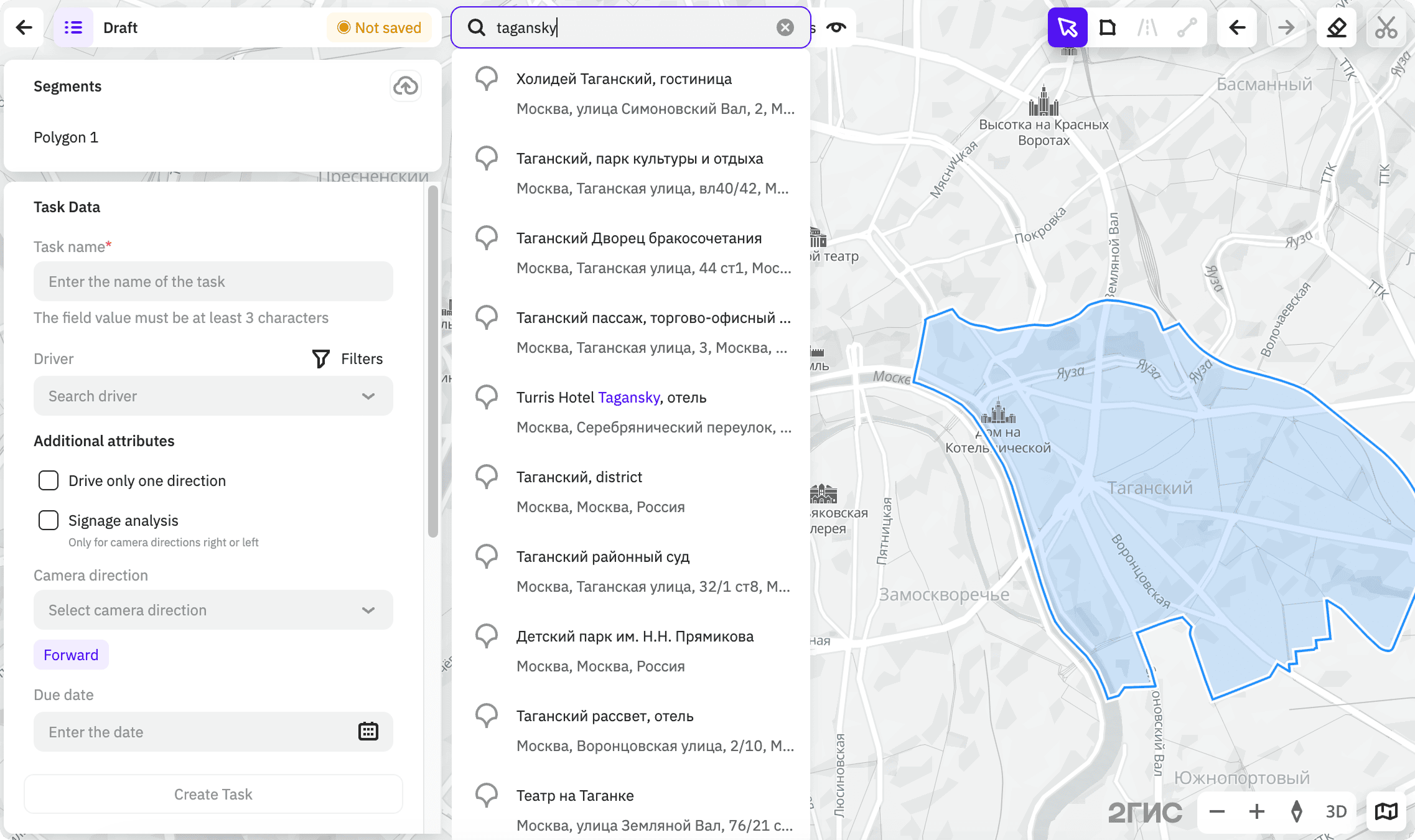
When you create a route, you can use the search by addresses, places, and organizations on the map. Also, you can use as polygons the standard territories (regions, districts, settlements, and others) selected in the search. The polygon is built on the map automatically:
Uploading a polygon from a file
To upload your own polygon from a file:
-
Click
icon. -
Click
 .
. -
Drag a file to the upload area or click Select a file on a computer. The file must meet the requirements.
Requirements for a file with polygon
- Geometry: Polygon
- Formats:
.kml,.kmz,.shp,.geojson - Size: up to 100 MB
- Encoding: UTF-8
- Coordinate system: WGS84(4326)
File example:
example.geojson
{
    "type": "FeatureCollection",
    "features": [
        {
            "type": "Feature",
            "properties": {},
            "geometry": {
                "coordinates": [
                    [
                        [37.60556107462642, 55.76462040952444],
                        [37.614942029534205, 55.75679538816905],
                        [37.62009171457146, 55.75882561530517],
                        [37.61356440678534, 55.76799723318385],
                        [37.60556107462642, 55.76462040952444]
                    ]
                ],
                "type": "Polygon"
            }
        }
    ]
}
Excluding roads from a polygon
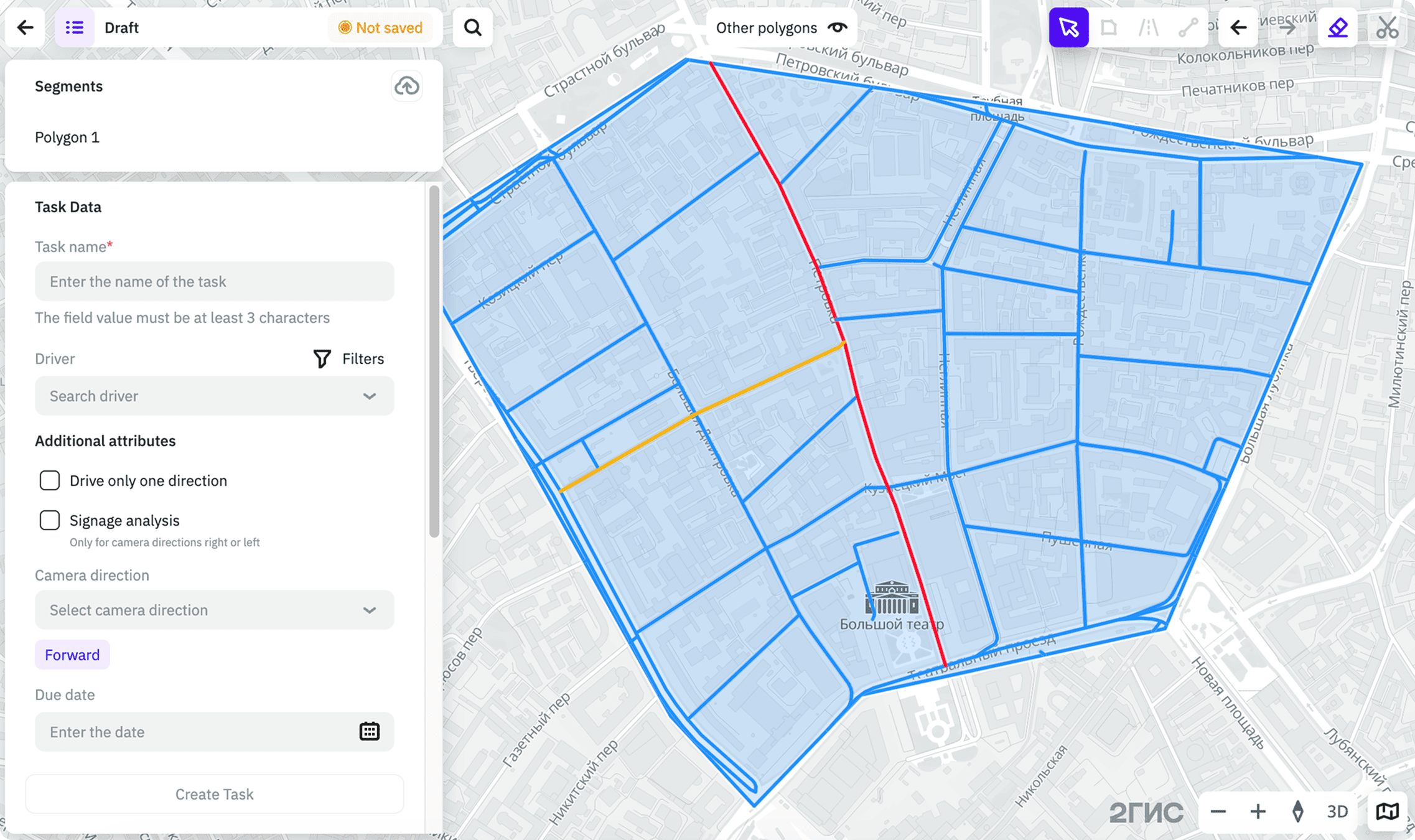
All roads inside the polygon are automatically included in the route. You can exclude some roads, for example, to move a part of them to another task later.
To exclude roads, when creating a polygon, click  icon and click the roads you need to exclude. In edit mode, excluded roads are highlighted in red.
Roads
To highlight roads on the map, click  icon and select segments. To delete a road from the route, click it on the map.
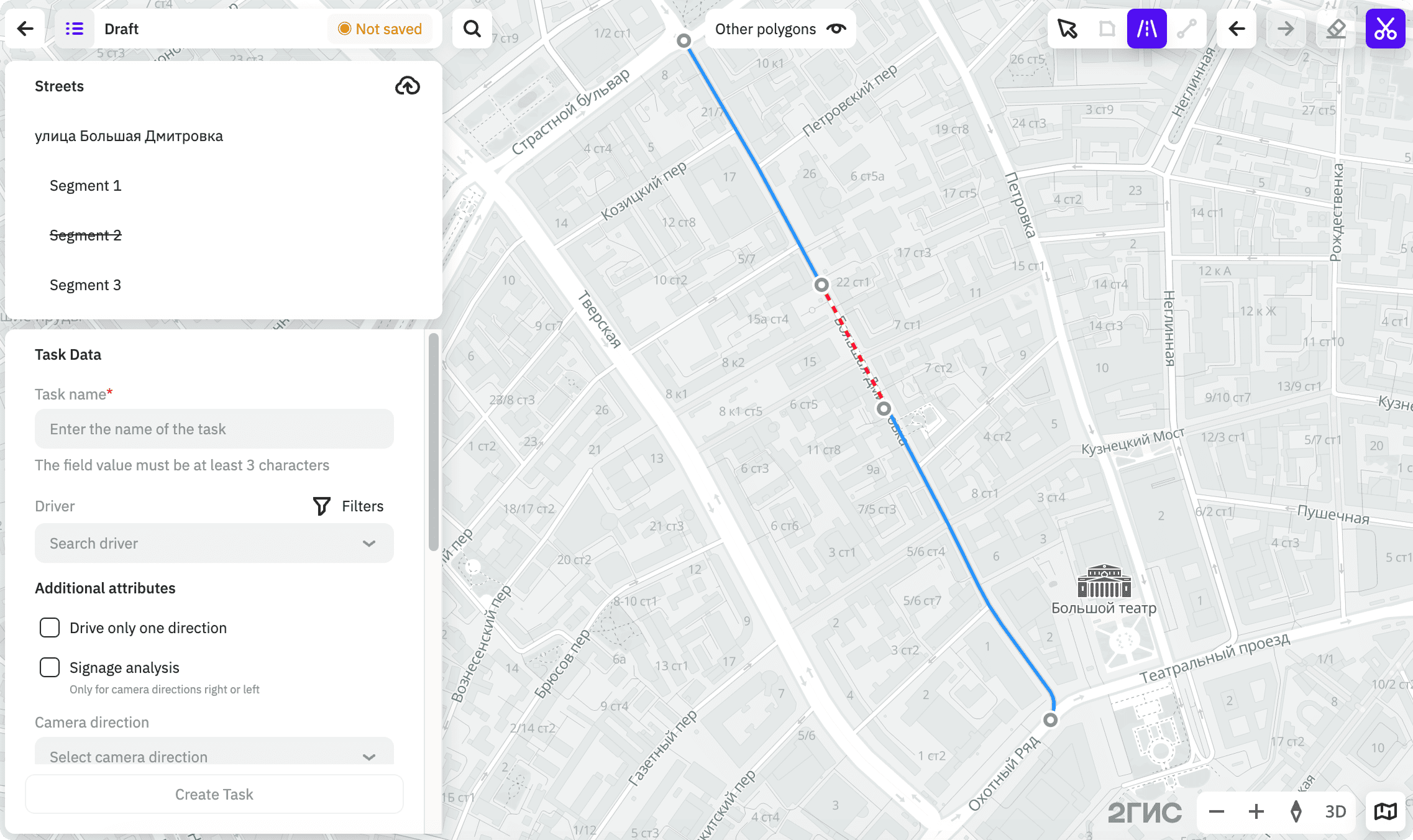
To include to the route only a part of a road, divide it into segments. To do this, click  icon and click the points at which the road will be divided into segments. To exclude a segment from the route, click
  icon in the segment list.
Points
You can select points on the map or upload points from a file.
Selecting points on the map
To select route points, click  icon and click points on the map.
To delete a point from the route, hover over it and click icon.
Uploading points from a file
To upload points from a file:
- Click
 icon in the lower-right corner.
 - Click Add priority points.
- Drag a file to the upload area or click Select a file on a computer.
- Click the card with points to display them on the map. The file must meet the requirements.
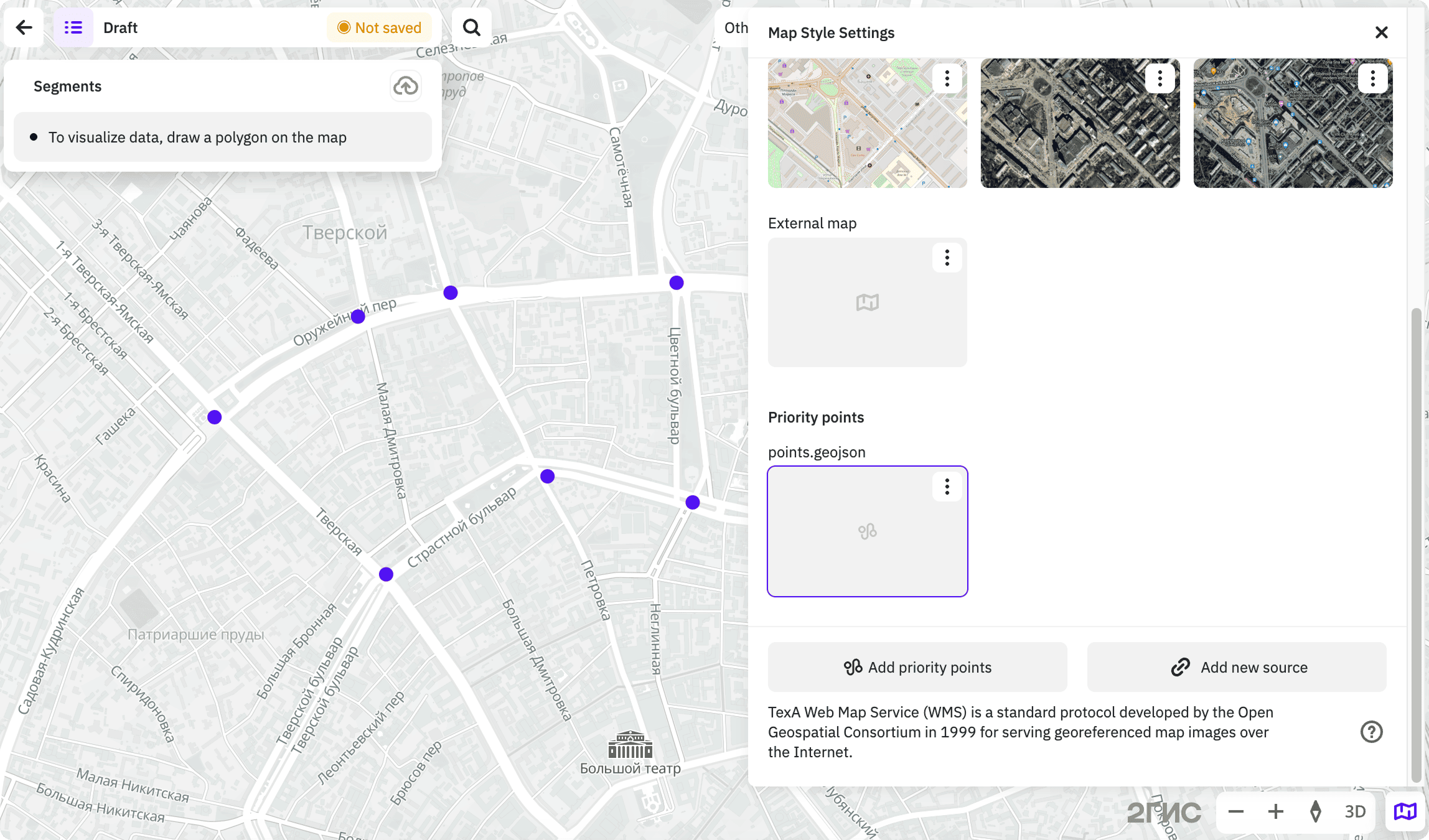
To include points to the route, use one of the methods:
- Click icon and click the required points on the map.
- Create a polygon that covers the points.
- Highlight roads that pass through the points.
Requirements for a file with points
- Geometry: Point
- Formats:
.kml,.kmz,.shp,.geojson - Size: up to 100 MB
- Encoding: UTF-8
- Coordinate system: WGS84(4326)
File example:
example.geojson
{
    "type": "FeatureCollection",
    "features": [
        {
            "type": "Feature",
            "properties": {},
            "geometry": {
                "coordinates": [
                  37.6157185964359,
                  55.7425345862884
                ],
                "type": "Point"
            }
        },
        {
            "type": "Feature",
            "properties": {},
            "geometry": {
                "coordinates": [
                  37.62456071169967,
                  55.74562276303914
                  ],
                "type": "Point"
            }
        },
        {
            "type": "Feature",
            "properties": {},
            "geometry": {
                "coordinates": [
                  37.62850679716186,
                  55.738627015305696
                ],
                "type": "Point"
            }
        },
        {
            "type": "Feature",
            "properties": {},
            "geometry": {
                "coordinates": [
                  37.63486648517579,
                  55.74459318221133
                ],
                "type": "Point"
            }
        },
        {
            "type": "Feature",
            "properties": {},
            "geometry": {
                "coordinates": [
                  37.61221513957028,
                  55.73031942190687
                ],
                "type": "Point"
            }
        },
        {
            "type": "Feature",
            "properties": {},
            "geometry": {
                "coordinates": [
                  37.6413005163125,
                  55.73323573654068
                ],
                "type": "Point"
            }
        },
        {
            "type": "Feature",
            "properties": {},
            "geometry": {
                "coordinates": [
                  37.624121381111735,
                  55.73504830947368
                ],
                "type": "Point"
            }
        }
    ]
}
Viewing information about a task
- Go to the Tasks tab.
- Open the page of the territory and project.
- Select the task in the list or click on the corresponding polygon or the route roads on the map. You can use the search by tasks in the list, sorting by task parameters, and also filtering tasks by tag, driver, status, and task type.
-
Depending on the task status, the map displays:
- New and Assigned: planned route.
- In Progress:
- The driver's latest geolocation.
- The completed part of the planned route (yellow).
- The remaining part of the planned route (blue).
- If the driver is currently working on the task, the current geolocation is displayed. Also, you can track their movement on the map in real time.
- Reports about road events from the driver.
- Completed: completed route and notifications about road events from the driver. The routes of completed tasks are also available in the 2GIS Pro datasets: Tasks Planned Data (planned routes) and Tasks Actual Data (actual routes).
-
The task card displays:
- ID: unique task identifier.
- Additional attributes: additional task attributes (e.g., Signage analysis and External task).
- Camera direction: car window the mobile device camera is pointed at.
- Task completion: task completion percentage. Displayed only for tasks with the In Progress or Completed status.
- Due date: scheduled date for task completion. Displayed if you filled in the field when creating or editing the task.
- Creation date: date of the task creation.
- Area: area of the territory (polygon) in km². Displayed only for tasks with polygons.
- Length of roads: total length of roads of the route.
- Detour time: estimated travel time around the polygon by car considering traffic jams.
- Driver: driver and the time of their last activity. Displayed if you assigned the driver to the task when creating or editing the task.
Viewing task status
- Go to the Tasks tab.
- Open the page of the territory and project.
- View the task status in its row. The color of the corresponding polygon or the route roads on the map depend on the task status.
Possible task statuses:
- New (blue color): the task is created but is not assigned to a driver. You can edit a task or cancel a task with this status.
- Assigned (yellow color): the task is assigned to a driver, but the driver has not yet started it. You can edit a task or cancel a task with this status.
- In Progress (yellow color): the driver has started the task in the mobile application. The status shows task progress percentage. You can complete a task or cancel a task with this status.
- Completed (green color): the task is marked as completed.
- Canceled: the task is canceled. Canceled tasks are not displayed on the map, but all information about them is saved in the task card. Canceled tasks are not removed from the list.
Editing a task
If the task is in the New or Assigned status, you can edit it:
- edit the route: change the drawn polygon, upload a new one, highlight or exclude roads, select or delete route points
- rename the task
- assign to another driver or remove a driver from the task
- specify additional attributes, such as making the task external and vice versa
- change the camera direction
- change the planned task completion date
To edit a task:
- Go to the Tasks tab.
- Open the page of the territory and project.
- Select the task and, in the opened dialog, click Edit task.
- Apply changes to the task.
- Click Save task.
Exporting geometry from a task
You can export routes in the .kml format (polygons and highlighted roads) created in the Task Planner. For example, if drivers view the route in another system instead of the mobile application, you can export geometries from the task and transfer them to the drivers.
- To export a task, mark it as external. To do this:
- Go to the Tasks tab.
- Open the page of the territory and project.
- Select the task and click Edit task in the opened dialog.
- Select the External task checkbox.
- Click Save task.
- In the list of tasks, select the task from which you want to export geometry.
- In the opened dialog, click
 icon and select Export (kml). A file with the task geometry will be downloaded.
To view the list of external tasks, in the list of tasks, select the Task type → External task checkbox in the filters.
Completing a task
You can mark a task with any completion percentage as completed and change its status to Completed. You can complete any tasks in the In Progress status and also external tasks in the New and Assigned statuses.
- Go to the Tasks tab.
- Open the page of the territory and project.
- Select the task.
- In the opened dialog, click icon and select Complete task.
Canceling a task
If a task is in the New, Assigned, or In Progress status, you can cancel the task and change its status to Canceled.
- Go to the Tasks tab.
- Open the page of the territory and project.
- Select the task.
- In the opened dialog, click icon and select Cancel task.
- Confirm the cancellation.