Users
The Task Planner supports a role model to manage employees' access to territories and projects within them.
With the Owner or Administrator role, you can work with users on the Users tab:
- view information about users
- import users from the Platform Manager
- change user role
- change user access
- remove users
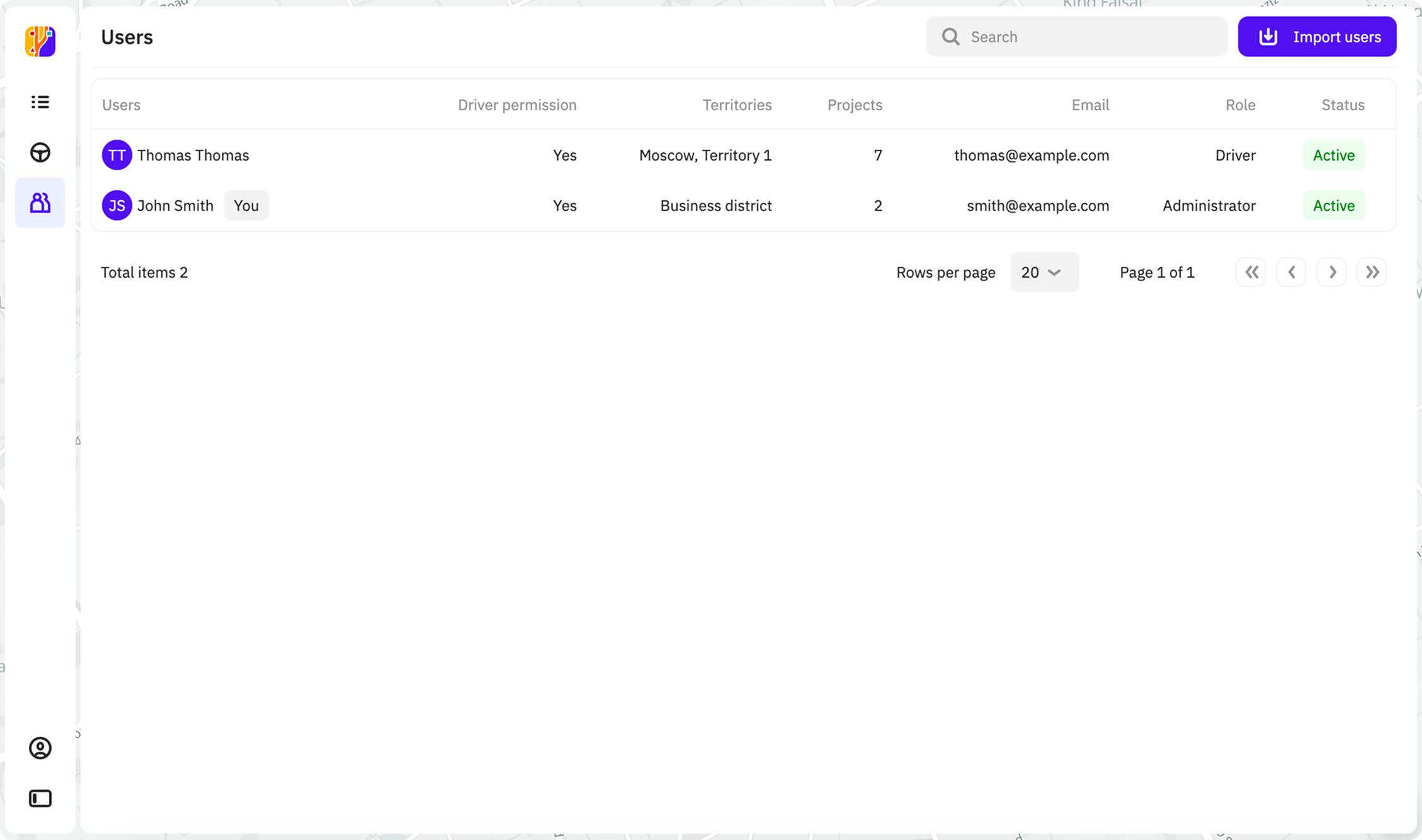
Viewing information about users
- Go to the Users tab.
- Open the card of the user. You can also search for users by name in the list.
The user card displays:
- User: full name of the user.
- Role: role of the user (Owner, Administrator, Manager, Driver).
- Employee: organization the user belongs to.
- Email: email address of the user.
- Number: phone number of the user.
- Mobile application version: version of the mobile application installed on the user's device.
- Last active: date of the last activity in the mobile application.
- Territory: territories the user has access to.
- Projects: projects the user has access to.
Importing users
The Platform Manager is a personal account for access management. It allows you to create an organization and add users for authorization in 2GIS CityLens tools.
Before importing users to the Task Planner, send them an invitation to join the organization via the Platform Manager.
To import users of your organization from the Platform Manager to the Task Planner:
- Go to the Users tab.
- In the upper-right corner, click Import users.
- Specify user roles. If necessary, remove users that should not be added to the Task Planner.
- Click Apply.
Changing user role
To assign the Owner role to a user, contact the 2GIS manager.
To assign another role to a user:
- Go to the Users tab.
- Open the card of the user and click Change role.
- Select a new role from the dropdown list.
Changing user access
If you grant a user with the Manager role edit access to the user list, they will be able to change roles and access for themselves and other users, including administrators and owners.
-
Go to the Users tab.
-
Open the card of the user and click Change access.
-
Specify user access:
- User list: access to the user list. Select the required checkboxes: View and/or Edit.
- Territories: access to territories. Select the territories from the list and select the required checkboxes: View and/or Edit.
- Projects: access to projects. Select the projects from the list and select the required checkboxes: View and/or Edit. Make sure that the user has access to the territories that the selected projects belong to.
- Tasks: access to tasks. Select the required checkboxes: View and/or Edit. Make sure that the user has access to the territories and projects that the selected tasks belong to.
- Driver Permisssion: whether the user can take tasks in the mobile application.
-
Click Save.
Removing users
- Go to the Users tab.
- Open the card of the user and click Remove user.
- Confirm the removal.