Tasks Planned Data
The Tasks Planned Data dataset provides information about tasks created in the Task Planner. The dataset contains data of completed tasks only.
Getting started
- Go to the Main or Data tab.
- Select the Tasks Planned Data dataset.
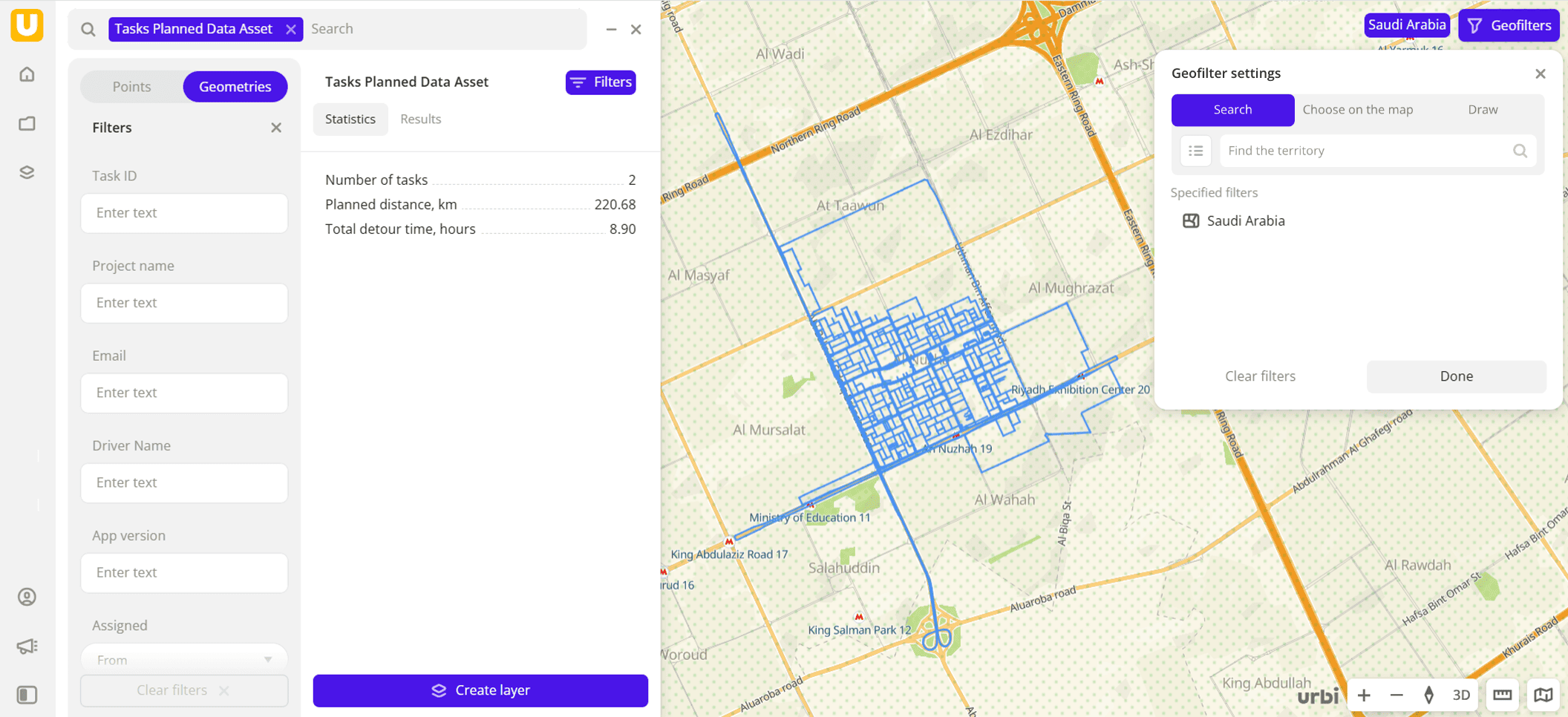
- In the Geofilter settings dialog, select up to 50 territories for which the data sample is created. You can use standard and custom territories and also build polygons, proximity zones, and circles on the map. For more information, see the Geofilters section. After you select the territories, click Done.
- On the Filters tab, set the remaining filters if necessary.
The data is displayed on the map as lines (planned routes) or centroid points: the centers of the object geometries. Filtering results are available on two tabs:
-
Statistics: general statistics about the sample:
- Total count of tasks.
- Planned distance in kilometers.
- Total planned time in hours.
- Chart with the distribution of tasks by projects. Displayed if multiple projects are selected.
-
Results: general information about tasks and their list. When selecting a task from the list:
- Information about the task is displayed in the card.
- The route is displayed on the map. To zoom in, click Show on map.
You can manually edit the list of filtering results to keep only selected tasks in the data sample. To do this, click Edit list, select the tasks, and click Apply.
To save the data sample, click Create layer and customize data visualization.
Filters
For the Tasks Planned Data dataset, the following filters are available:
- Task ID: task identifier from the Task Planner.
- Project name: project name the task belongs to.
- Email: driver's email.
- Driver name: driver's full name.
- App version: version of the mobile application on the driver device.
- Assigned: date when a driver was assigned to the task. You can specify a time interval.
- Completed: date when the task was completed. You can specify a time interval.
- Planned time, h: expected time to complete the task, in hours.
- Planned distance, km: expected route length in the task, in kilometers.
- Completion, %: percentage of task completion.
To reset the parameter filter, click  icon next to the filter name. To reset all parameter filters, click Reset filters at the bottom of the tab.
To hide the filter by territory, in the Geofilter settings dialog, click  icon next to the geofilter name. To delete the geofilter, click icon next to its name. To delete all geofilters, click Clear filters.