Devices
The documentation provides a description of the interface in Russian.
Devices are objects from which location data of agents is collected, such as EGTS trackers. Devices are linked to agents as location sources.
To use the mobile application as a location source, when creating an agent in the Location source block, select Application. In this case, there is no need to create a device.
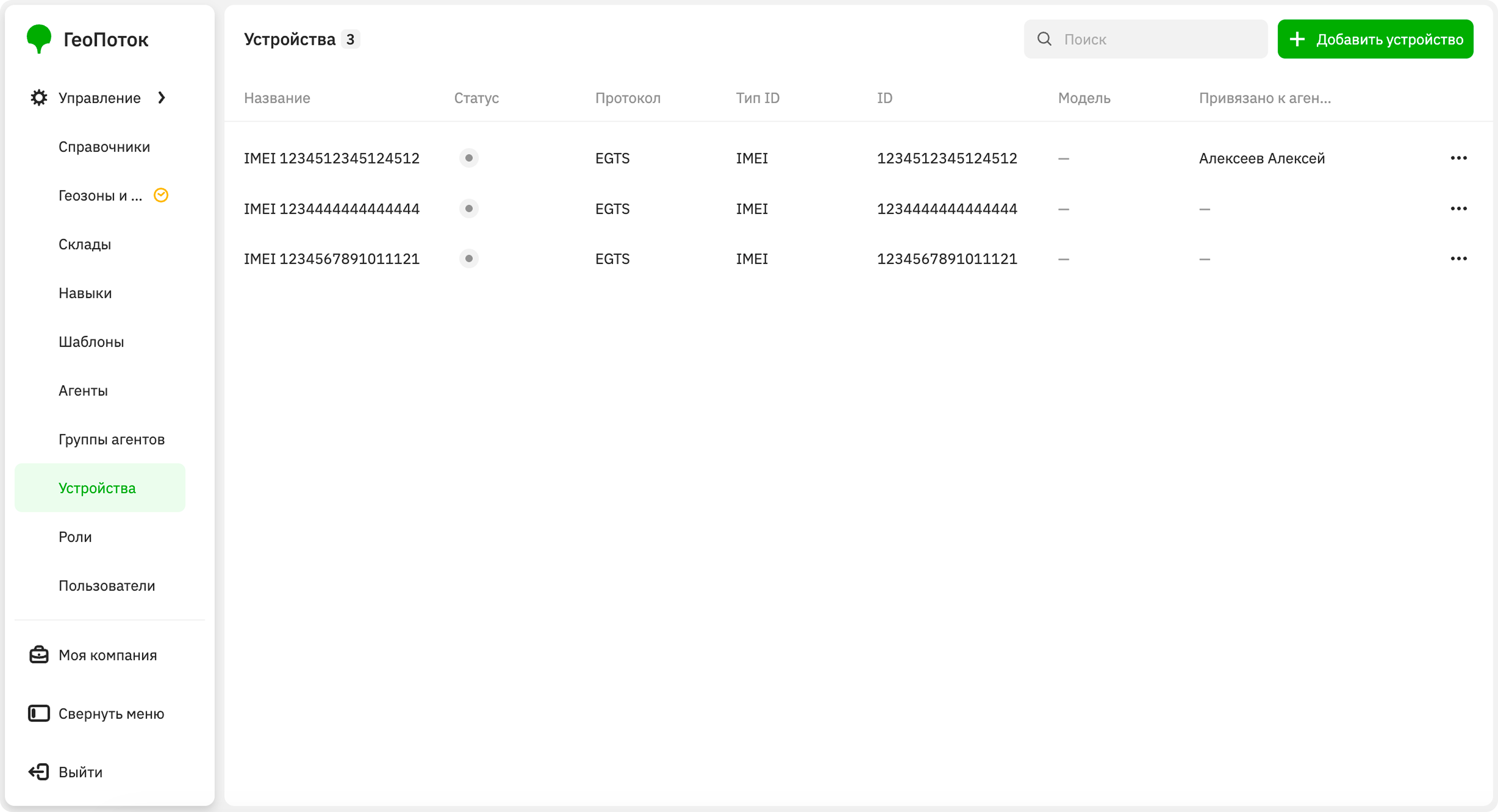
With the Main administrator and Company administrator roles, you can work with devices on the Management → Devices tab:
- add devices
- view device information
- view device linking history to agents
- edit device information
- delete devices
With the Dispatcher role, you can view information about devices and the history of their linking to agents.
Adding a device
-
Go to the Management → Devices tab.
-
Click Add device.
-
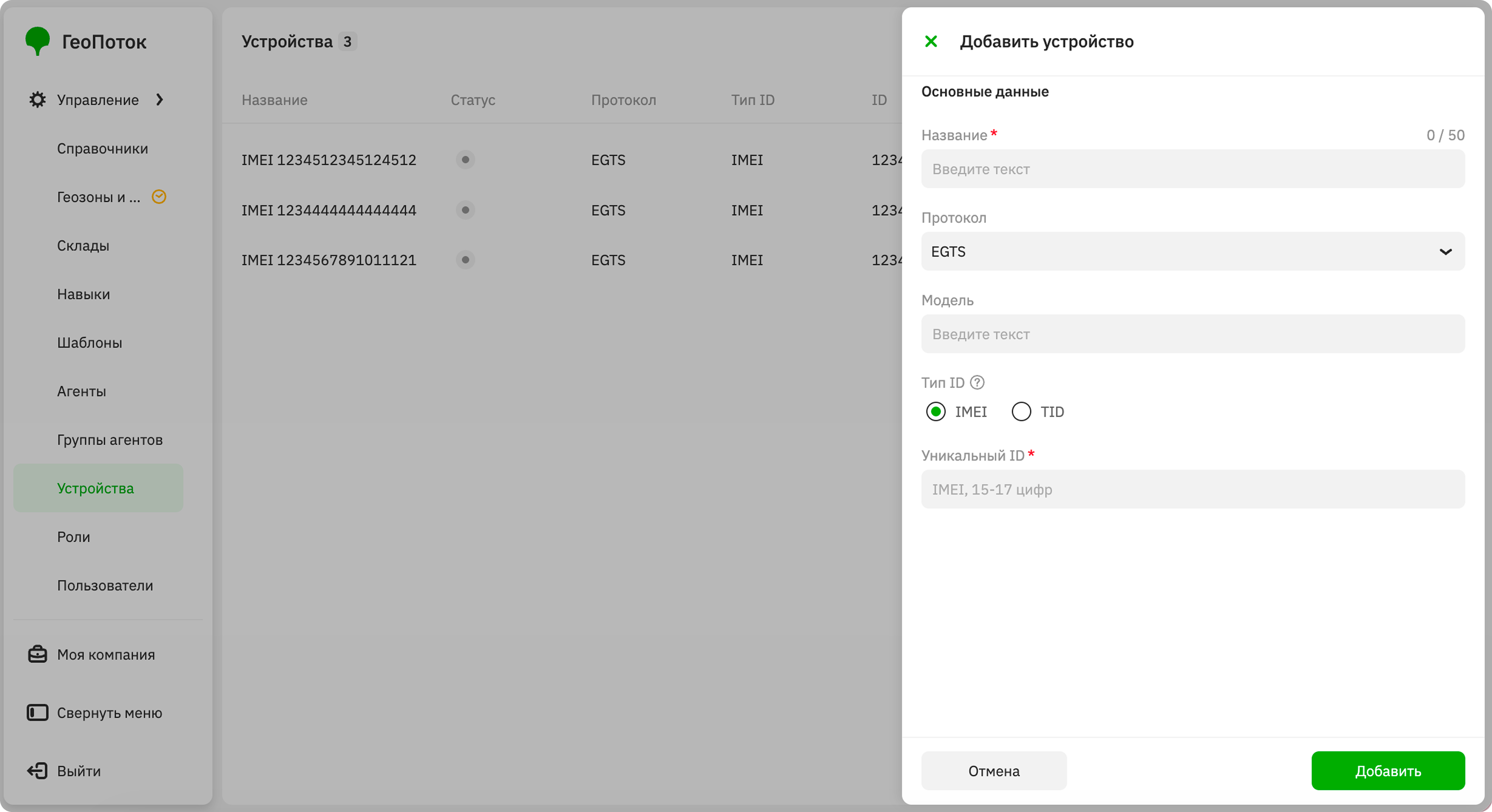
Specify the device parameters:
-
Name (mandatory parameter): name of the device.
-
Protocol (mandatory parameter): protocol through which the device transmits location data: for example, EGTS.
-
Model: reference information about the device model.
-
ID type (mandatory parameter): type of device identifier.
- IMEI: IMEI of the device. A unique identifier consisting of 15–17 digits that is assigned to the device by the manufacturer and is usually indicated on the packaging or on the body of the device.
- TID: Terminal ID of the device. A unique numerical identifier that is assigned to the device during configuration. It is assigned by the operator and determines the device's credentials.
-
-
Click Add.
After creating a device, you can link it to an agent as a location source. To do this, select the device in the Location source section when creating or editing an agent.
Viewing device information
- Go to the Management → Devices tab.
- Open the device card. You can search devices by name.
The device card displays:
-
Name: name of the device.
-
Device connection:
- Status: status of the connection with the device.
Active- location data is received within the inactivity timeout specified in the device parameters.Inactive- location data is not received.
- Status: status of the connection with the device.
-
Main data:
- Protocol: protocol through which the device transmits location data.
- Model: reference information about the device model.
- ID type: type of device identifier.
- Unique ID: unique object identifier specified when creating the device.
-
Linking to agent:
- Linked to agent: name of the agent and its template. Displayed if the device is linked to an agent as a location source.
- Not linked to agent: displayed if the device is not linked to any agent.
-
Creation date: date and time the device was added.
-
Last modified: date and time of the last update to the device's information.
Viewing device linking history
You can view the history of linking devices to agents and check which agents used the device as a location source and when:
- Go to the Management → Devices tab.
- In the device row, click
 icon and select Device linking history.
The history card displays:
- Name: device name.
- Unique ID: unique object identifier specified when creating the device.
- Current linking to agent: agent name and the date and time the device was linked to the agent. Displayed if the device is currently linked to an agent as a location source.
- Past: agent names, dates and times of device linking to agents and unlinking from them, and reasons for unlinking (e.g., manual unlinking by an administrator). Displayed if the device was previously linked to agents as a location source.
Editing device information
You can edit the main device data: name, protocol, model, and ID type. You can change the device linking to the agent only in the agent card.
To edit device information:
- Go to the Management → Devices tab.
- In the device row, click icon and select Edit.
- Apply changes to the device information.
- Click Save.
Deleting a device
If a device is linked to an agent, unlink it from the agent, and then delete:
- Go to the Management → Devices tab.
- In the device row, click icon and select Delete.
- Confirm the deletion.