Agent groups
The documentation provides a description of the interface in Russian.
You can combine agents into groups to manage access: users with the Agent group manager role can view agents only from their group.
You can group agents of one or different types, for example, operators and couriers. Agents from the same group can see each other's information and location in the mobile application.
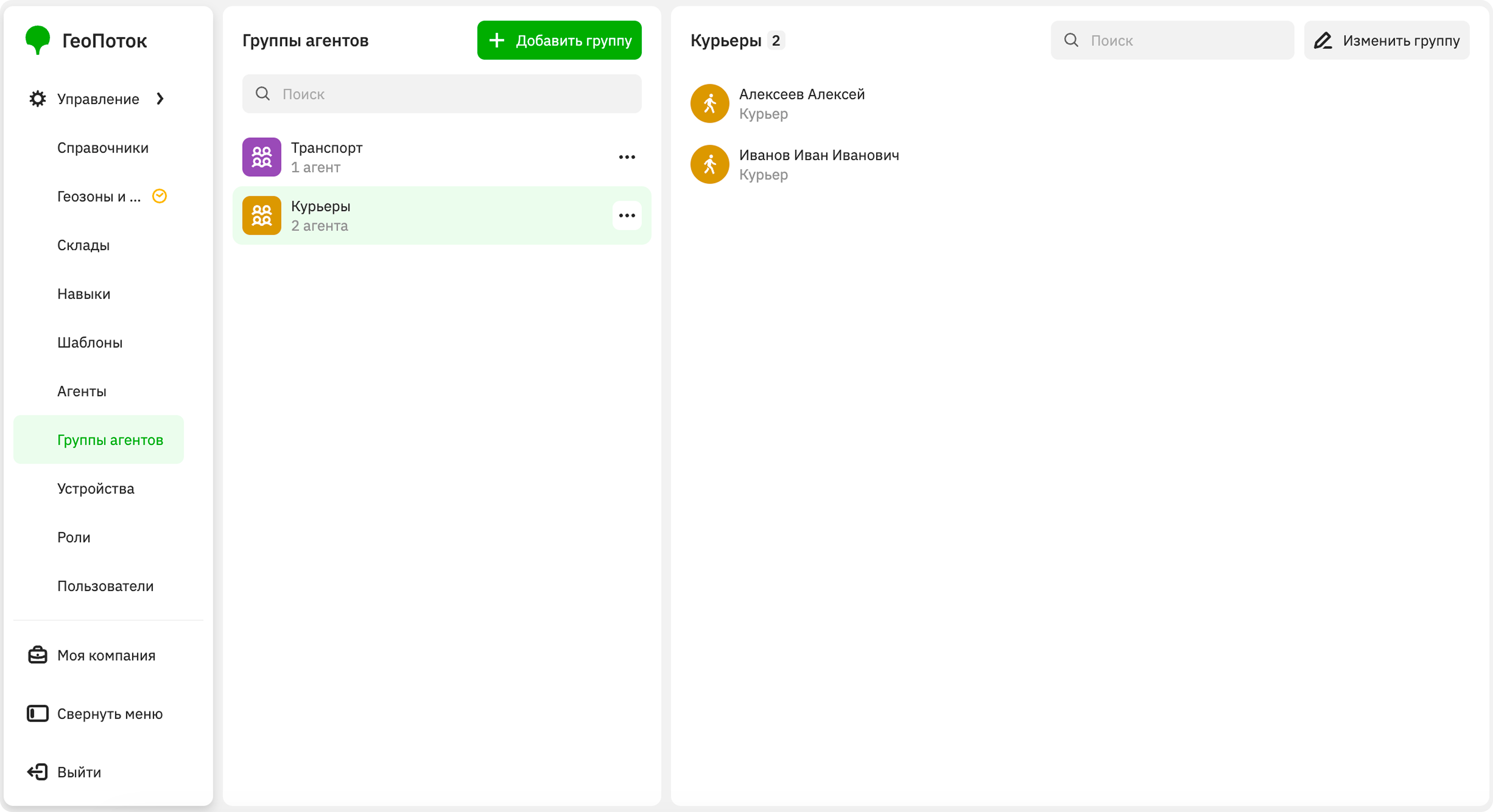
With the Main administrator, Company administrator, and Dispatcher roles, you can work with groups on the Management → Agent groups tab:
With the Agent group manager role, you can view agents from your group.
Creating a group
-
Go to the Management → Agent groups tab.
-
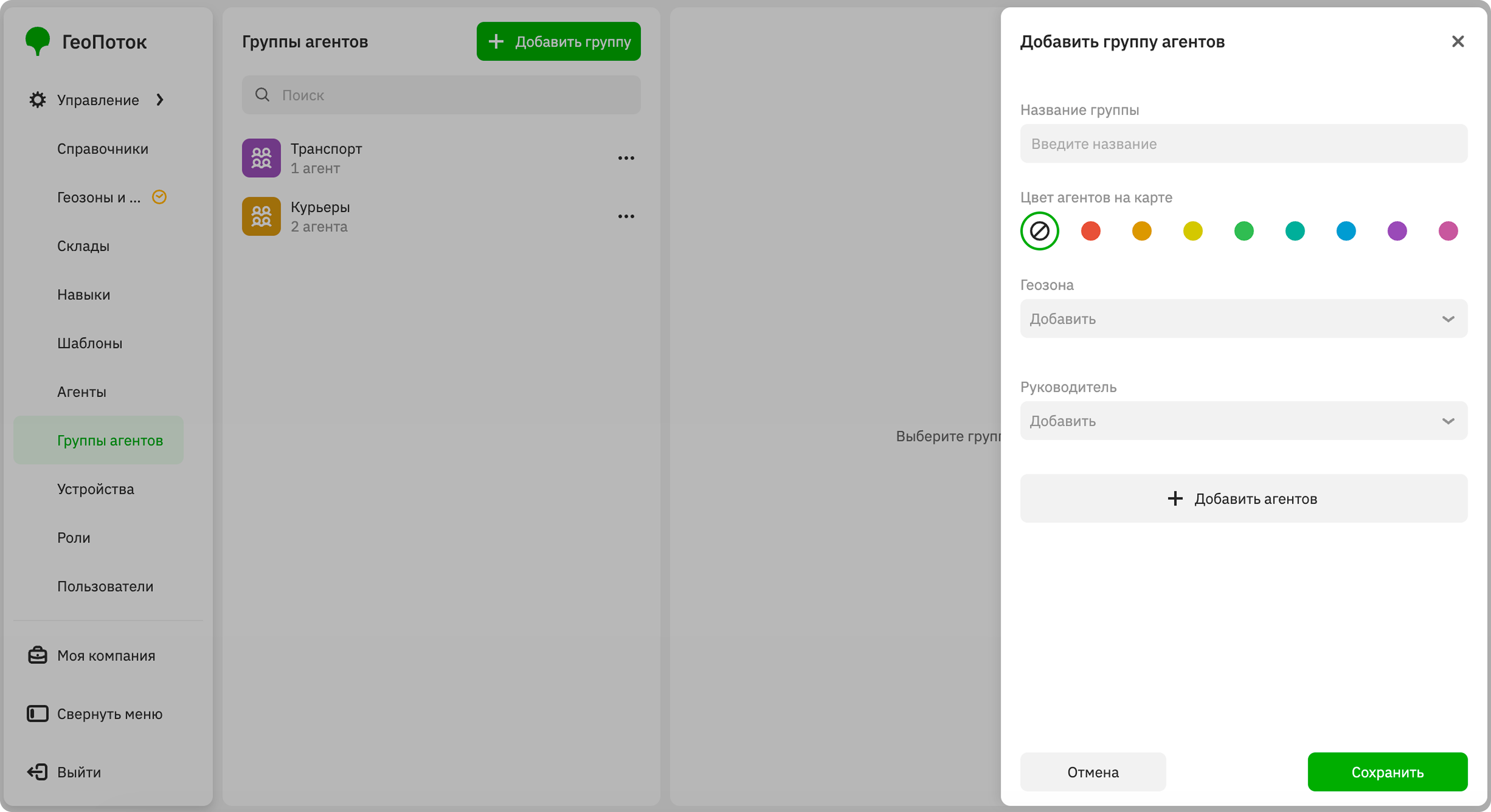
Click Add group.
-
Specify the group parameters:
-
Group name (mandatory parameter).
-
Agent color on the map: color of agent icons from the group on the map. If the agent belongs to multiple groups, the agent's icon is multicolored.
-
Geozone: geozone where agents from the group operate. By default, the list of geozones is imported into the administrator web panel during the 2GIS GeoFlow service integration.
-
Manager: user with the Agent group manager role who will manage the group. They can view agents from the group.
-
Agents: agents that belong to the group.
To add an agent, click Add agents and select them. You can add agents created from different templates. To remove an agent from the group, click
 icon next to them and confirm the removal.
-
-
Click Save.
Editing a group
You can edit groups:
- rename the group
- change the agent icon color on the map
- change the geozone where agents from the group operate
- change the group manager
- add or remove agents from the group
To edit a group:
- Go to the Management → Agent groups tab.
- In the group row, click
 icon and select Edit.
 - Apply changes to the group.
- Click Save changes.
Deleting a group
When you delete a group, agents from it are not deleted from the system. You can add these agents to another group.
- Go to the Management → Agent groups tab.
- In the group row, click icon and select Delete.
- Confirm the deletion.