Administrator web panel overview
The documentation provides a description of the interface in Russian.
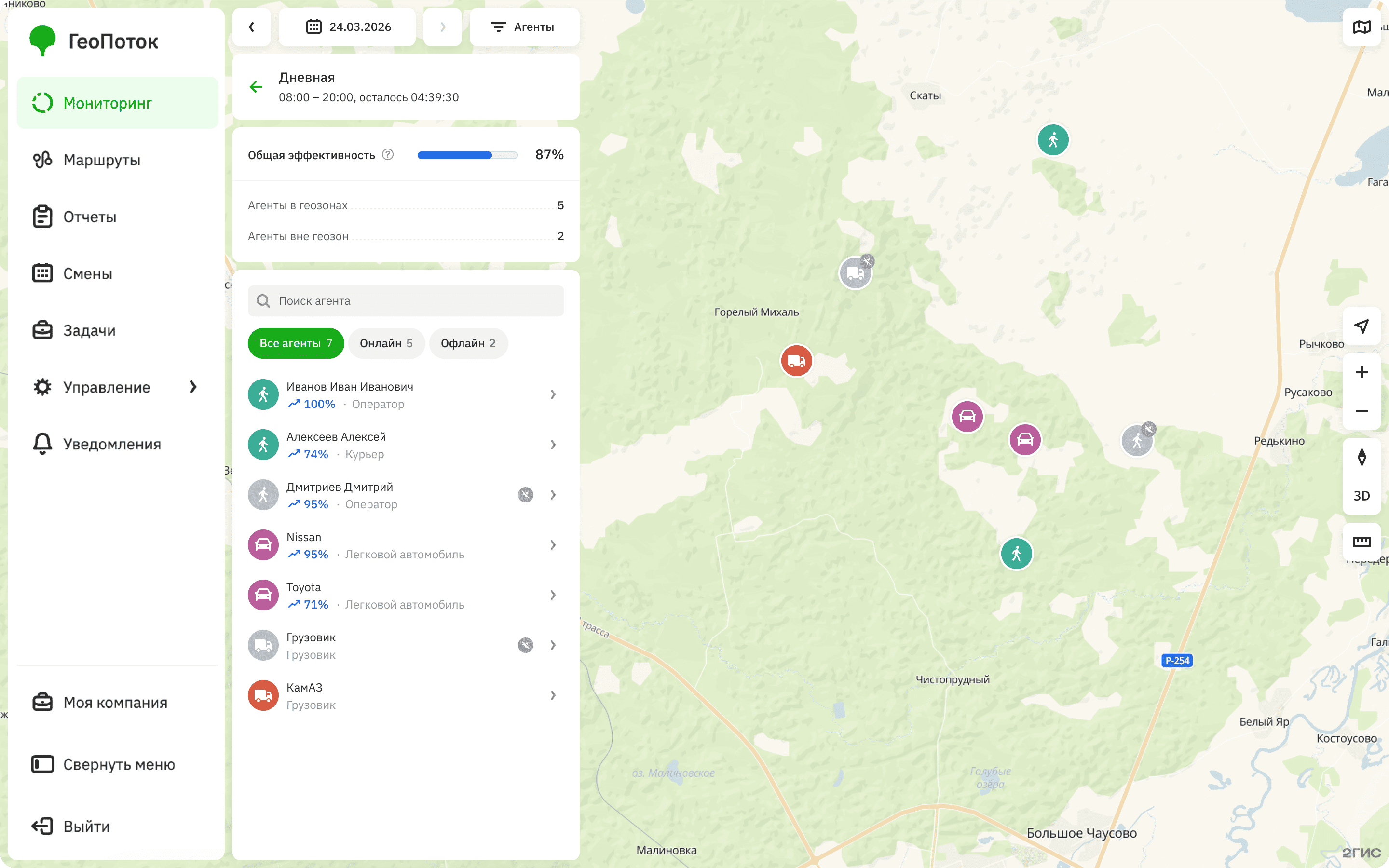
In the 2GIS GeoFlow administrator web panel, users can manage agents (employees and transport), plan work shifts, track agent location in real time, and view their movement history.
For managing access to the web panel, user roles are used.
User roles
- Employee - has access only to the mobile application for performing tasks.
- Agent group manager - has access to information about agents from their own group.
- Dispatcher - has access to information about all agent groups, can manage skills, groups, tasks, and shifts.
- Company administrator - has full access to the system, except for company settings.
- Main administrator - performs the same functions as the company administrator but can only be one per company. The main administrator role is assigned to the user who created the company.
| Agent group manager | Dispatcher | Company administrator | Main administrator | |
|---|---|---|---|---|
| Managing users | ✗ | ✗ (only viewing) | ✓ (except for the role Company administrator) | ✓ |
| Managing directories | ✗ (only viewing) | ✗ (only viewing) | ✓ | ✓ |
| Managing skills | ✗ (only viewing) | ✓ | ✓ | ✓ |
| Managing templates | ✗ (only viewing) | ✗ (only viewing) | ✓ | ✓ |
| Managing agents | ✗ (only viewing agents from their own group) | ✗ (only viewing) | ✓ | ✓ |
| Managing agent groups | ✗ (only viewing their own groups) | ✓ | ✓ | ✓ |
| Managing devices | ✗ | ✗ (only viewing) | ✓ | ✓ |
| Planning shifts | ✗ (only viewing) | ✓ | ✓ | ✓ |
| Managing tasks | ✗ (only viewing tasks of their own groups) | ✓ | ✓ | ✓ |
| Viewing monitoring data | ✓ (only their own groups) | ✓ | ✓ | ✓ |
| Viewing notifications | ✓ | ✓ | ✓ | ✓ |
| Managing map style | ✓ | ✓ | ✓ | ✓ |
| Managing company settings | ✗ | ✗ | ✗ | ✓ |
Web panel interface
Work with the following tabs in the administrator web panel depending on your role:
- Monitoring: to view information about the current shift in real time and past shifts, as well as agent performance, location, movement history, and status.
- Shifts: to plan work shifts and add tasks and agents to them.
- Tasks: to create and manage tasks performed by agents.
- Management: to work with users, directories, skills, templates, agents, agent groups, and devices.
- Notifications: to view notifications about events that occurred during shifts.
All web panel users can manage map style settings.
Getting started
Perform the preparatory steps depending on your role in the administrator web panel.
- Main administrator
- Company administrator
- Dispatcher
- Agent group manager
-
Register a company. Open the 2GIS GeoFlow administrator web panel. Use the login and password you received from your manager.
-
Click Add company.
-
Enter the company name and click Create. After creating the company, you will automatically receive the Main administrator role.
-
Add administrators to the company and assign them the Company administrator role.
-
Register in the 2GIS GeoFlow administrator web panel using the invitation from the main administrator.
-
Add users to the company and assign them the Agent group manager, Dispatcher, or Employee roles depending on access level.
-
Add directories for classifying tasks and agents.
-
Add devices that will be used as location sources.
-
Create agents and link devices to them.
-
Register in the 2GIS GeoFlow administrator web panel using the invitation from the company administrator.
-
Add skills for classifying tasks and agents.
-
Create agent groups: assign group managers and add agents to the groups.
-
Create or import tasks for agents.
-
Create shifts and add tasks and agents to them.
-
Register in the 2GIS GeoFlow administrator web panel using the invitation from the company administrator.
-
Work with shift monitoring: track the location of agents in real time, view their movement history during shifts, and performance metrics.