Shifts
The documentation provides a description of the interface in Russian.
Shift is a period for planning agent work, for example, a day or night shift. You can specify the start and end time, the shift recurrence, lists of tasks and agents. Shifts can overlap: multiple shifts with agents (including the same ones) can be active simultaneously. The agent can view the list of their tasks for the current shift in the mobile application.
With the Main administrator, Company administrator, and Dispatcher roles, you can work with shifts on the Shifts tab:
With the Agent group manager role, you can view shifts of your group.
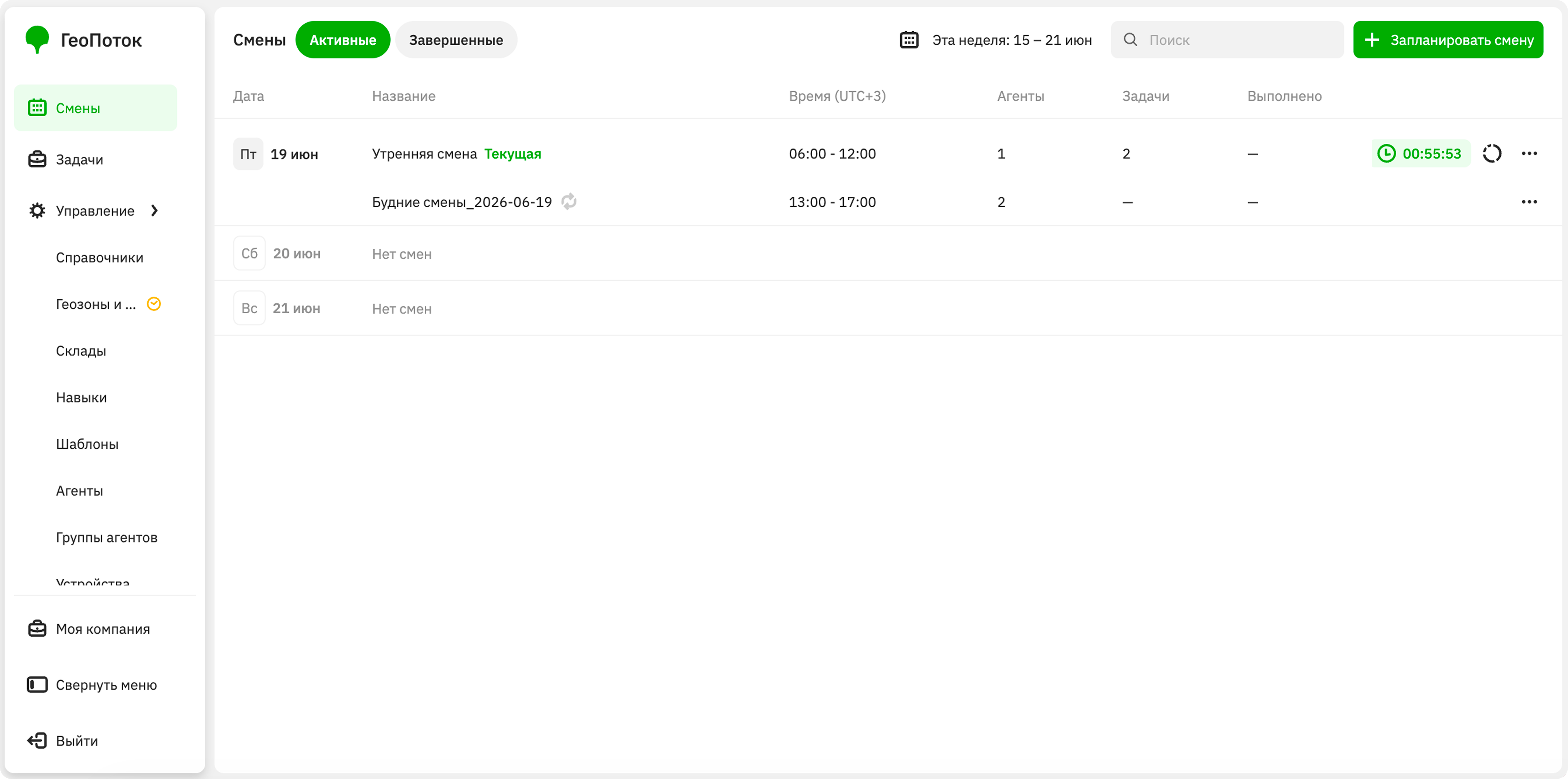
Creating a shift
You can create:
- separate shifts for a particular day
- shift series with a recurring schedule
-
Go to the Shifts tab.
-
Click Plan shift.
-
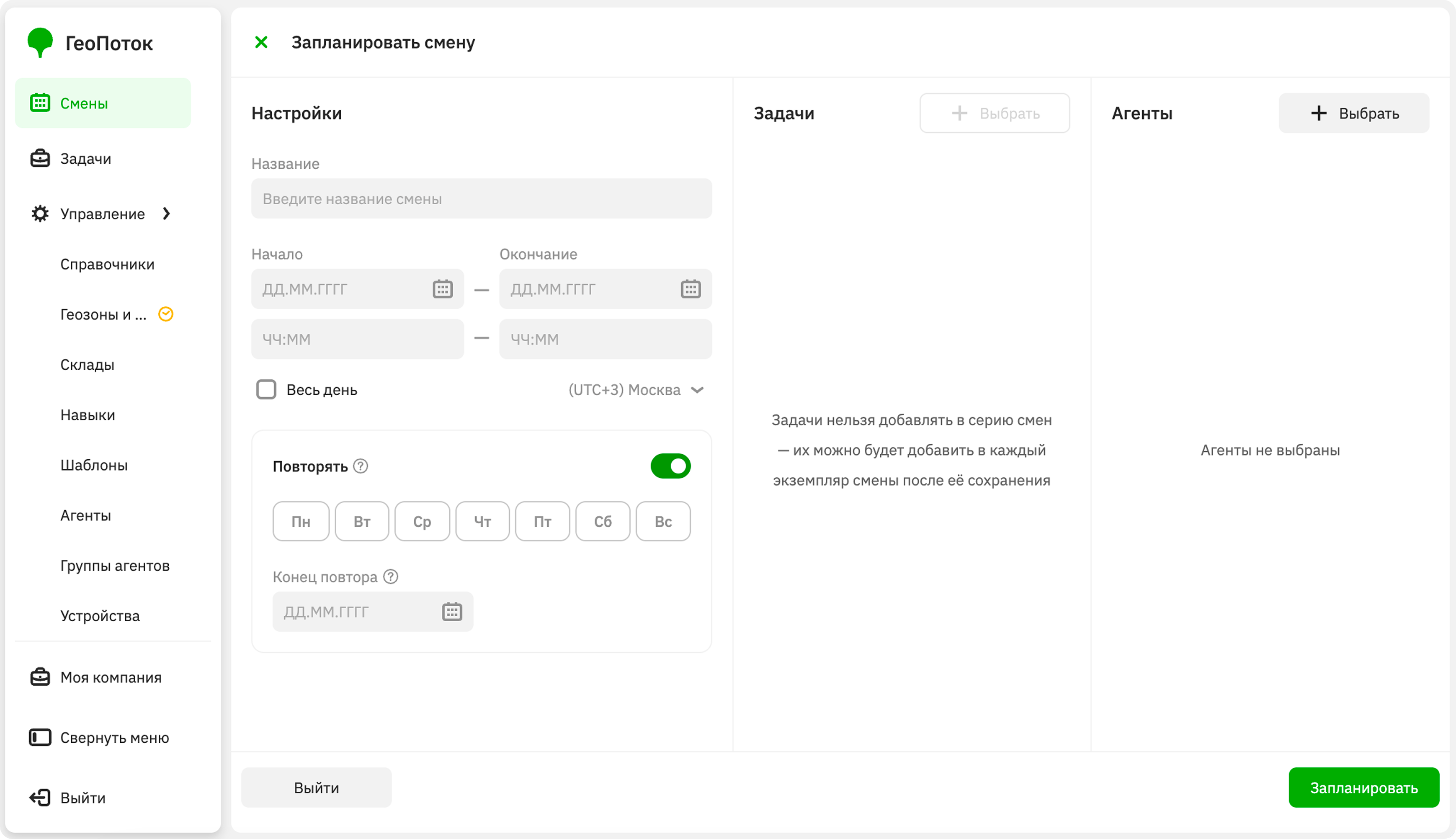
Specify shift settings:
-
Shift name (mandatory parameter).
-
Start (mandatory parameter): start date and time of the shift. The shift must start in the future. If you want to plan a shift for today, specify a time later than the current time. The shift will automatically start at the time you specify.
-
End (mandatory parameter): end date and time of the shift. The minimum shift duration is 1 hour, the maximum is 24 hours. The shift will automatically end at the time you specify.
-
All day: select the checkbox if the shift should last the entire day (from 00:00 to 23:59).
-
Time zone: time zone for which the time is specified.
-
Repeat: to create a series of shifts, enable the option and specify the parameters:
- Repeat days: select the days of the week on which the shift repeats. If you add agents, they will be added to all shifts in the series.
- Repeat end (mandatory parameter): date of the last shift in the series.
-
-
(Optional) If you specified the shift repeat option, you will be able to add tasks after saving - separately to each shift in the series. If the option is not specified, add tasks to the shift at the creation stage:
-
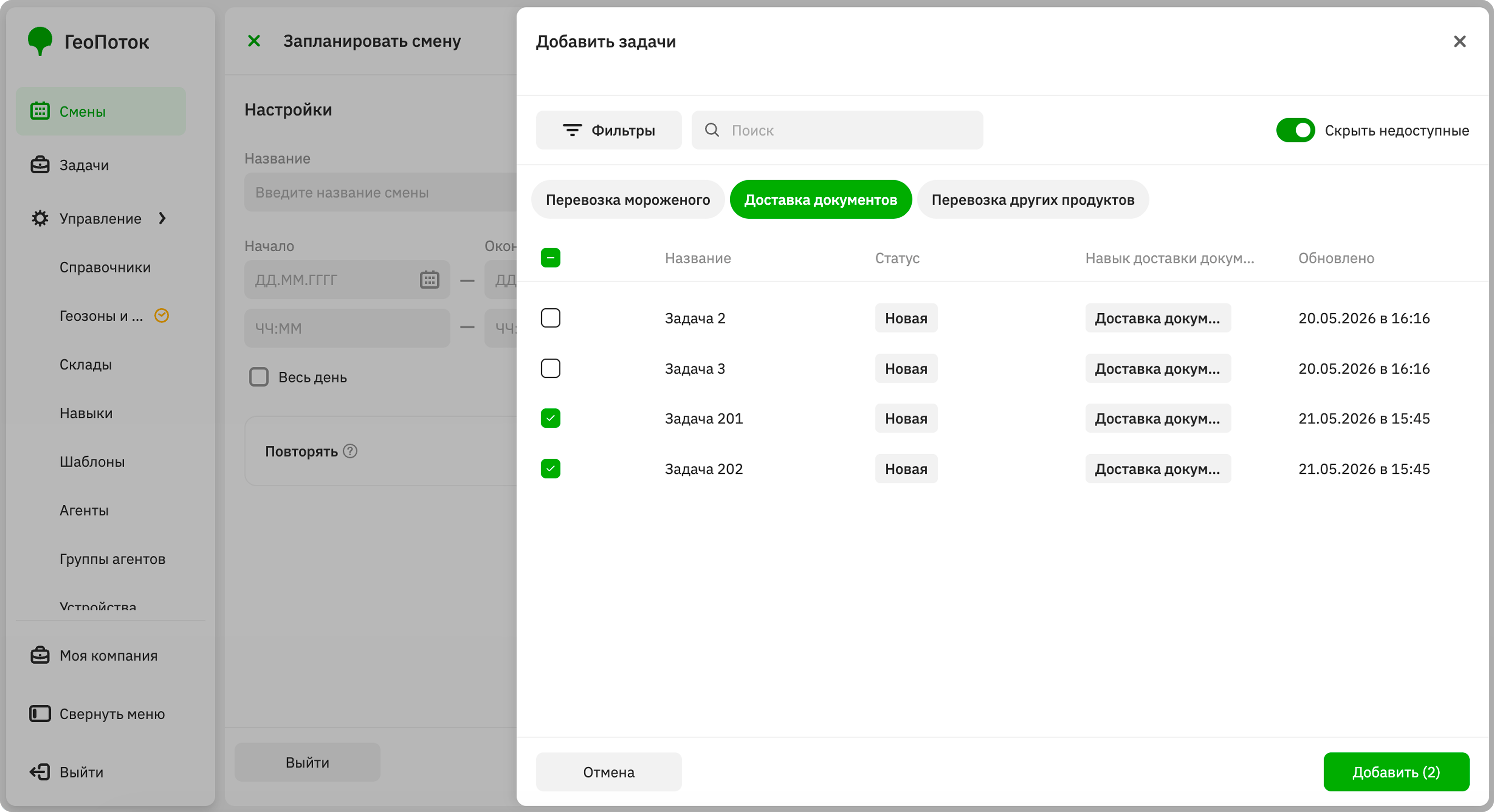
In the Tasks panel, click Select.
-
Select the checkboxes next to the tasks.
You can search tasks by name, filter them by task type (template), date, and time of execution. To hide tasks that cannot be added to the shift, enable the Hide unavailable option.
-
Click Add.
-
-
To add agents to work on the shift:
-
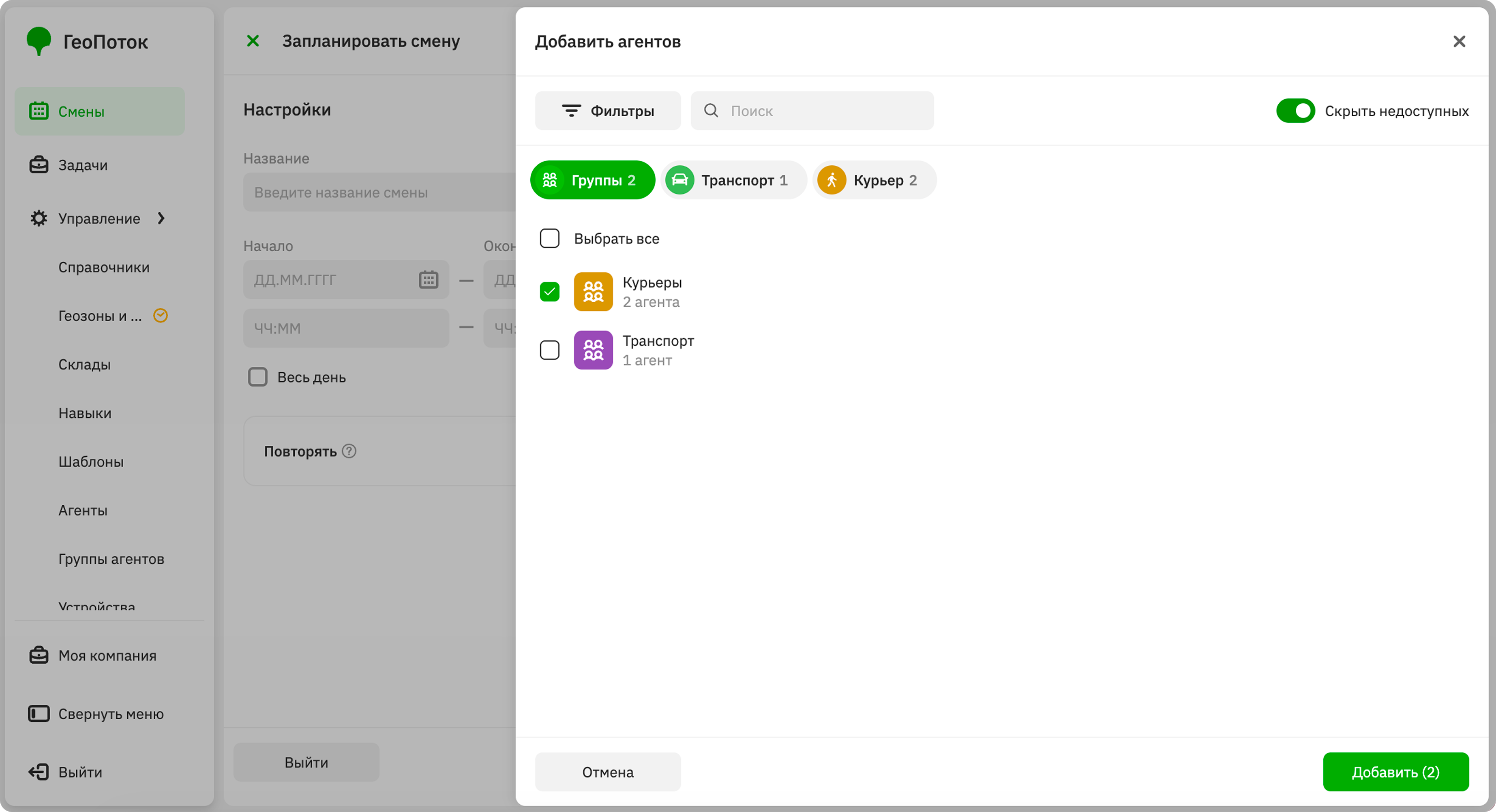
In the Agents panel, click Select.
-
Select the checkboxes next to the agents or groups.
You can search agents by name, filter them by agent type (template), work date, and time, and select agent groups. To hide agents that cannot be added to the shift, enable the Hide unavailable option.
-
Click Add.
If you specified the shift repeat option, agents will be copied to all shifts in the series. To add different agents, edit the shifts.
-
-
(Optional) To assign a task to an agent, select the checkbox next to the task and click Assign in the agent row.
-
Click Plan.
Viewing shift information
- Go to the Shifts tab.
- Open the shift card. You can search shifts by name and filter them by date and status: active or completed.
The shift card displays:
- Name: shift name.
- Statistics: time remaining until the end of the shift. Available only for the current shift.
- Monitoring: link to shift monitoring. Available only for the current shift.
- Date and time: shift start and end date and time in the specified time zone.
- Repeat: days of the week on which the shift repeats and the recurrence end date. Available only for shifts in a series.
- Agents: list of agents added to the shift.
- Tasks: list of tasks added to the shift.
- History: movement history of agents during the shift. Available only for completed shifts.
Editing a shift
You can edit active (current and future) shifts:
- edit the name, start and end date and time, recurrence schedule
- assign tasks to agents
- add or remove tasks and agents from the shift
If a shift belongs to a series, you can change either a separate shift or the shift series. When changing the series, the settings will only apply to future shifts, and the current active shift will remain unchanged.
-
Go to the Shifts tab.
-
To change a single shift, in the shift row, click
 icon and select Edit shift.
To change the shift series, select Edit series. Only the selected shift and subsequent shifts will be changed. Previous shifts will not be affected.
-
Apply changes to the shift.
-
Click Save.
Duplicating a shift
When duplicating a shift, all agents from the original shift are automatically copied to the new one. If necessary, you can edit the shift.
- Go to the Shifts tab.
- In the shift row, click icon and select Duplicate.
- Apply changes to the shift if necessary.
- Click Save changes.
Deleting a shift
You cannot restore a deleted shift.
You can only delete future shifts. If a shift belongs to a series, you can delete either a separate shift or the shift series.
-
Go to the Shifts tab.
-
To delete a single shift, in the shift row, click
icon and select Delete shift.To delete the shift series, select Delete series. Only the selected shift and subsequent shifts will be deleted. Previous shifts in the series will not be deleted.
-
Confirm the deletion.