Tasks
The documentation provides a description of the interface in Russian.
You can create or import tasks for agents, for example: deliver cargo, conduct inspections, etc. A task can be assigned to an agent during a shift if they have all the required skills to perform the task. The agent can view the list of their tasks for the current shift in the mobile application.
Before creating or importing tasks, create a task template with a set of attributes.
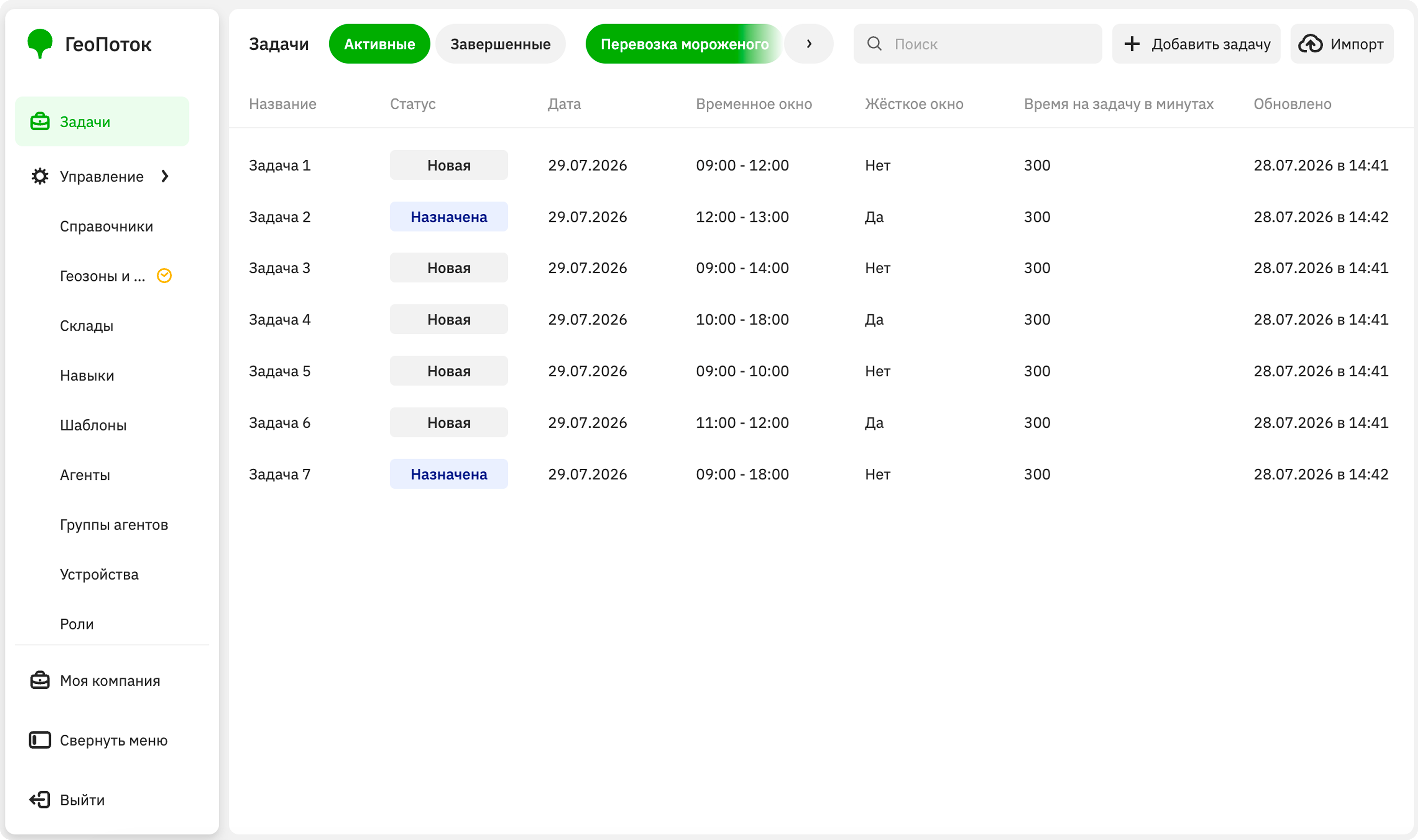
With the Main administrator, Company administrator, and Dispatcher roles, you can work with tasks on the Tasks tab:
With the Agent group manager role, you can view tasks assigned to agents from your group.
Creating a task
-
Go to the Tasks tab.
-
Click Add task.
-
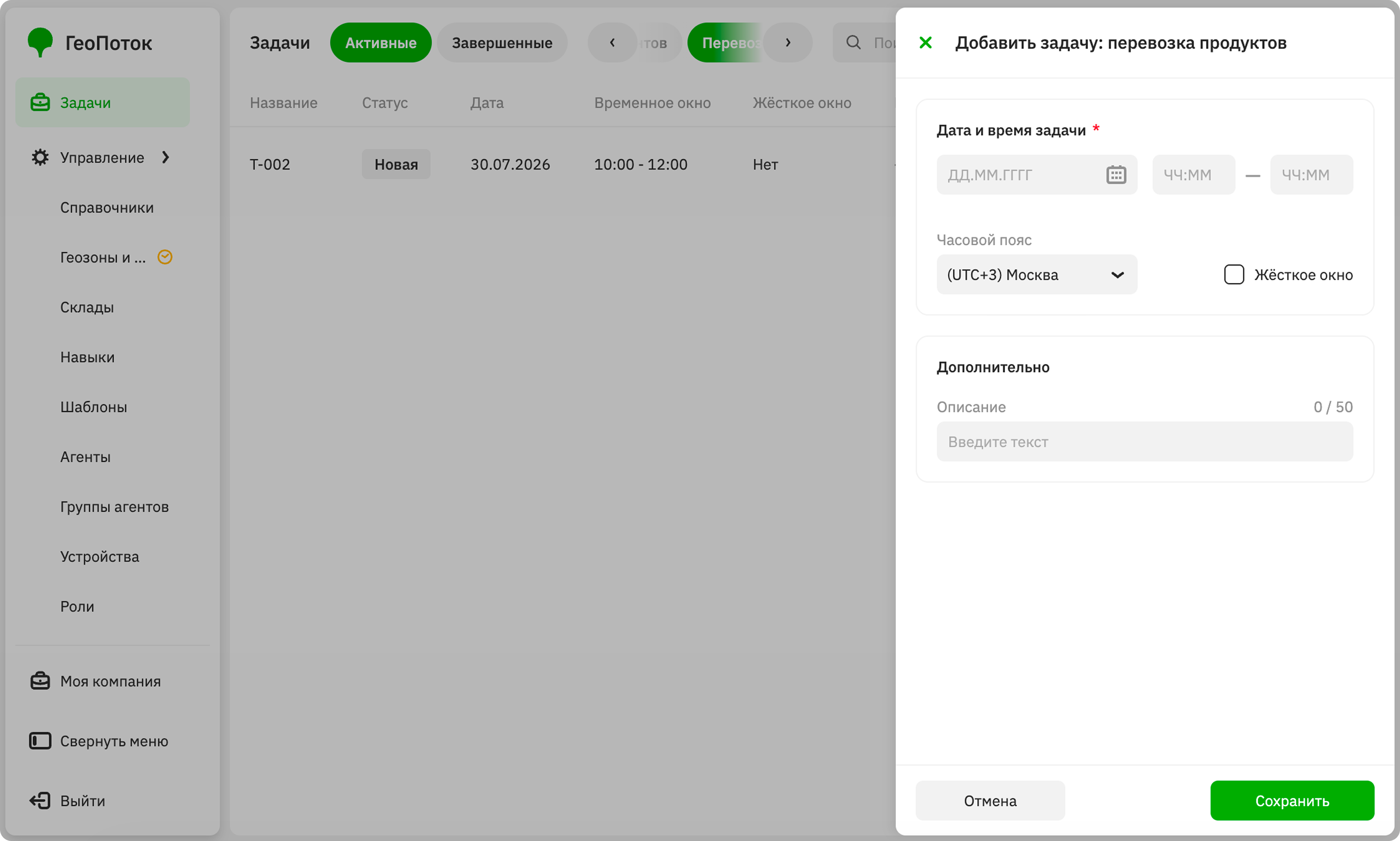
Specify the date and time of the task execution:
- Date: date of the task execution.
- Time window: time of the task execution.
- Time zone: time zone for which the date and time of the task are specified.
- Hard window: select the checkbox if the task must be performed only at the specified time. If the parameter is specified, the agent will not be able to perform the task earlier or later than the specified time.
-
Specify other task attributes, which depend on the task template.
Importing tasks
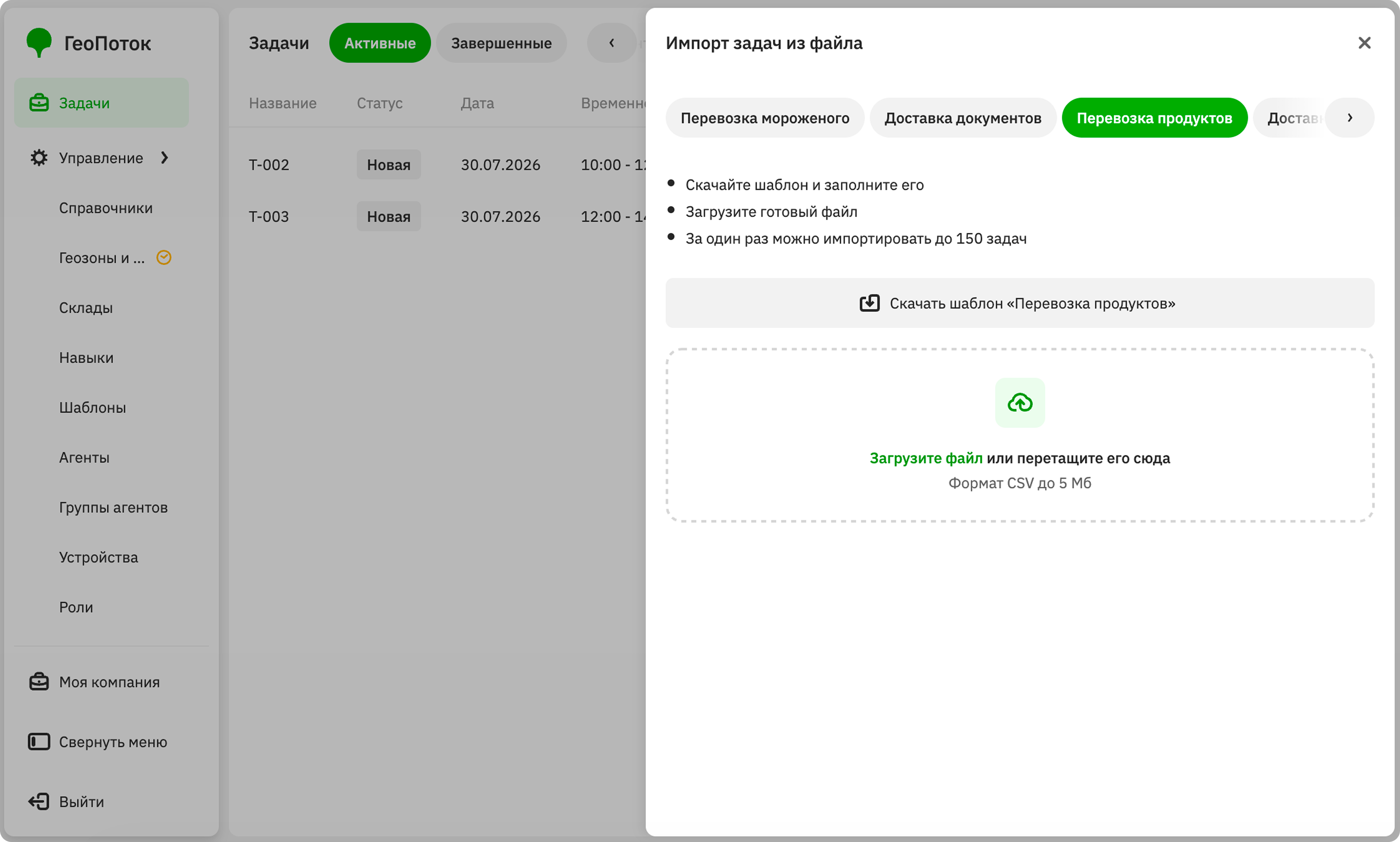
To create multiple tasks with similar attributes from a single task template, download the template, fill it out, and import tasks from a CSV file:
-
Go to the Tasks tab.
-
Click Import from CSV.
-
If you have created multiple task templates, select one of them.
-
Click Download template.
-
Fill in the template with task data. The template shows which data to add and includes an example of filling out.
One file can contain up to 150 tasks.
-
Return to the Tasks tab, drag the file into the upload area or click Select file on your computer.
The file size limit is 5 MB.
-
If there are errors in the file, a notification indicating the rows with errors will appear. To upload tasks, correct the errors and upload the file again.
Tasks will appear in the task list after the file is processed.
Viewing task information
- Go to the Tasks tab.
- You can search tasks by name, filter them by task type (template) and by status: active and completed.
The row of each task displays:
- Name: unique name specified when creating the task. The field may have a different name depending on the task template: for example,
Identifier. - Status: status of the task.
- Date: date of the task execution.
- Time window: time of the task execution.
- Hard window: indicates if the task must be performed only at the specified time.
- Updated: date and time of the last task edit.
Also, other columns with attributes may be displayed, which depend on the task template.
Editing a task
You can edit the task execution date and time, and other attributes that depend on the task template.
- Go to the Tasks tab.
- Select the task type (template).
- Open the task card in the list and click Edit task.
- Apply changes to the task.
- Click Save.