Map
The documentation provides a description of the interface in Russian.
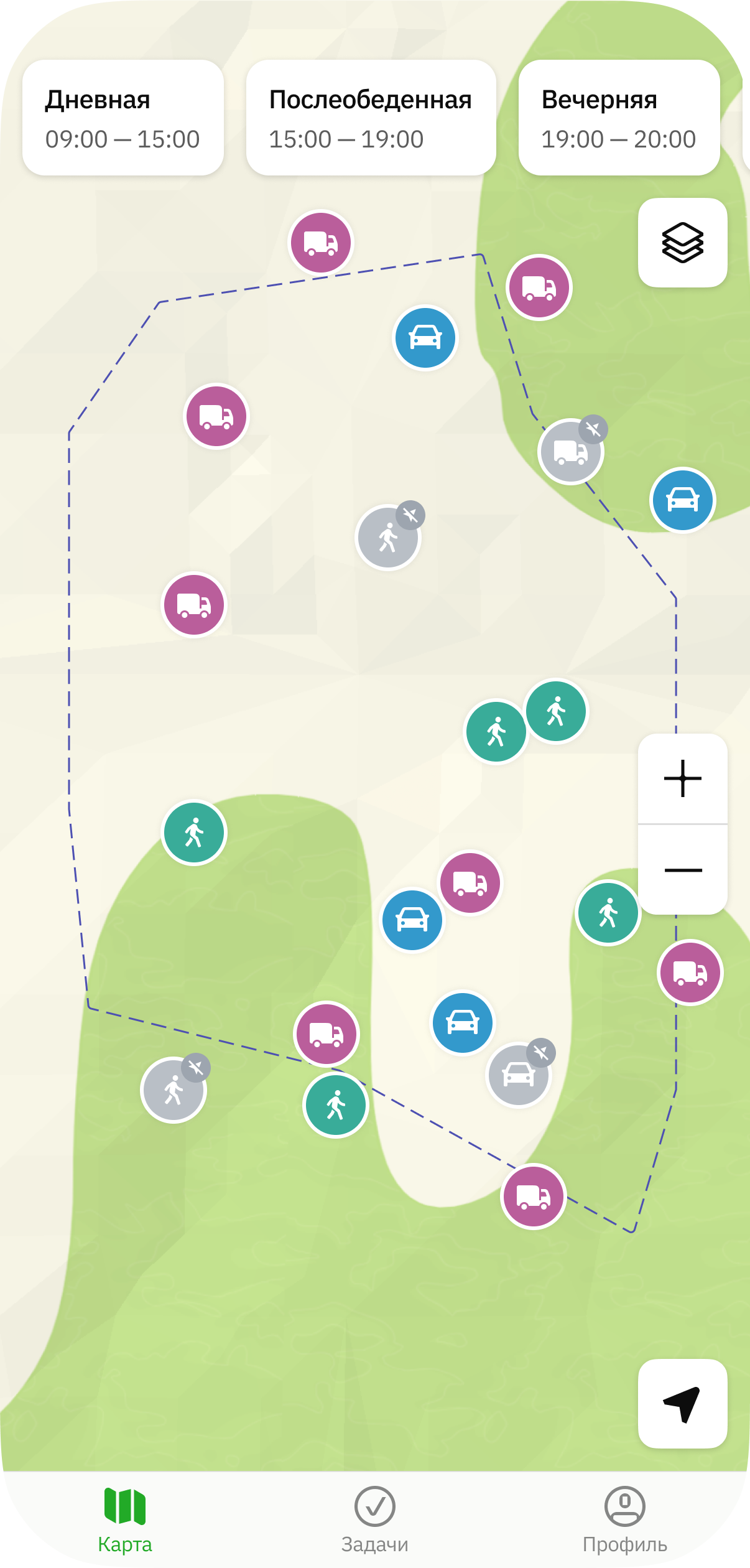
The mobile application Map tab displays the map with shifts and agents: mobile employees, transport, etc.
You can:
Viewing information about a shift
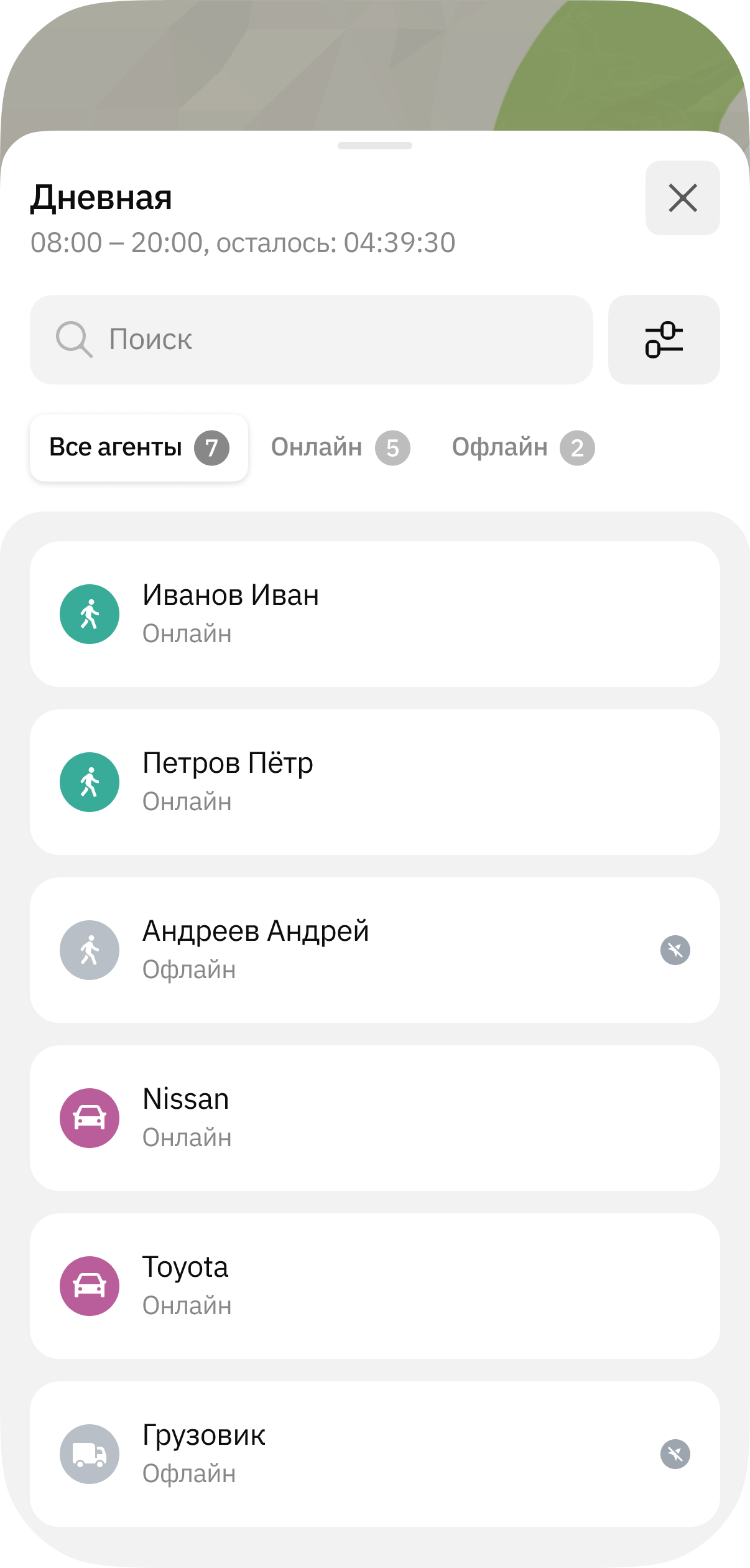
To view information about a shift, tap its name at the top of the screen. The card displays the information about the shift and a list of agents added to it:
Online: agents with available current location data. Displayed on the map as a colored icon. The icon color depends on the agent template.Offline: agents without available current location data (for example, the tracker or mobile application is disabled or not transmitting location data). Displayed on the map as a gray icon.
Viewing information about agents
-
To select the types of agents displayed on the map and in the list, open the shift, tap
 icon, and specify the types: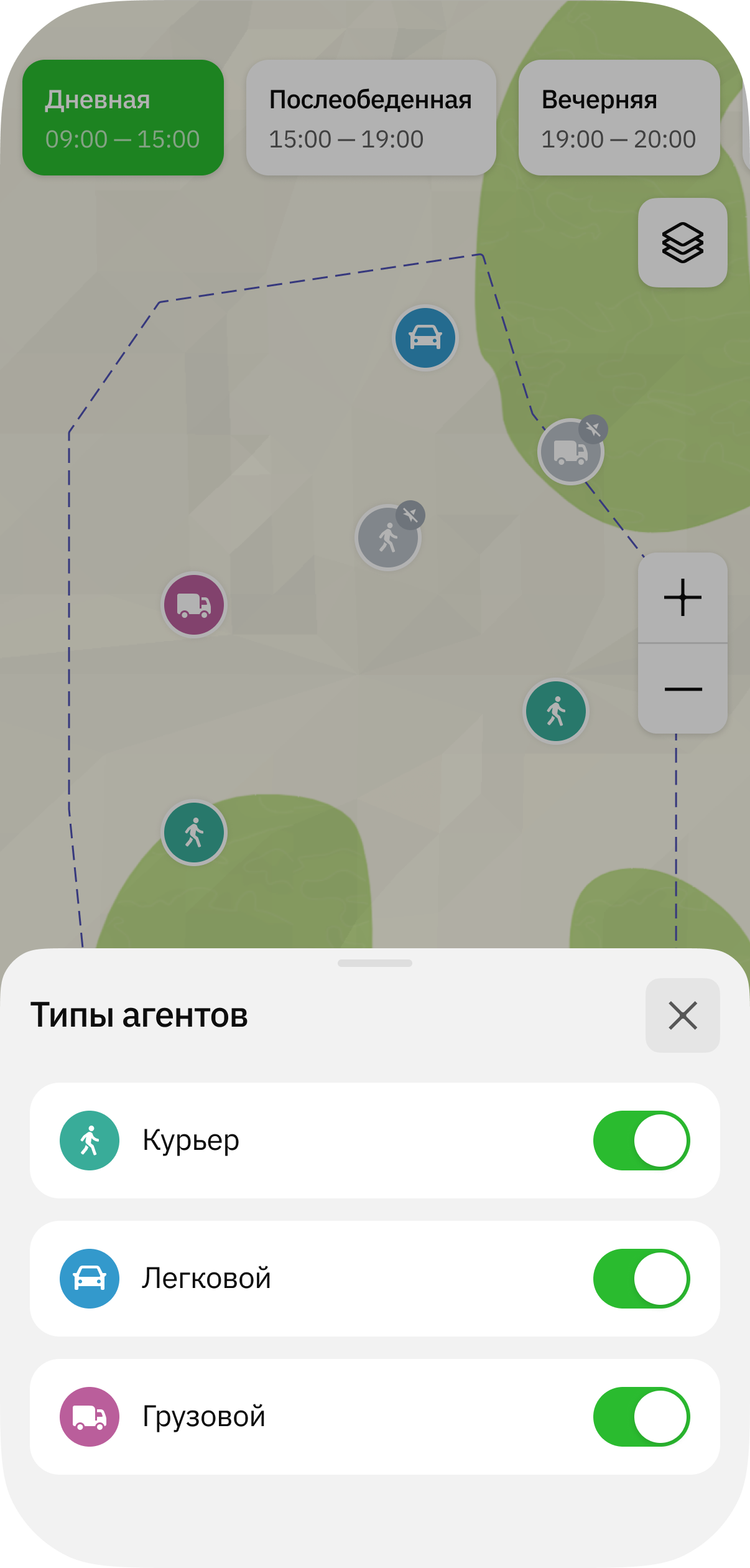
-
To view information about an agent, tap its icon on the map or in the list of agents.
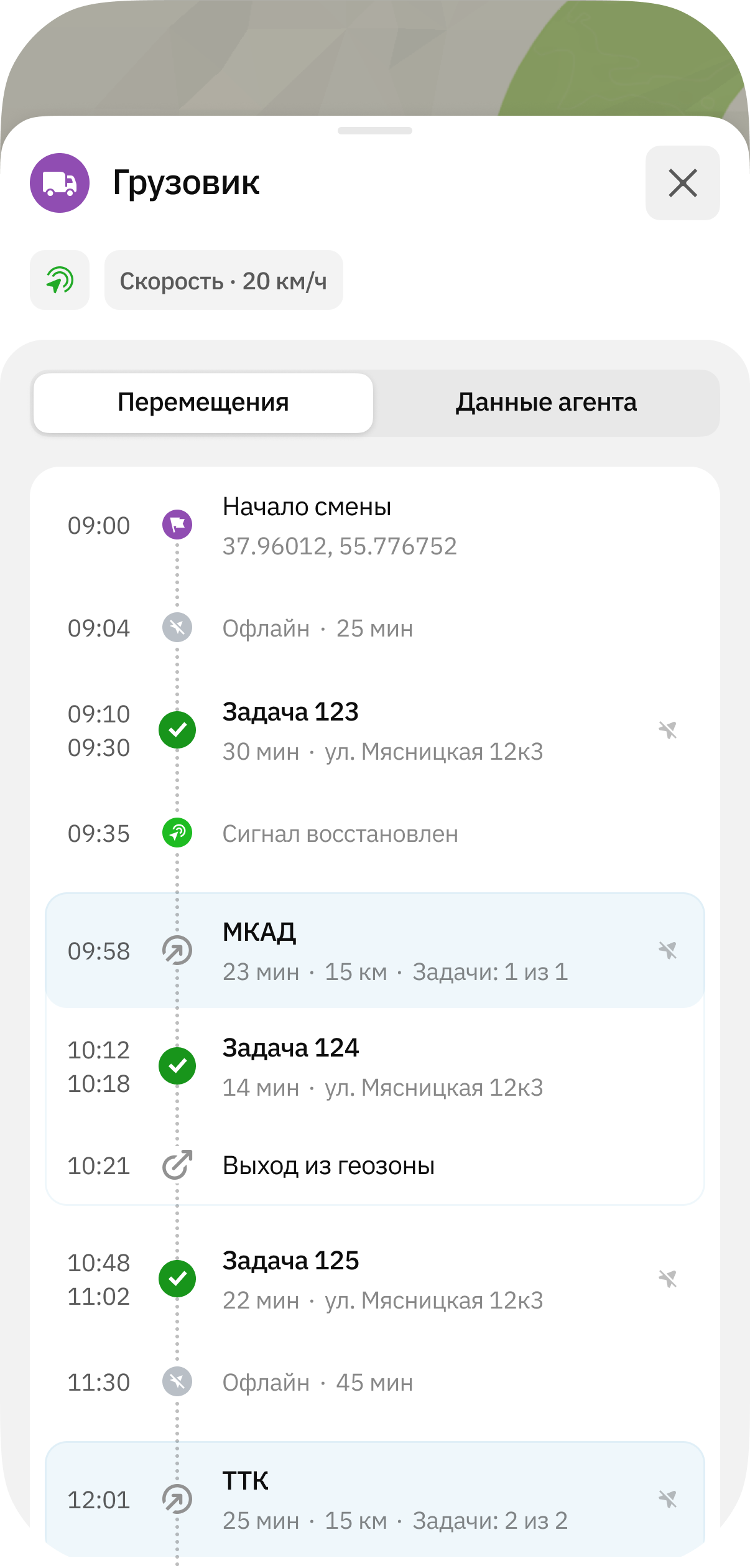
The agent card displays:
-
Movements: history of the agent's movements during the shift.
-
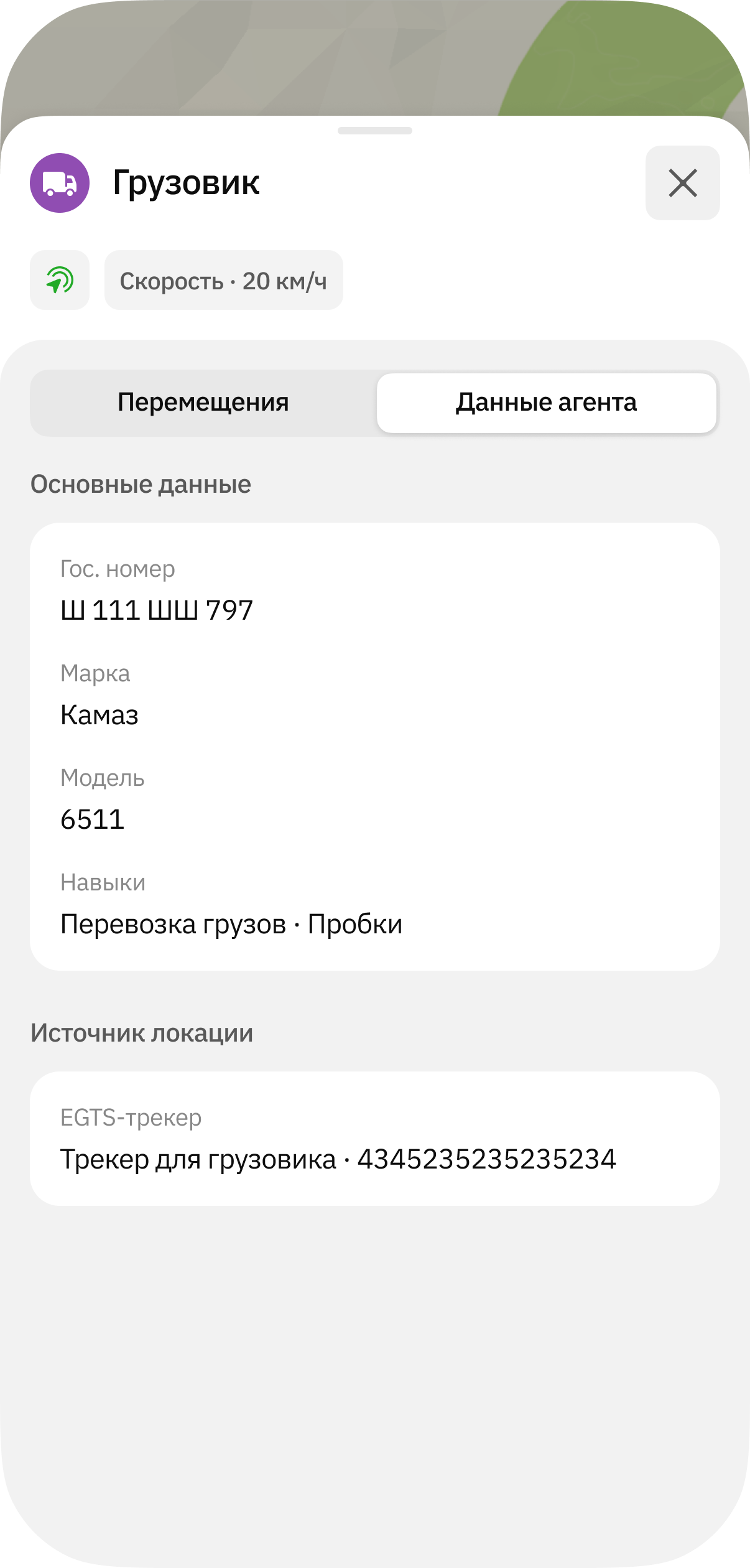
Agent data:
-
Main data: data specified when creating the agent. Depends on the agent template.
-
Location source: sources used to collect location data about the agent (mobile application or tracker).
- Application: name of the user who uses the mobile application and is linked to the agent.
- EGTS tracker: name and unique identifier of the device (tracker).
-
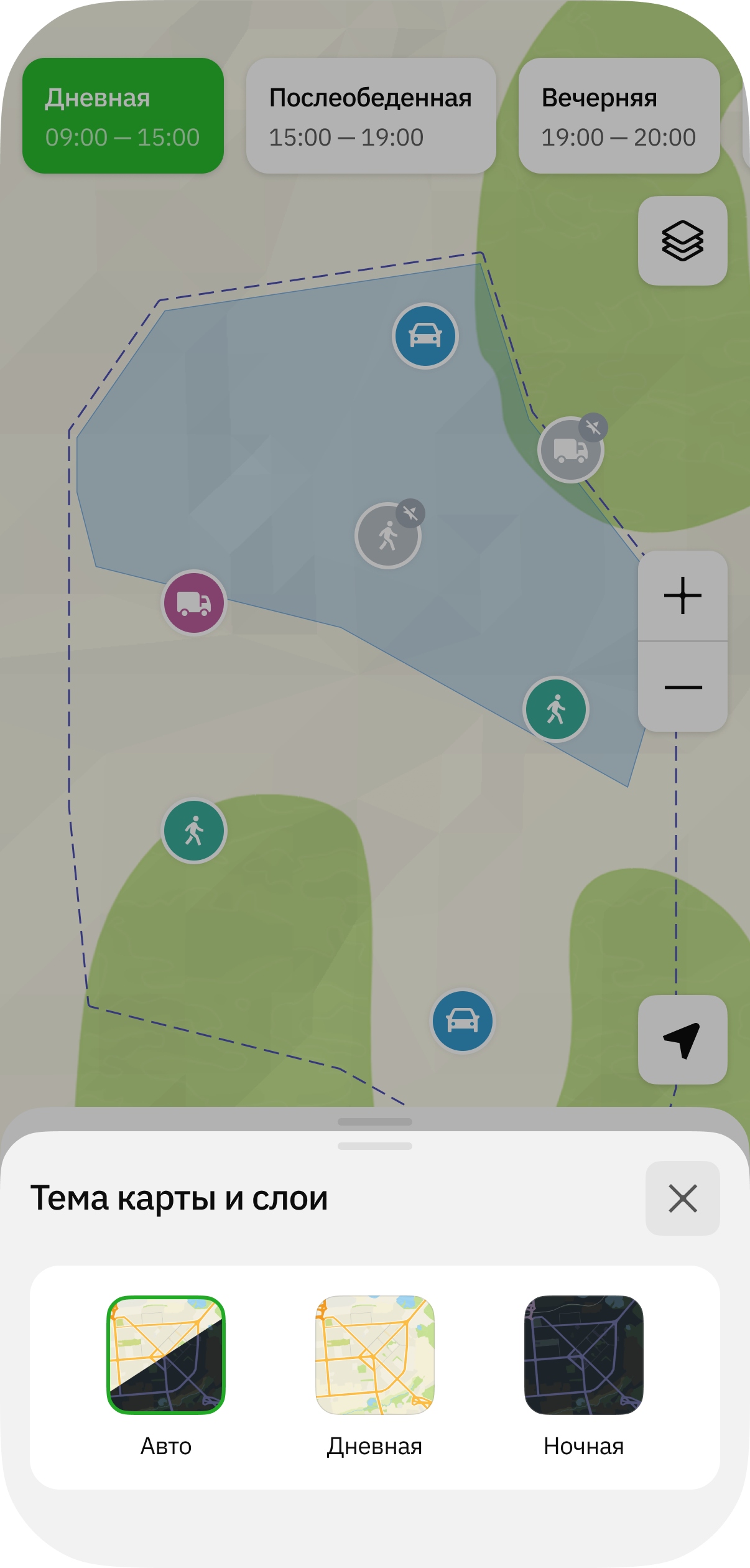
Selecting a map theme
To select a map theme:
-
Tap
icon in the upper-right corner. -
Select a theme:
- Auto (default): map theme changes depending on the browser theme
- Day
- Night