Geofences
The documentation provides a description of the interface in Russian.
Geofences are geometries on the map that can be used to monitor agents. Available types of geofences:
- polygon (an arbitrary polygon)
- circle around a specified point
By default, geofencing is enabled for geofences: agent entries into and exits from a geofence are recorded, and notifications are sent. To group geofences and display them as map layers, geolayers are used.
With the Main administrator and Company administrator roles, you can work with geofences on the Management → Geolayers tab:
- create geolayers and geofences
- view geofence information
- edit geolayers and geofences
- delete geolayers and geofences
With the Dispatcher role, you can view the list of geolayers and geofences and their information.
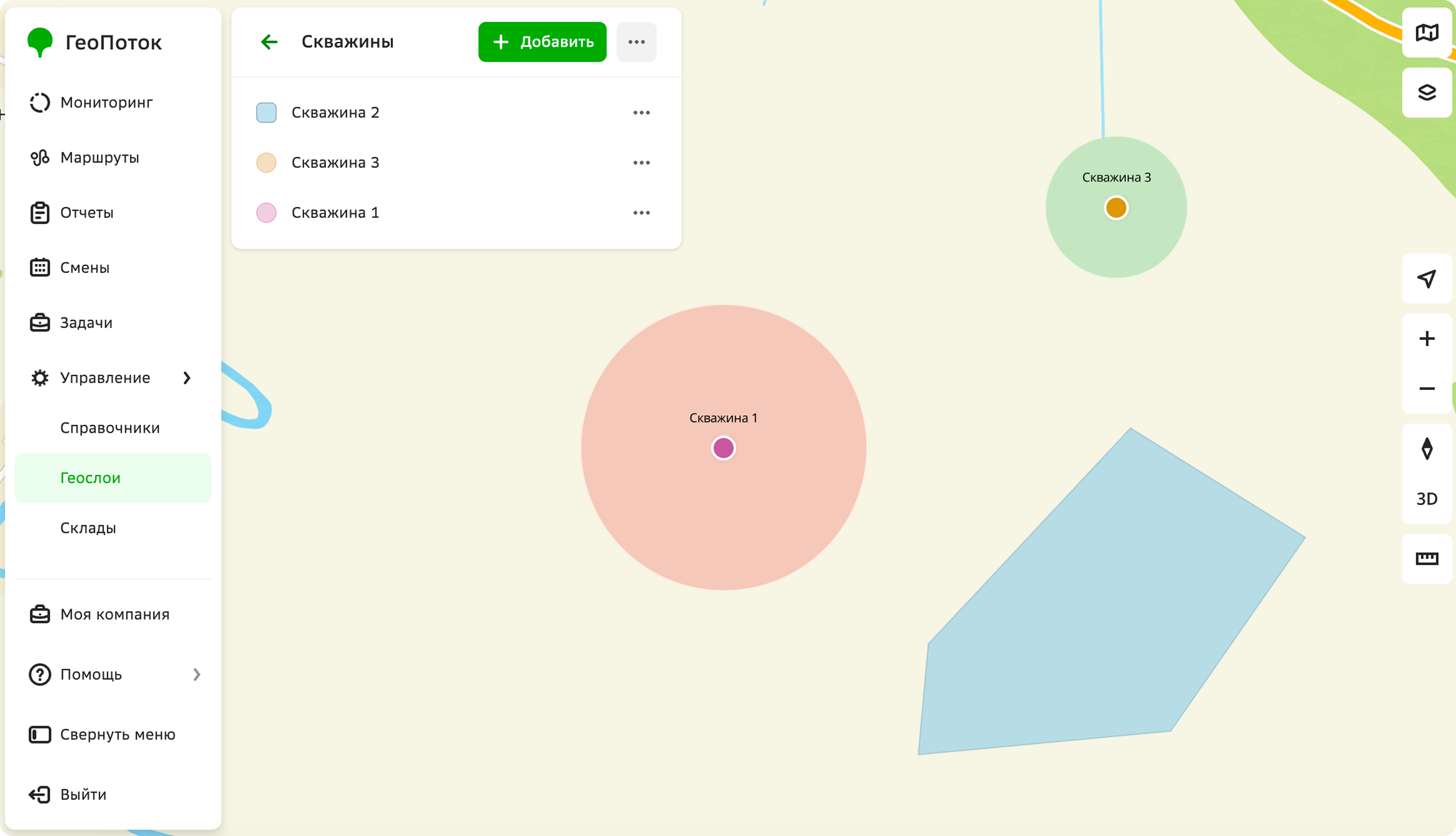
Creating a geolayer
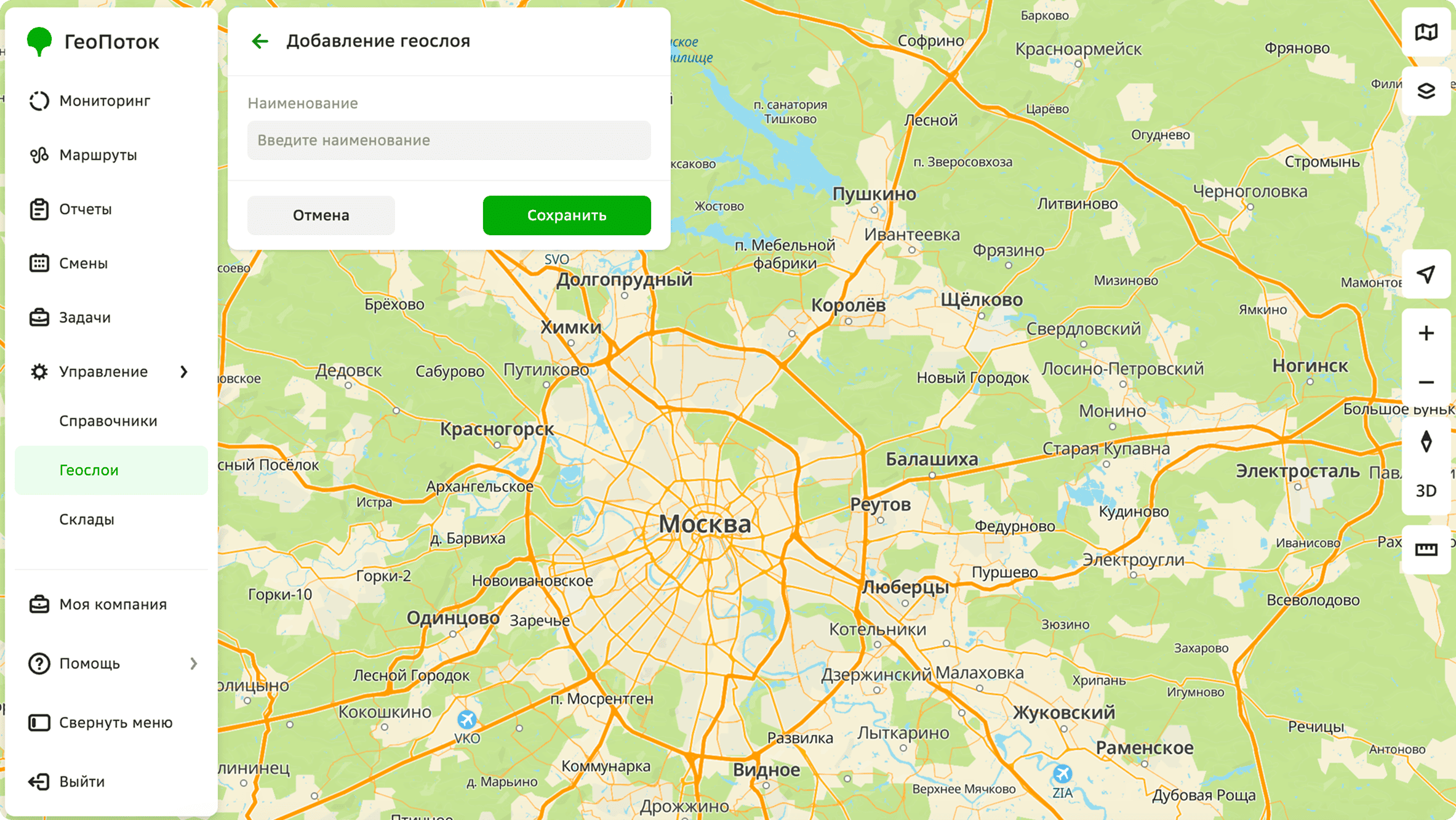
To create a group for geofences, create a geolayer.
- Go to the Management → Geolayers tab.
- Click Add geolayer.
- Enter a name.
- Click Save.
Creating a geofence
-
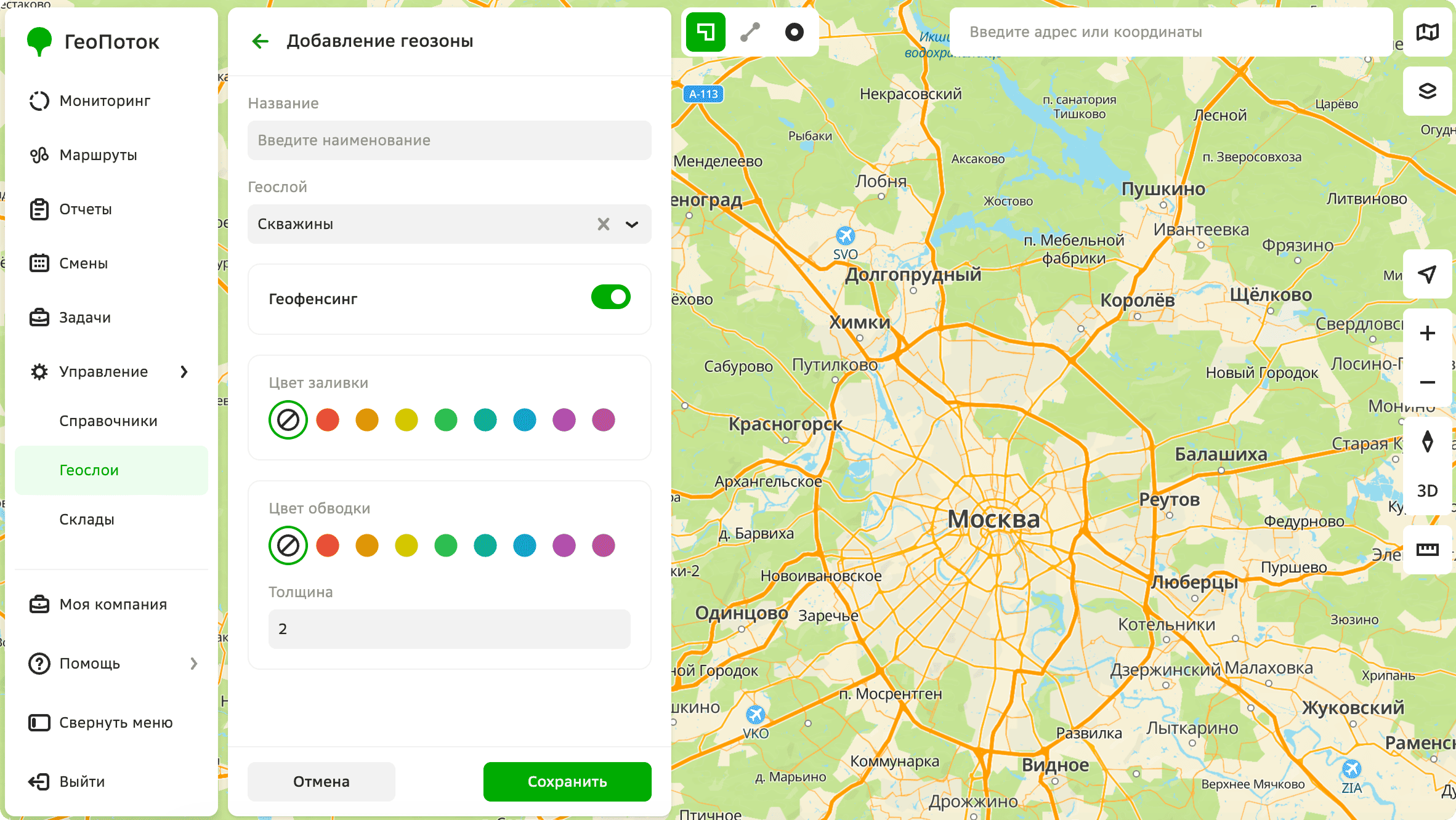
Go to the Management → Geolayers tab.
-
Open the geolayer where you want to create a geofence.
-
Click Add geofence.
-
Enter a name.
-
Create geometry on the map: a polygon or a circle. You can use search by addresses, places, and organizations on the map.
- Polygon
- Circle
-
Click
 icon.
icon. -
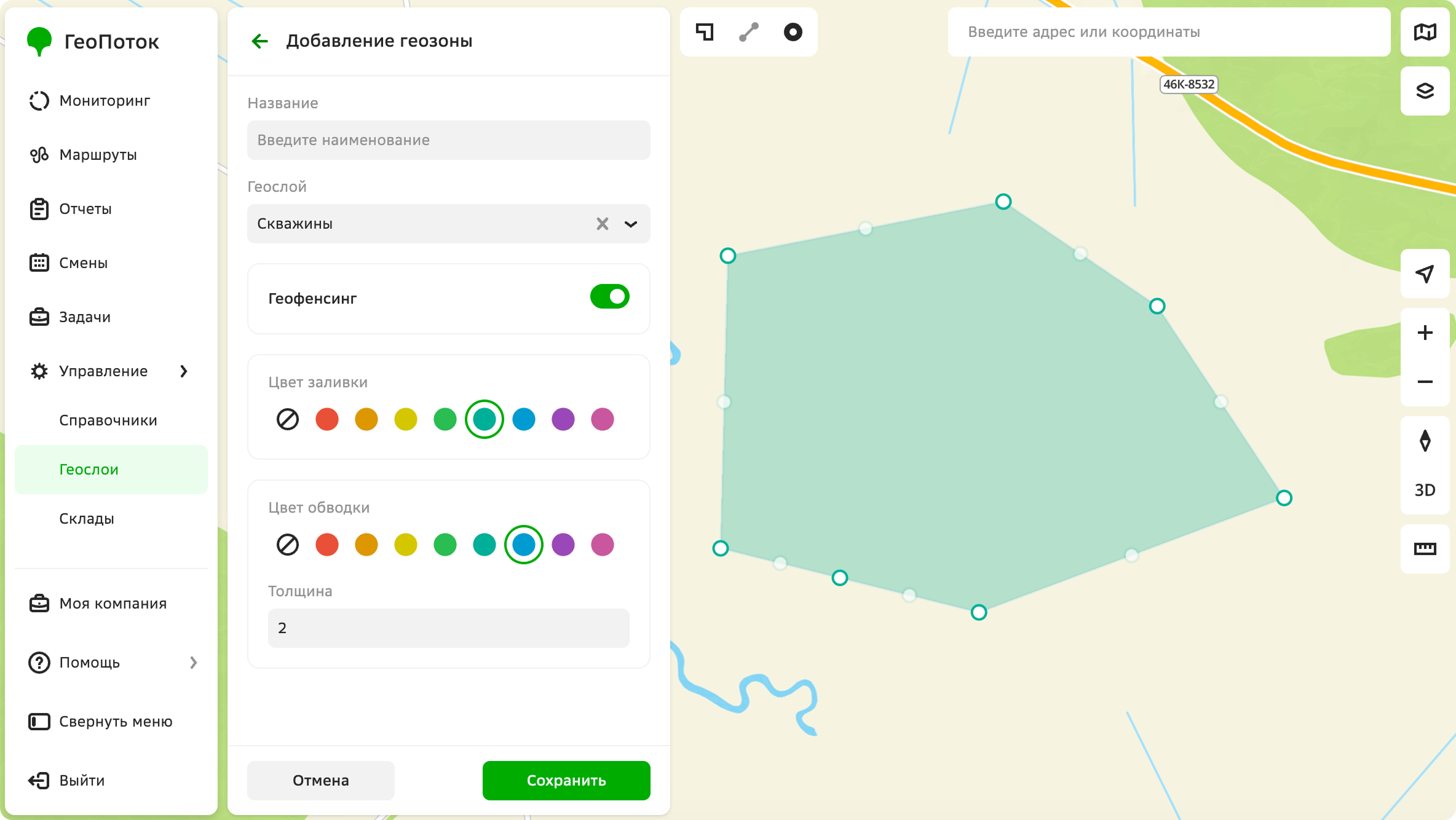
Click at least three points on the map. The points are connected automatically. To move a point, click and drag it to the required place on the map.
-
To close the polygon, press Enter or Esc.
-
(Optional) Turn off the Geofencing option.
-
Specify geofence parameters: fill color, border color, and border width.
-
Click
 icon.
icon. -
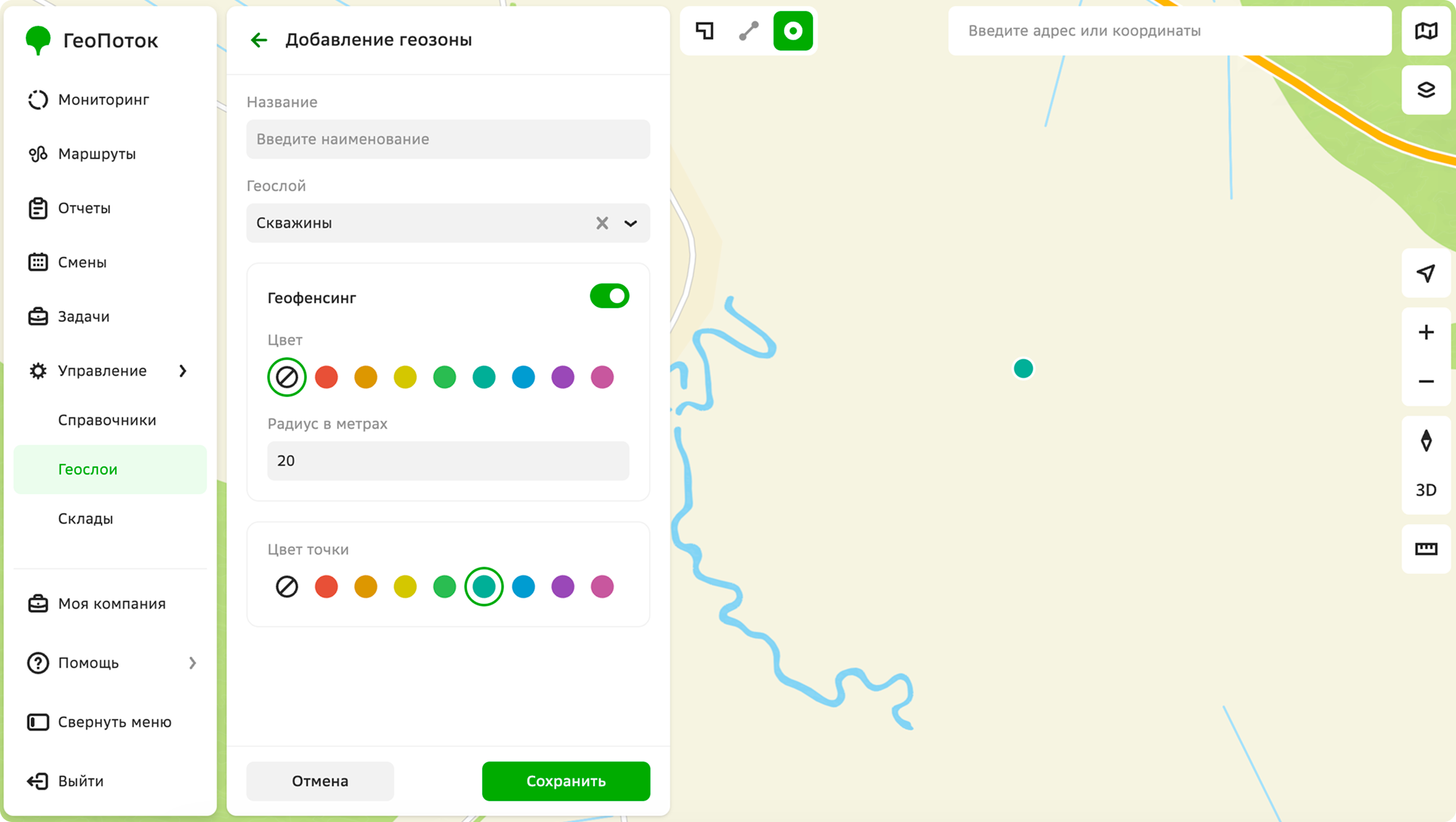
Click a geofence center on the map. To move the point, click and drag it to the required place on the map.
-
(Optional) Turn off the Geofencing option.
-
Specify geofence parameters: circle color and radius in meters, and point color.
-
Click Save.
Viewing geofence information
- Go to the Management → Geolayers tab.
- Open the geolayer that contains the geofence, then open the geofence card.
The geofence card displays:
- Geofence name.
- Geofencing: whether geofencing is enabled or disabled for the geofence.
- External source: whether the geofence was imported during the integration of 2GIS GeoFlow: Monitoring.
- Geometry type: polygon or circle.
- Perimeter: polygon perimeter. Displayed only for polygons.
- Area: polygon area. Displayed only for polygons.
- Last modified: date and time of the last modification of the geofence.
Editing a geolayer
You can rename a geolayer.
- Go to the Management → Geolayers tab.
- In the geolayer row, click
 icon and select Edit.
 - Enter a new name.
- Click Save.
Editing a geofence
You can edit the geofence name, geometry, and parameters, and also enable or disable geofencing.
- Go to the Management → Geolayers tab.
- Open the geolayer that contains the geofence.
- In the geofence row, click icon and select Edit.
- Apply changes.
- Click Save.
Deleting a geolayer
All geofences that belong to the geolayer will be deleted.
- Go to the Management → Geolayers tab.
- In the geolayer row, click icon and select Delete.
- Confirm the deletion.
Deleting a geofence
You cannot restore a deleted geofence.
- Go to the Management → Geolayers tab.
- Open the geolayer that contains the geofence.
- In the geofence row, click icon and select Delete.
- Confirm the deletion.