Notifications
The documentation provides a description of the interface in Russian.
With the Main administrator, Company administrator, Dispatcher, and Agent group manager roles, you can view notifications on the Notifications tab in the administrator web panel.
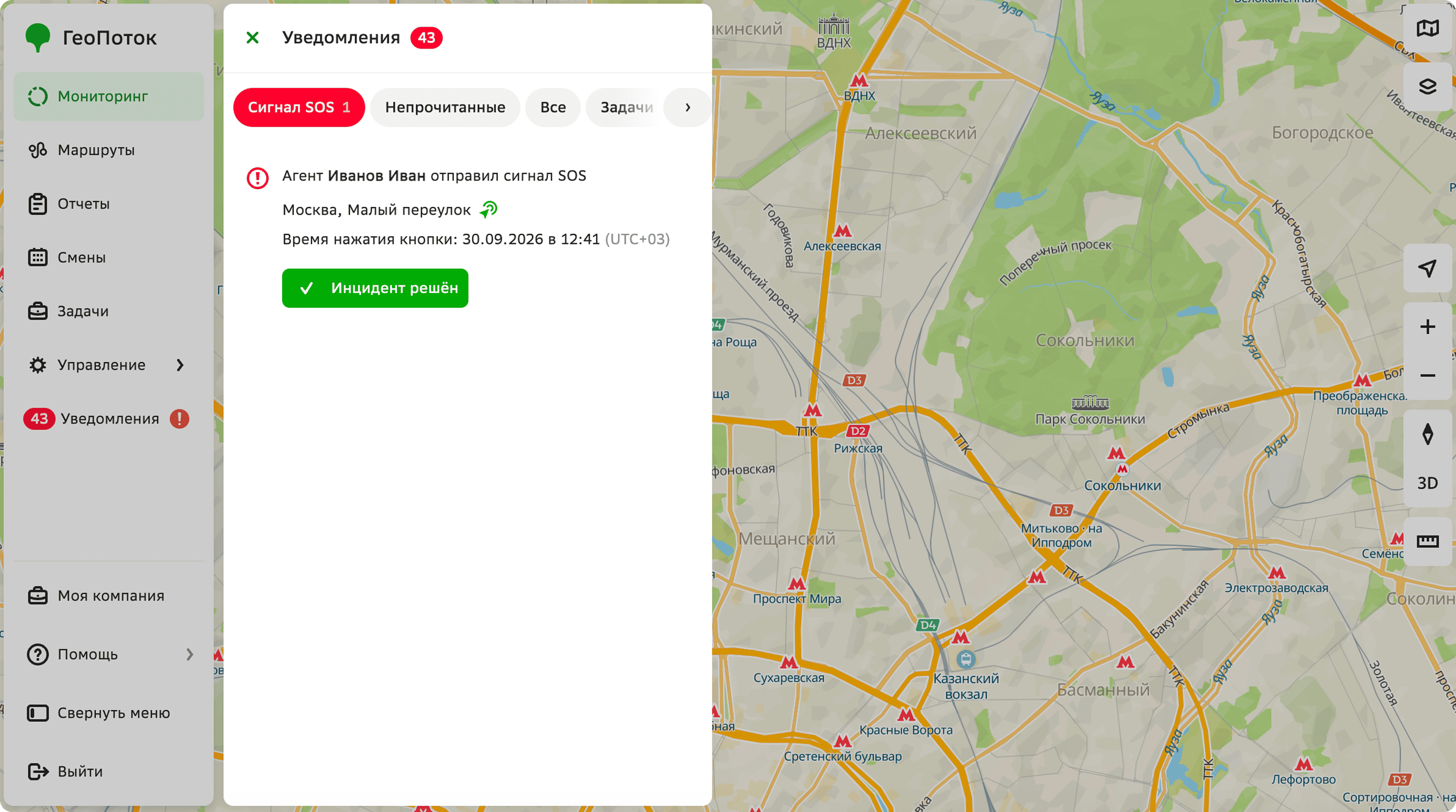
On the Notifications tab, multiple sections are available:
- Unread: notifications that you have not read yet. To mark all notifications as read, click Mark all as read.
- All: all notifications.
- Tasks: notifications about tasks.
- Agents: notifications about events related to agents.
- Monitoring: notifications about monitoring events.
- SOS signal: notifications about SOS signals sent by agents.
Events
Notifications are sent for the following events:
- Agent is assigned a task in the shift.
- Agent started performing a task or completed it.
- Agent entered or exited a geofence.
- Agent started or completed a shift.
- Low battery level on the agent's device.
- Agent sent an SOS signal.
The list of events for which notifications are sent cannot be changed.
Responding to an SOS signal
If an incident occurs during work, the agent can send an SOS signal. The signal will be sent as a notification along with the agent's location.
By default, SOS notifications are sent only to the user with the Dispatcher role. If there is no user with the Dispatcher role, the notification will be sent to the user with the Company administrator role (if none, the notification will be sent to the user with the Main administrator role).
After receiving the notification, contact the agent and confirm in the web panel that the incident has been resolved:
- In the list of notifications, open the notification about the SOS signal.
- Click Incident resolved.
- Provide details of the incident, such as the reason for the alert, the consequences, the measures taken, and any other details.
- Click Resolved.