Reports
The documentation provides a description of the interface in Russian.
Reports are a tool for analyzing agents' performance and their attendance on shifts. Reports are generated automatically based on data from current and completed shifts. Two types of reports are available: Agent shift attendance and Agent shift distribution.
With the Main administrator, Company administrator, and Dispatcher roles, you can work with reports on the Shifts tab:
- view reports and use the AI assistant for analysis
- download reports
- send reports by email
With the Agent group manager role, you can work with reports of your group.
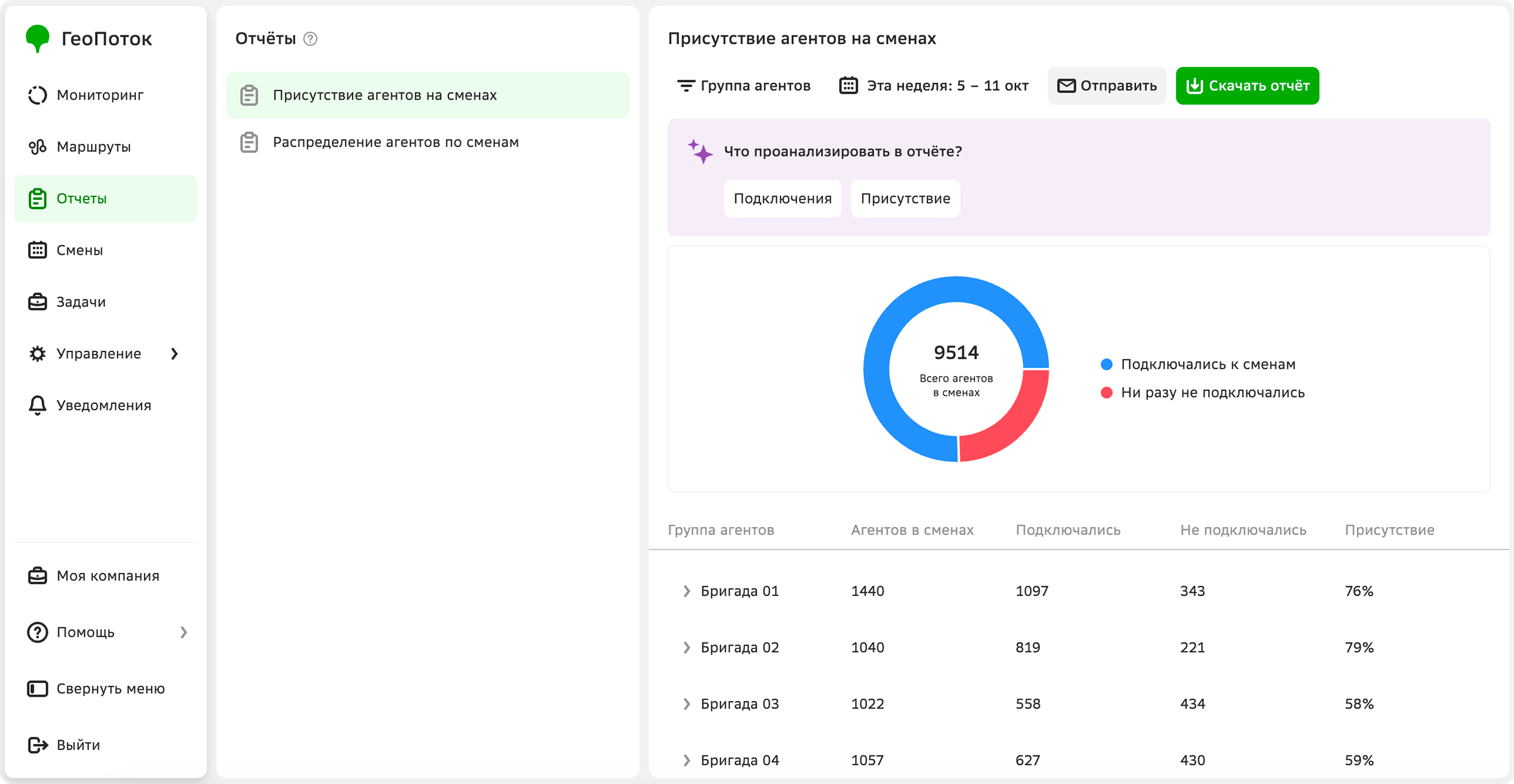
Viewing a report
- Go to the Reports tab.
- Open the report page. You can filter report data by agent group and date.
To use the AI assistant for data analysis, in the What to analyze in the report? block, select a scenario: connections, agents, etc.
Agent shift attendance
The report helps evaluate agent activity on shifts and identify agents who did not connect to them. It is considered that the agent connected to a shift if they had the Online status at least once during the shift. The report includes:
- A chart showing the number of agents who connected to shifts and who never connected.
- Information on agent groups: number of agents assigned to shifts, the number of connected and not connected agents, and the percentage of their attendance on shifts.
- A list of agents and the number of shifts they did not connect to.
Agent shift distribution
The report helps evaluate how fully shifts are staffed with agents. It includes:
- The overall percentage of agents assigned to shifts, and a chart showing the number of agents with shifts and without shifts.
- Information on agent groups: number of shifts, the number of agents assigned to shifts and without them, and the percentage of agents assigned to shifts.
- A list of agents and the shifts they are assigned to.
Downloading a report
You can download a report in XLSX and CSV formats.
- Go to the Reports tab and open the report page.
- Specify the period for which the report will be generated.
- Click Download report.
- Select a format: XLSX or CSV.
Sending a report
You can send a report in XLSX and CSV formats.
- Go to the Reports tab and open the report page.
- Specify the period for which the report will be generated.
- Click Send.
- Select a format: XLSX or CSV.
- Enter the email address to which the report will be sent.
- Click Send.