Overview
The documentation provides a description of the interface in Russian.
The Public API helps automate work with 2GIS GeoFlow: Monitoring and retrieve monitoring data.
Main features
Using the Public API, you can:
- Create mobile application users and send invitations to them, as well as synchronize agents and mobile application user accounts.
- View directories, skills, and their data.
- View agent and task templates. Creating and updating agent and task templates via the Public API are not available: use the administrator web panel for that.
- Create and delete agents, view and update their data.
- Create tasks, view and update their data, and change status.
- Plan and delete shifts, view and update their data, add tasks and assign agents.
- Get the latest locations of agents and their movement history.
For more information, see the examples and the API Reference.
Getting started
Getting an access token
You can send requests to /v1/healthcheck and /oauth/token without a token. To work with other endpoints, get a Bearer access token. To get a token, you need to create credentials (Client ID and Client Secret), since API requests are performed on behalf of the organization account, not a user account.
-
To enable creating credentials, contact your 2GIS manager.
-
Open the 2GIS GeoFlow: Monitoring administrator web panel.
-
Go to the Company tab.
-
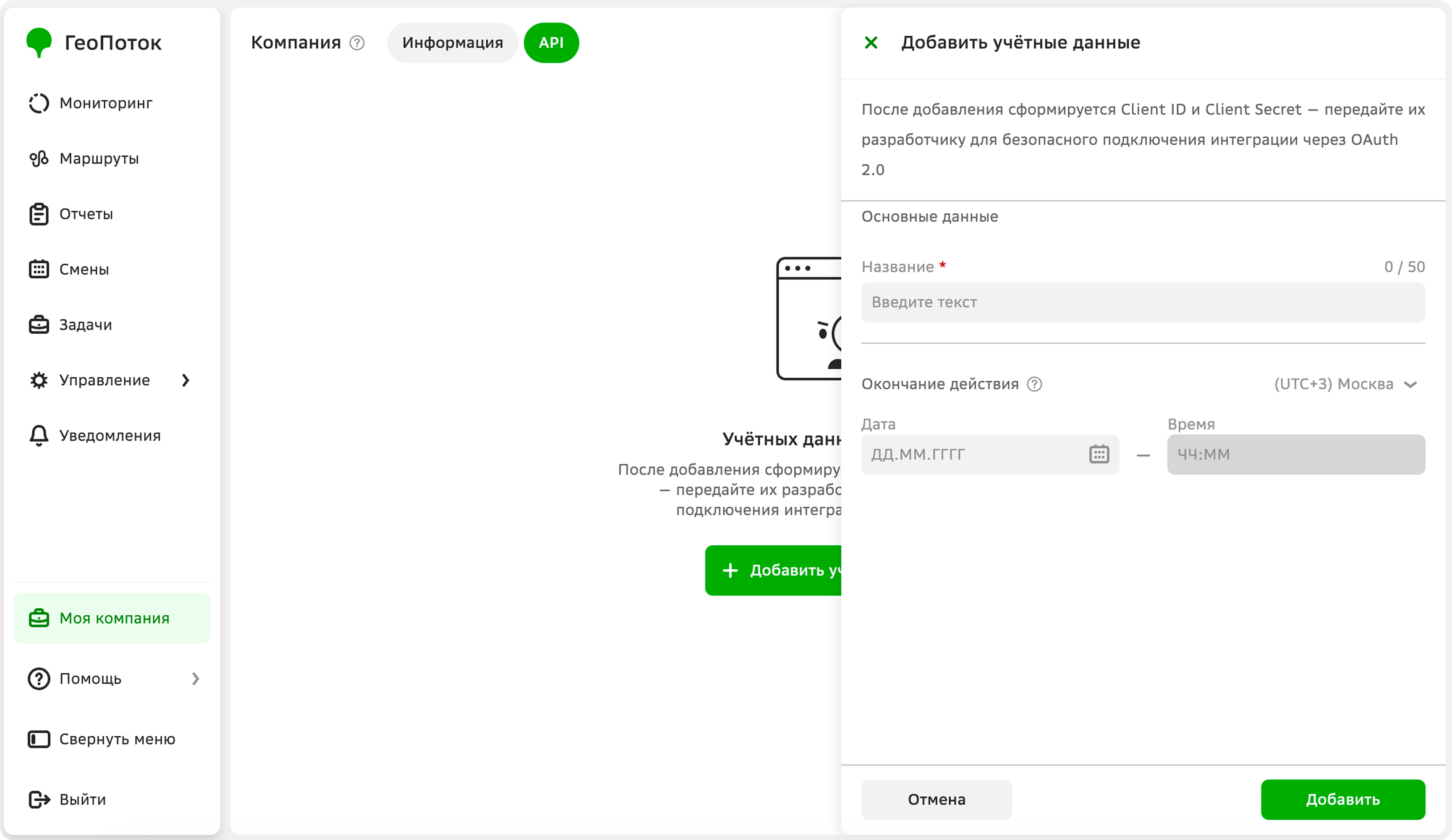
Click Add credentials.
-
Specify the credential parameters:
- Name (mandatory parameter).
- Expiration: date and time when the Client ID and Client Secret pair will expire. Access to them will be automatically closed. To make the expiration period unlimited, leave the field empty.
-
Click Add.
-
To copy the Client Secret value, click Copy. You cannot copy it again. If you lose the Client Secret, create new credentials.
Example of credentials:
{"client_id": "7e1*****2f1","client_secret": "Rd5*****Lxc"} -
To issue an access token, send a POST request to /oauth/token:
curl --request POST \--url 'https://geoflow.2gis.ru/public/api/oauth/token' \--header 'Content-Type: application/x-www-form-urlencoded' \--data 'grant_type=client_credentials' \--data 'client_id=<client_id>' \--data 'client_secret=<client_secret>'Where:
grant_type=client_credentials- authorization type.client_idandclient_secret- values obtained when creating credentials.
Pass the received token in the request header:
Authorization: Bearer <token>
The access token has a limited lifetime. The validity period in seconds is returned in the expires_in field in the response to a POST request to /oauth/token. Currently, it is five minutes. After expiration, or if a protected method returns 401, obtain a new token.
Request example
For example, to get a list of skills, send a GET request to /v1/skills:
curl --request GET \
   --url 'https://geoflow.2gis.ru/public/api/v1/skills?limit=3' \
   --header 'Authorization: Bearer <token>'
In the request, specify token - the access token value.
Response example
Responses are returned in JSON format.
response.json
{
    "items": [
        {
            "id": "374af95f-4370-4091-8ea7-dcdc3542f296",
            "name": "Delivery of fragile goods",
            "created_at": "2026-08-20T08:13:11.10992Z",
            "updated_at": "2026-08-20T08:13:11.10992Z"
        },
        {
            "id": "46a71b6b-e124-475f-b63e-0ff8f3f0506a",
            "name": "Access by pass",
            "created_at": "2026-08-20T10:11:39.051787Z",
            "updated_at": "2026-08-20T10:11:39.051787Z"
        },
        {
            "id": "8c80a174-8b51-4e39-89c2-f4038739c064",
            "name": "Document delivery",
            "created_at": "2026-08-20T10:11:43.641298Z",
            "updated_at": "2026-08-20T10:11:43.641298Z"
        }
    ],
    "cursor": {}
}
All methods except /v1/monitoring/agents/last-locations and /v1/monitoring/agents/{id}/timeline support pagination. To get results of the next or previous page, use the cursor query parameter.
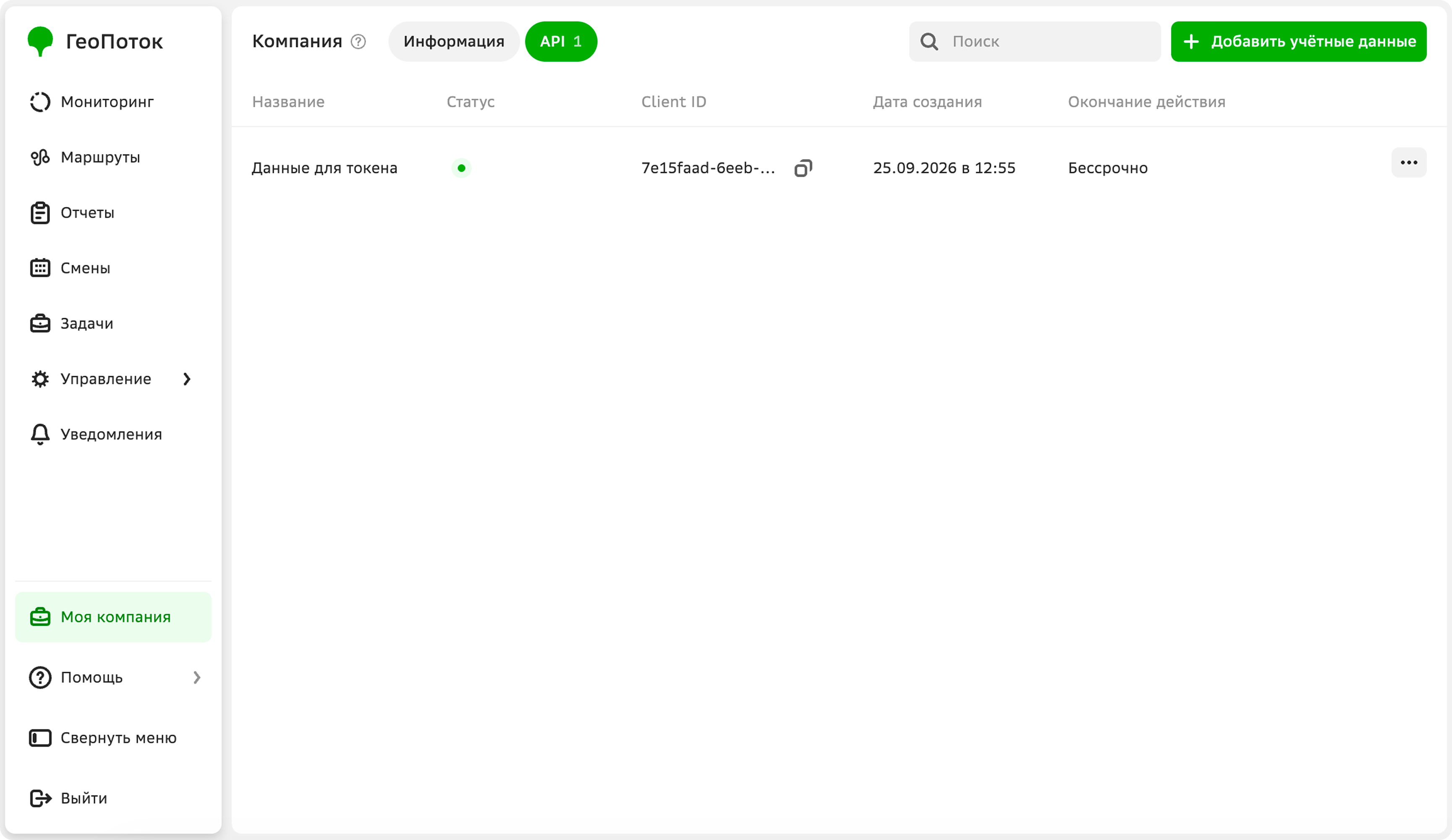
Managing credentials
Editing credentials
You can change the name and expiration date of a Client ID and Client Secret pair. You cannot change the values themselves, so if necessary, create new credentials.
- Go to the Company tab.
- In the credentials row, click
 and select Edit.
 - Apply changes.
- Click Save.
Revoking credentials
When you revoke credentials, you will not be able to use them to obtain an access token.
- Go to the Company tab.
- In the credentials row, click and select Revoke.
- Confirm the revocation.
What's next?
- Examples of using the Public API.
- API Reference.