Tasks
The documentation provides a description of the interface in Russian.
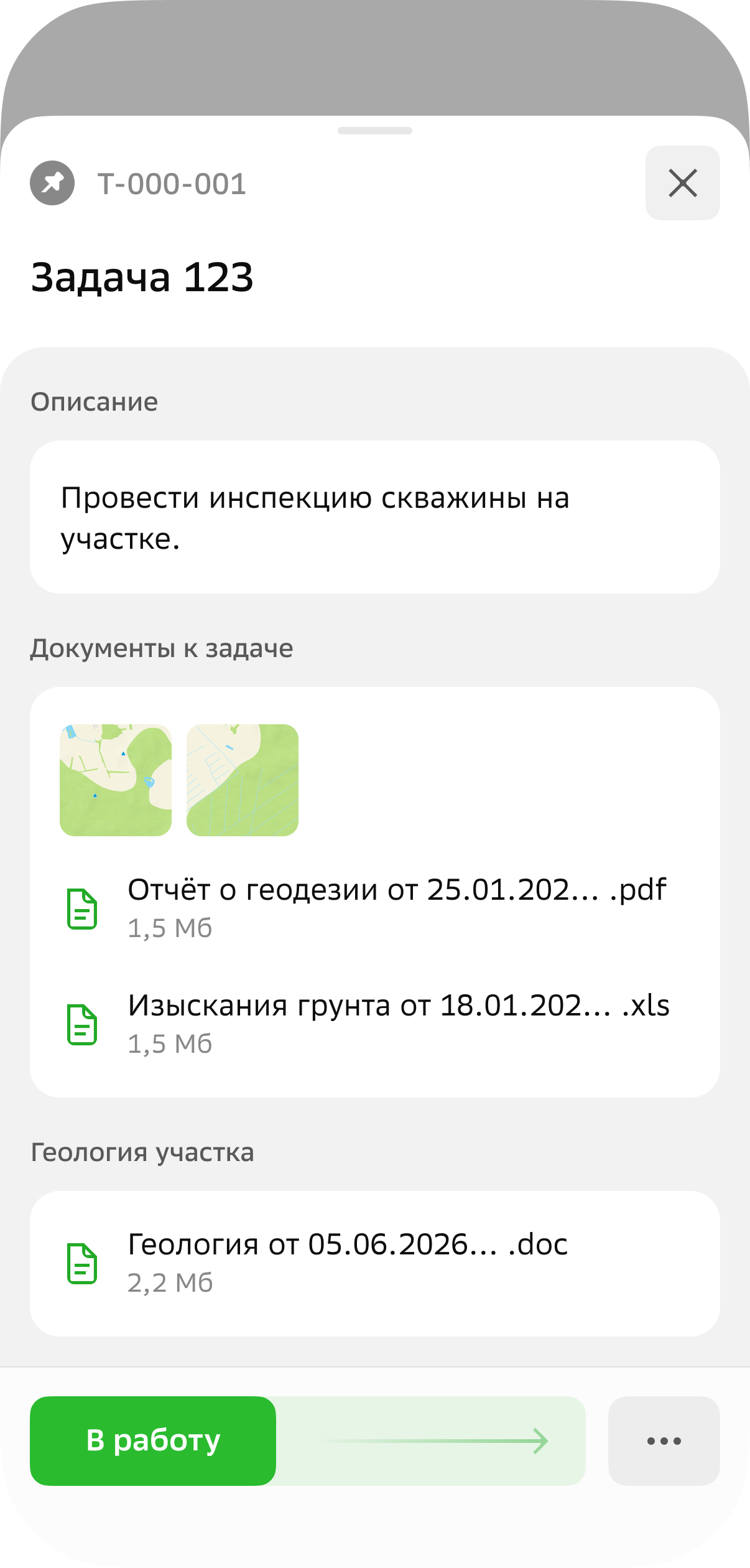
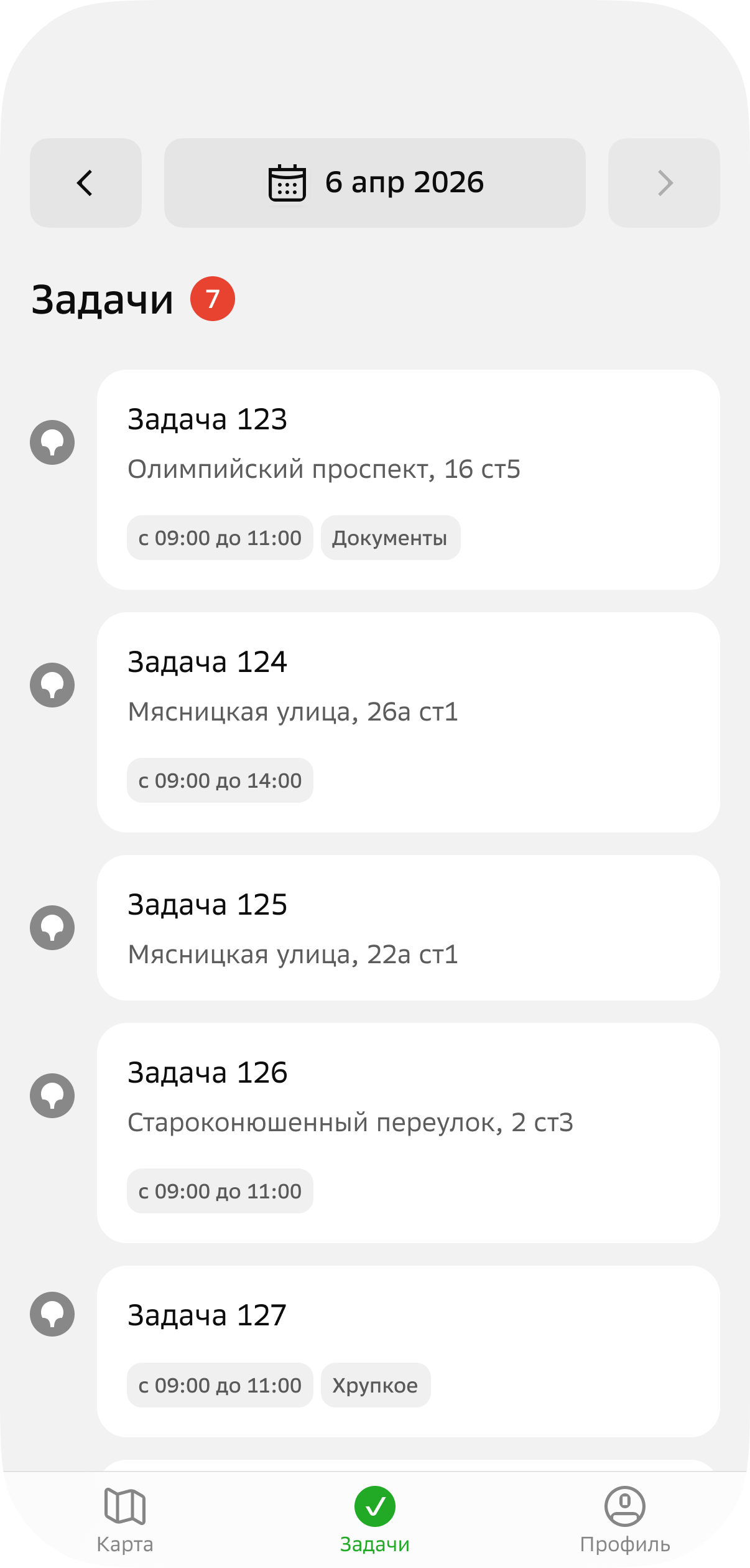
On the Tasks tab in the mobile application, you can see the list of tasks in the shift. Task cards display the data specified by the administrator when creating the task (for example, required skills) and files attached by the administrator. For more information about tasks, see the Administrator guide.
Getting started
To start working on shift tasks:
-
Go to the Tasks tab.
-
Select the current date.
-
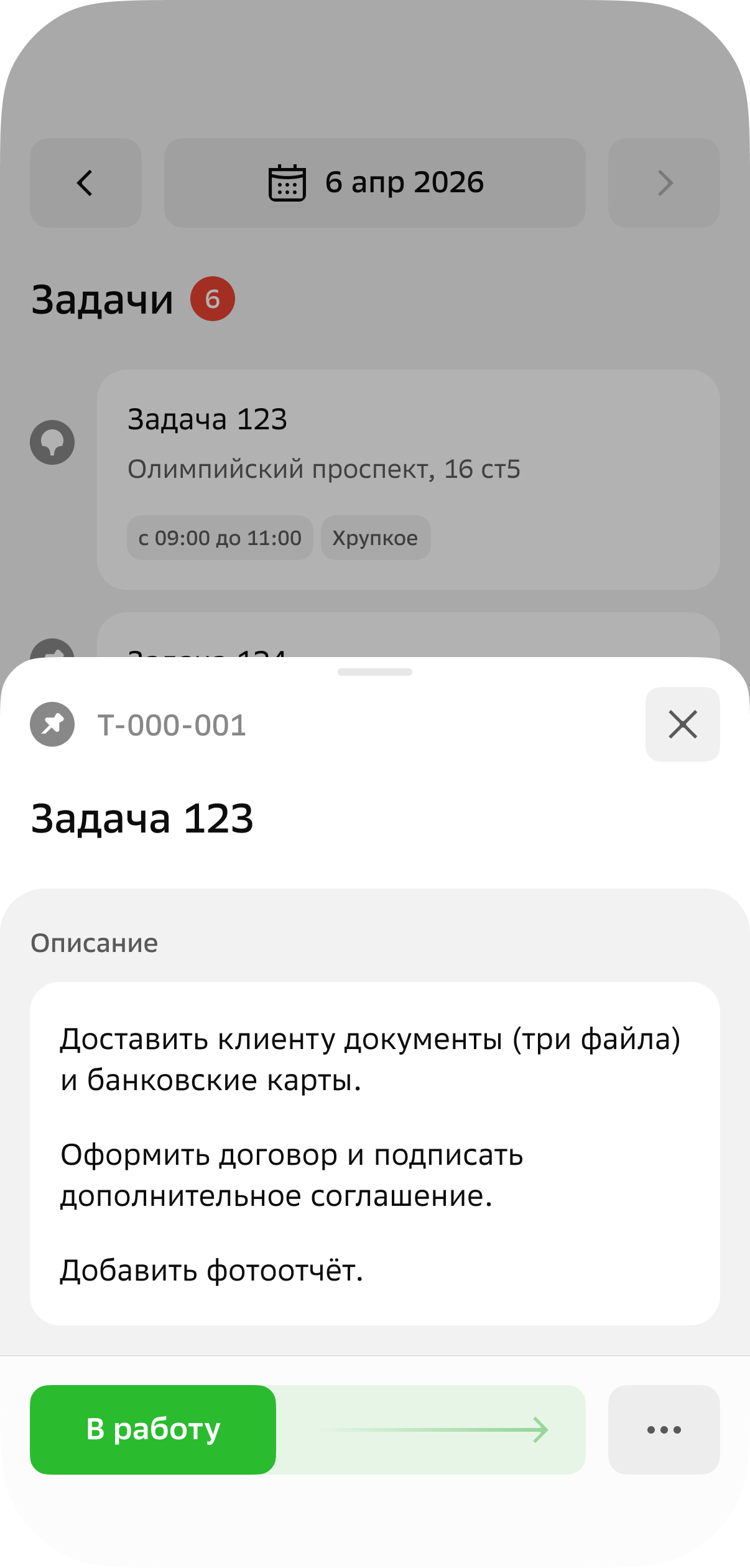
Open the task card, tap Start, and drag the slider to the right.
-
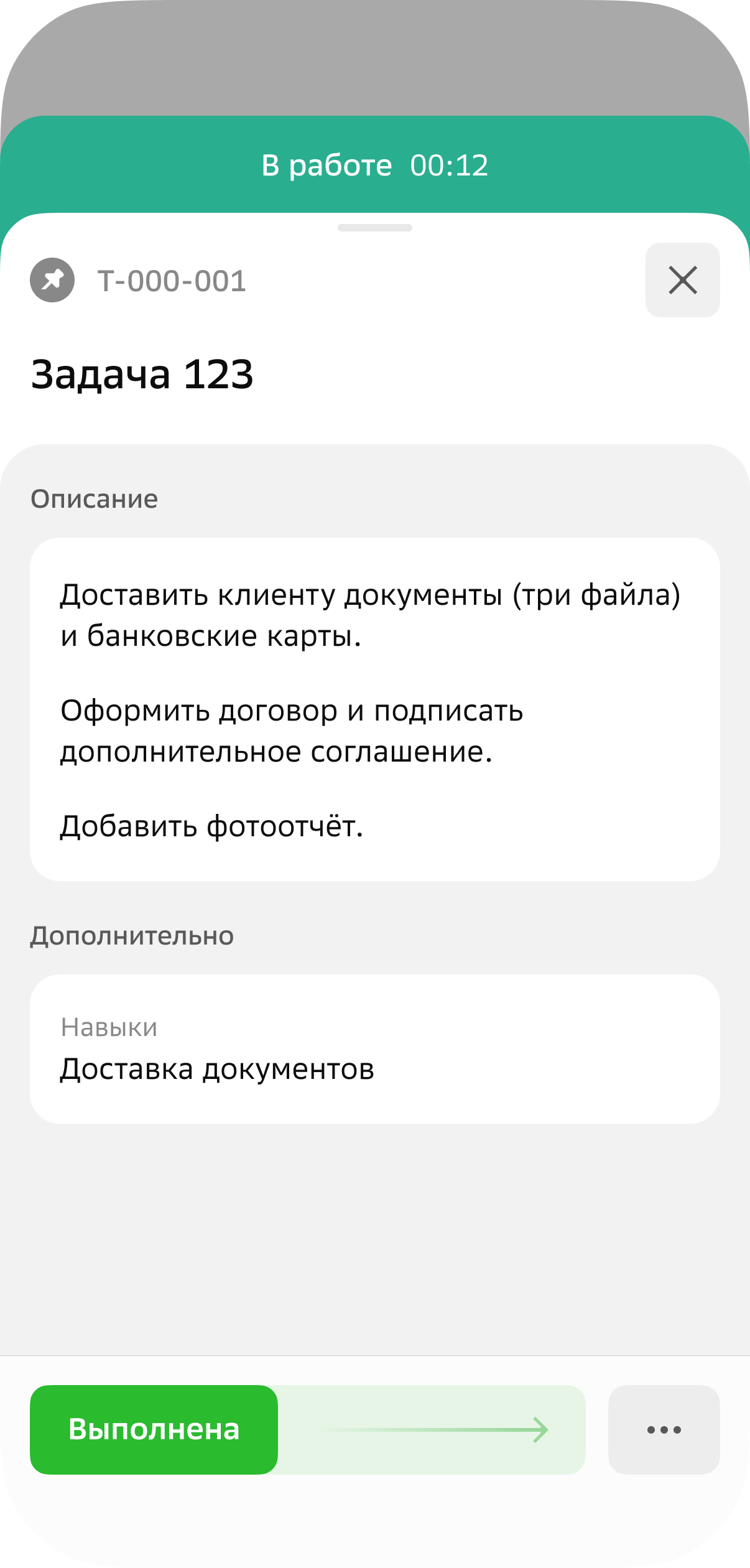
To complete the task, tap Finish task in the task card and drag the slider to the right.
-
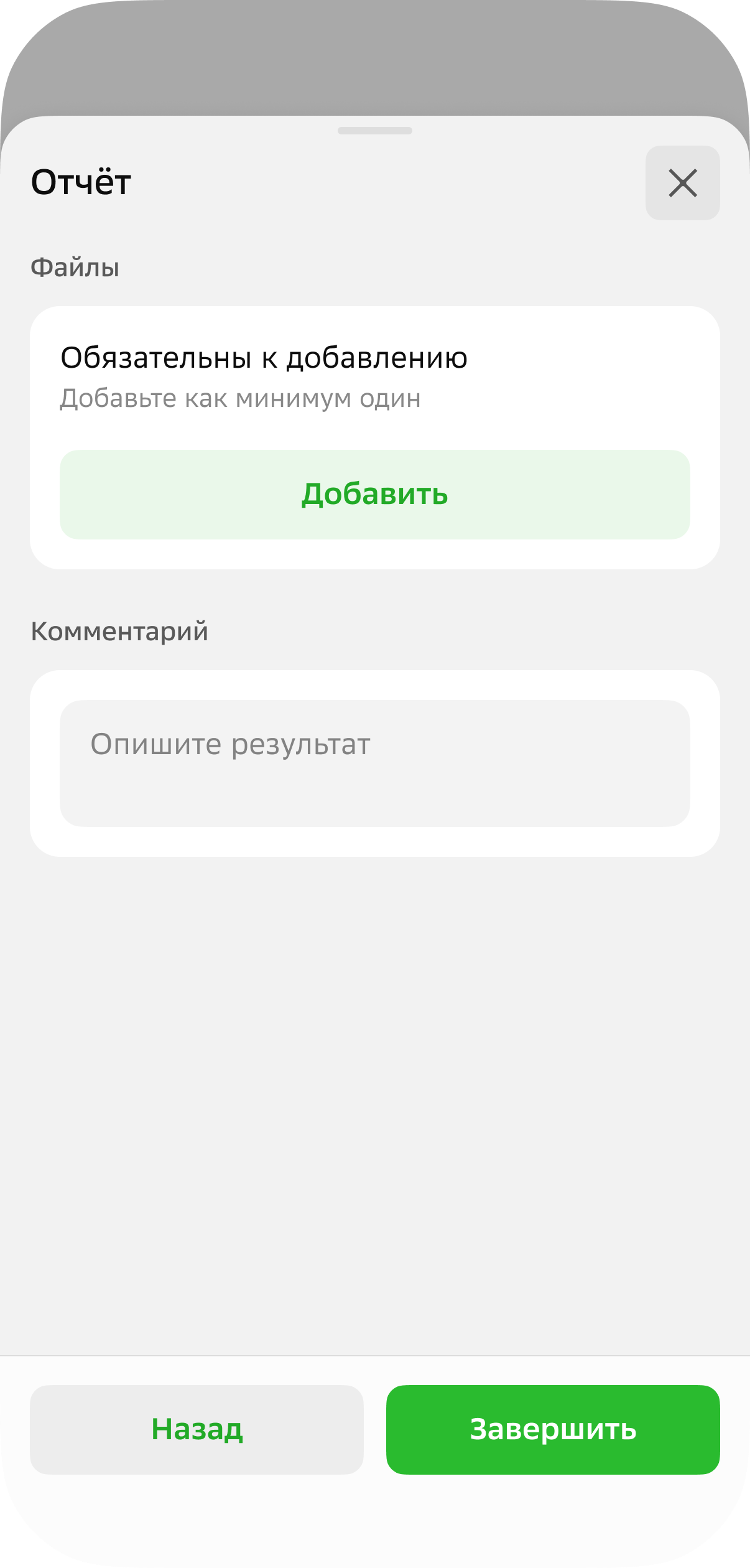
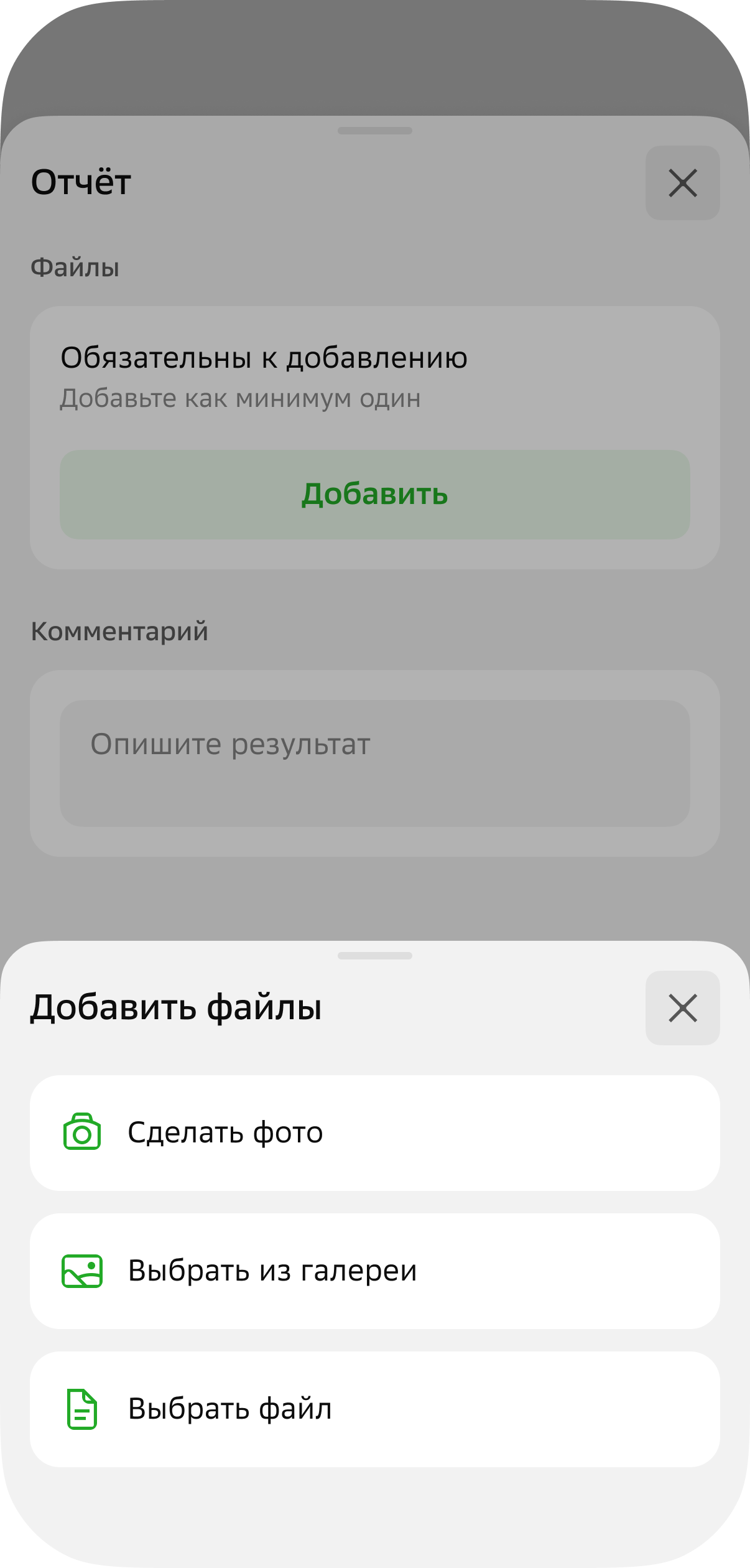
If sending a report (files or photos) is required to complete the task, tap Add and select:
- Take a photo: take a photo with the device camera.
- Choose from gallery: select a photo from the gallery.
- Choose file: attach a file in PDF, DOC, DOCX, XLS, or XLSX format. You can attach up to 10 files with a total size of up to 10 MB.
Check the report and tap Finish task.
-
To proceed to the next task in the shift, tap To the task list.
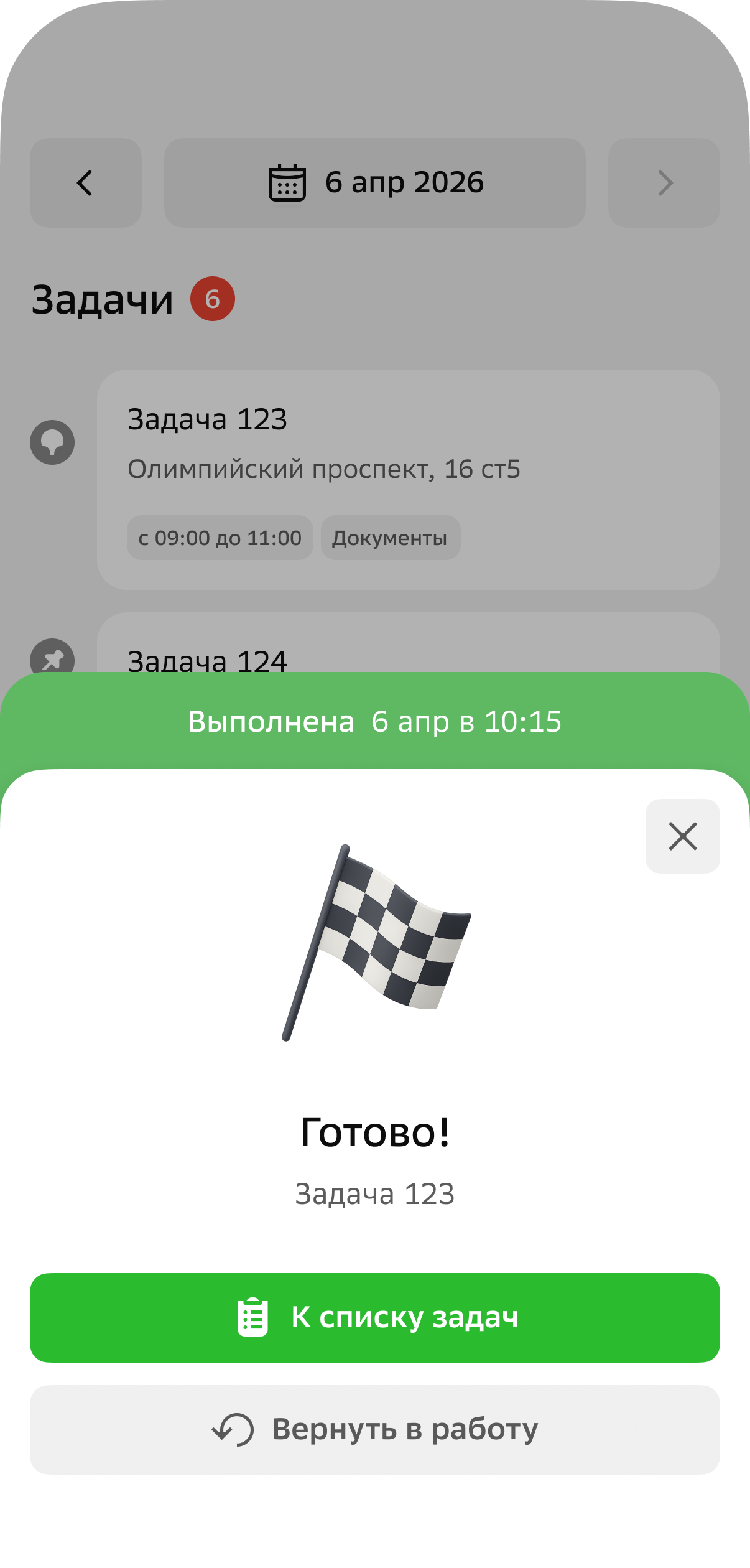
Completed tasks are displayed in the Completed tab. Remaining active tasks are displayed in the Active tab.
Viewing task information
To open the task card, go to the Tasks tab, select the date, and tap on the task in the list.
The task card displays the task identifier, name, and other attributes if they were specified in the task template. For example, if the administrator attached files to the task, you can view them in the Files section (it may have a different name).