Managing companies and users
A company is an entity in the Platform Manager personal account that groups users, their roles, subscriptions, API keys, and available services. A user can be a member of up to 30 companies, switch between them, and create new ones.
Managing companies
Creating a company
You create your first company when registering independently in the Platform Manager personal account. After that, you can create additional companies there. To do this:
-
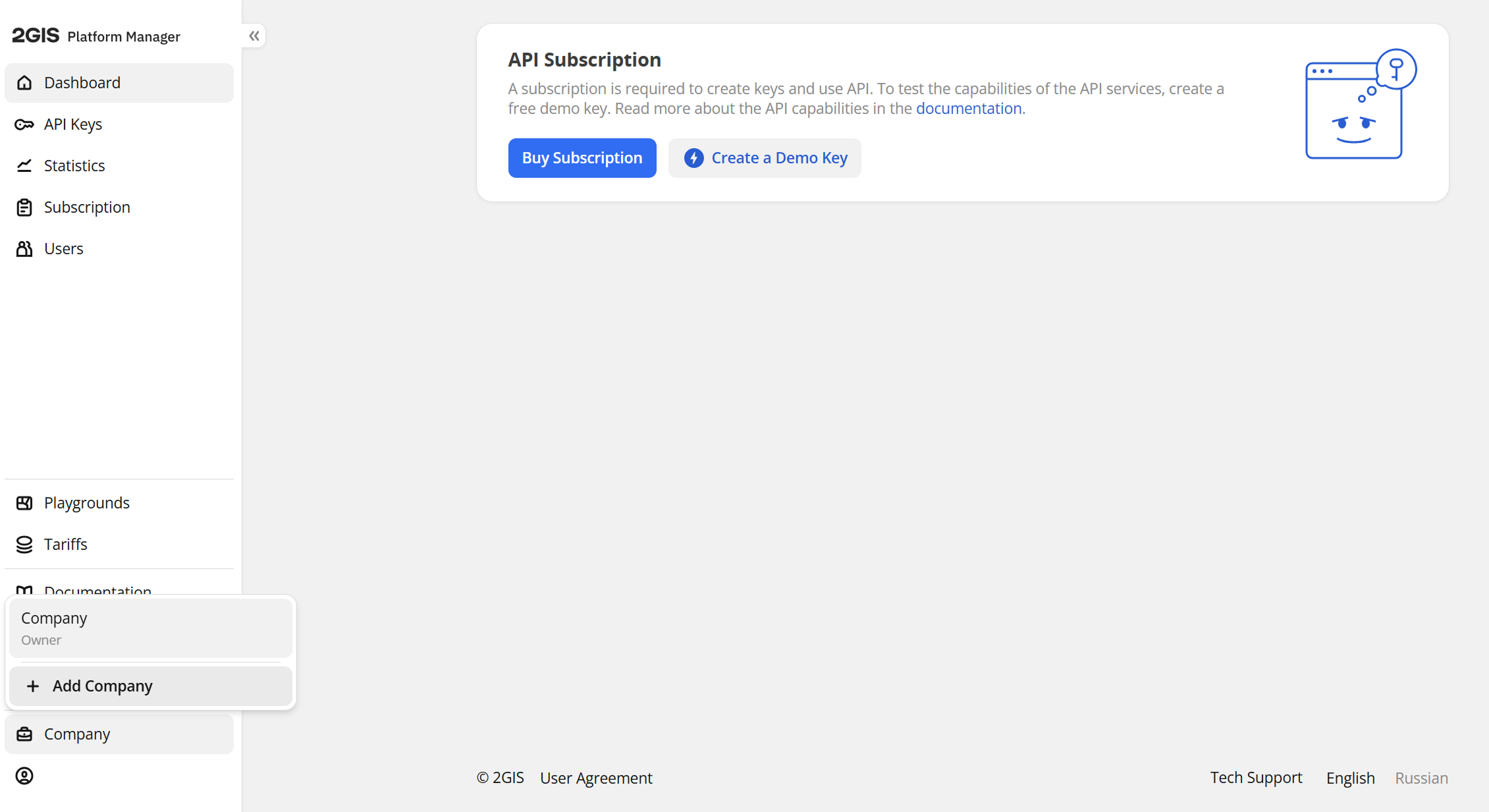
In the bottom left corner of the screen, click the company name and select Add Company.
-
Enter the company name and click Add Company and Log In.
After creating a company, you automatically receive the Owner role for it and can invite users, purchase a subscription, and create API keys.
To switch between companies, click the company name in the bottom left corner of the screen and select the desired one.
To delete a company, contact 2GIS support service. You cannot delete a company yourself.
Changing company name
This action is available for users with the Owner or Administrator role.
-
Click the company name and in the drop-down list, click the
 icon next to the company you want to rename.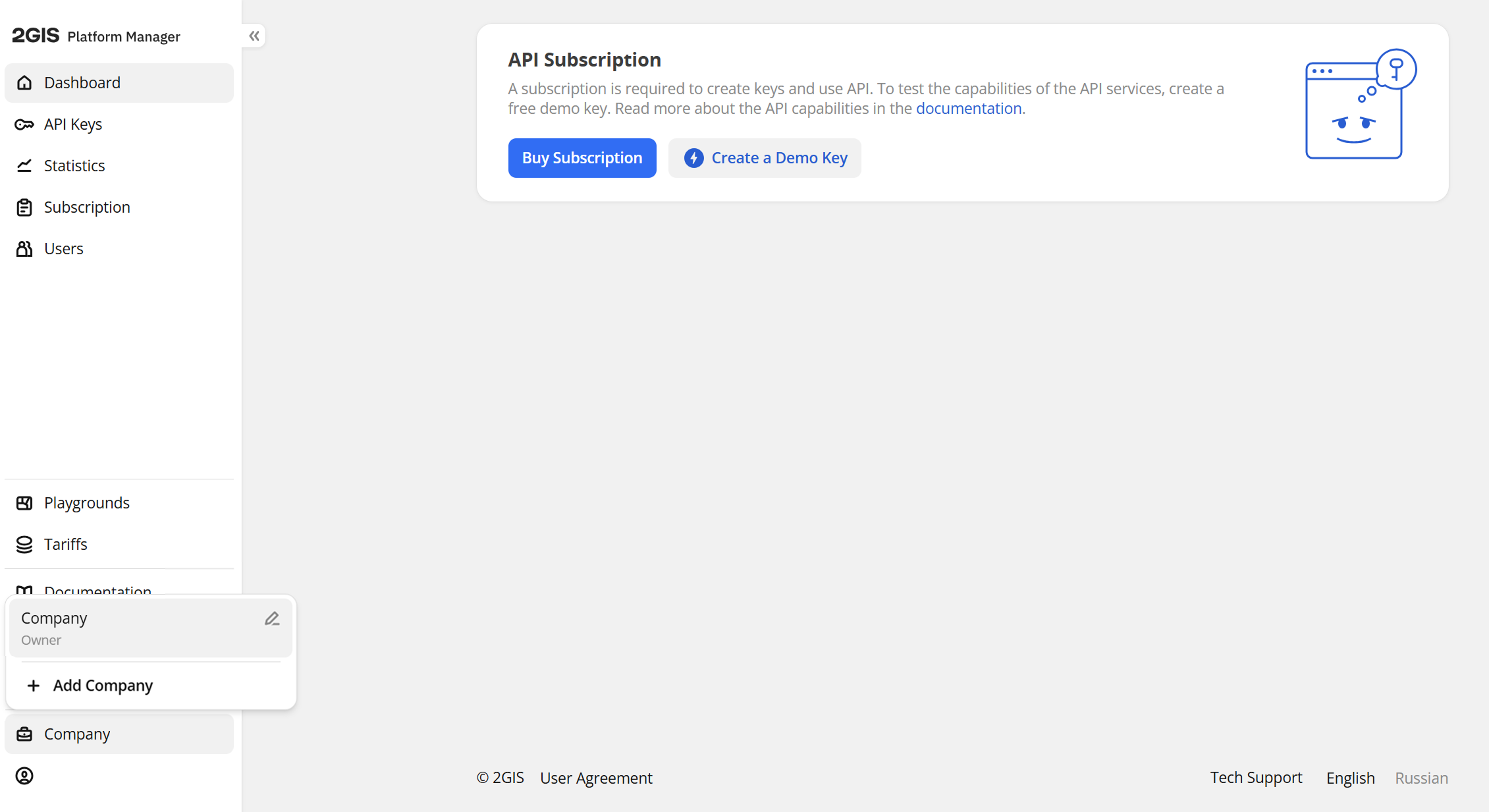
-
Enter a new name and click Save.
Managing users
Platform Manager allows companies to manage their employees' access to 2GIS services for business. The following roles are available for working with the Platform Manager:
- User - can view and edit the personal profile and view the subscription data.
- Administrator - manages users: can invite and remove users, change roles of users and other administrators, and edit the company profile. Can also purchase and edit a subscription, create access keys, and manage keys.
- Owner - performs the same functions as an administrator, but there can only be one owner in a company. The owner role is granted to the user that created the company. Only the current owner can hand over their role to another employee.
Access to other Platform Manager features (viewing statistics, working with playgrounds) is equal between all roles.
Instructions below are only for users with Administrator or Owner roles.
If you are a member of multiple companies, make sure you have selected the correct one in the bottom left corner of the screen beforehand.
Viewing users
To view the information about Platform Manager users that belong to your company, go to the Users tab.
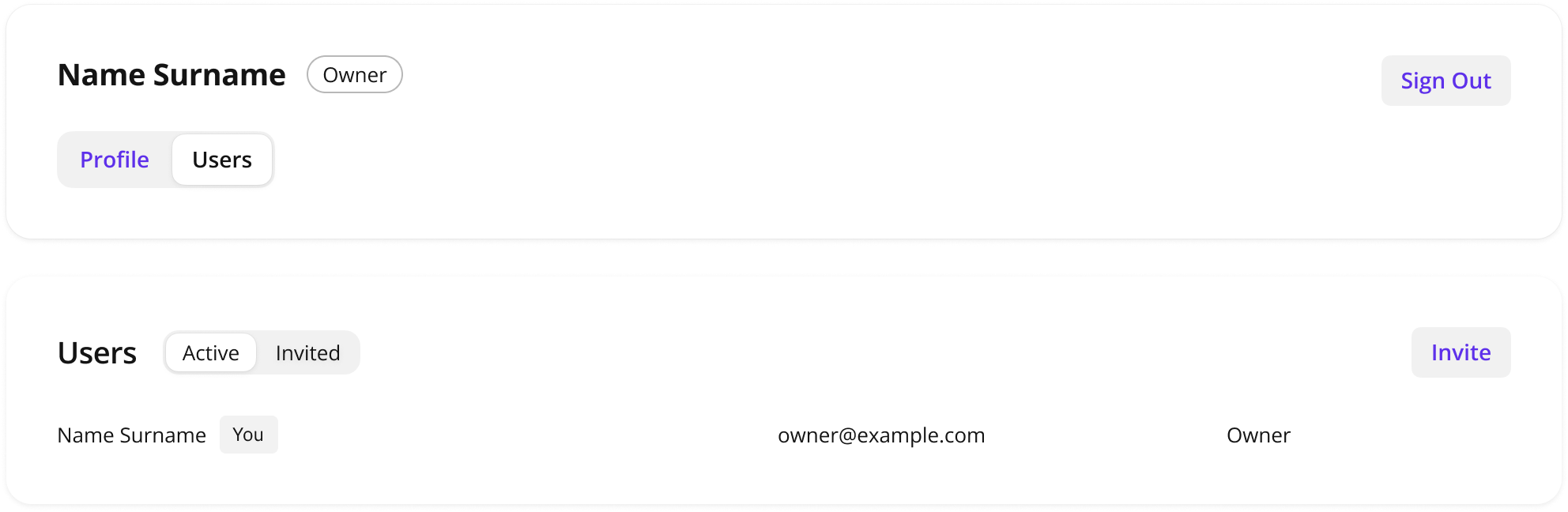
All users that belong to your company are presented in two tables:
-
Active: the users that have signed up in the Platform Manager by following an invitation link from your company administrator or owner. See more about sending invitation links in the Adding a user section.
-
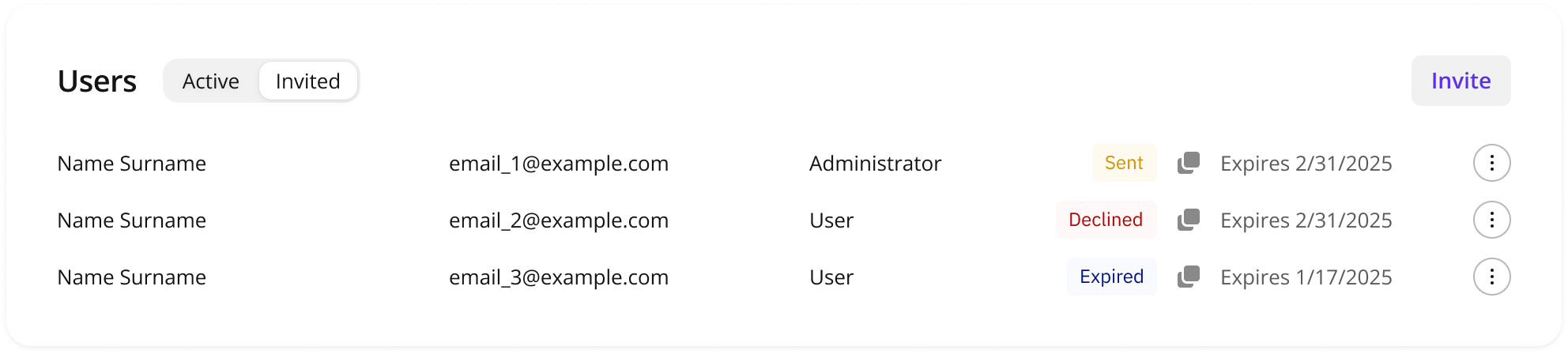
Invited: the invited users that have not signed up yet. You can see the following statuses of invitations:
- Sent - the invitation is sent, but the user has not signed up yet.
- Expired - the invitation has expired (a link in the user invitation email is not working anymore). You can invite the user again.
- Declined - the user has declined an invitation to your company.
Adding users
If a user is already a member of 30 companies, you cannot add them to another one.
-
Go to the Users tab.
-
Click Invite and specify the email address and a role of the new user.
-
Click Send.
An email with an invitation will be sent to the specified address. The invitation is valid for one month.
Statuses of all invited users are displayed in the Invited table.
To revoke an invitation, click the  icon next to the required user and select Delete Invitation.
Changing user roles
To assign a new role for a user:
-
Go to the Users tab.
-
In the corresponding user row of the table, click the
icon and select Change Role. -
Select a new role from a drop-down list and click Save.
The user will receive an email about the role change.
Only the current owner can reassign the Owner role.
Removing users
The removed user will not be able to log into the Platform Manager as a current company member. They can sign up independently (and create a separate company) or receive an invitation link.
If a user is a member of other companies, access to them remains.
To remove a user from the company:
- Go to the Users tab.
- In the corresponding user row of the table, click the icon and select Remove From Organization.
- Confirm the removal.