A KPI widget allows you to display the following indicators on dashboard scenes:
- Current value: a constant value or a value of a selected data attribute (e.g., average rating or the number of constructed buildings).
- Target value.
- Difference between the current and the target values.
Use the KPI widget to monitor KPIs and important metrics such as a sales plan progress, an average rating, or population change.
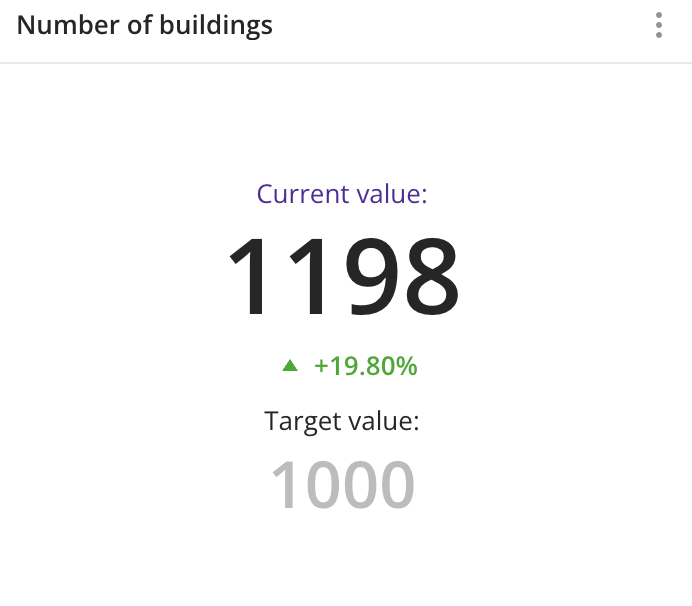
Case example: track progress in the number of constructed buildings:
Main features
-
You can display only a current value in the widget or enable the display of a target value and the difference between them.
-
As the current and the target values, you can select:
-
Constant values that are entered manually and do not depend on the layer data.
-
Data attribute values from the layer, which are updated automatically when the layer data changes. As attributes, you can select:
- Numeric attributes: to count the number of values in the sample or to count values of the attributes using aggregation functions: total, mean, minimum, maximum value, median, and percentile.
- Text attributes, logical attributes, or number of objects: to count the number of values in the sample.
-
The current and the target values can be of different types. For example, the target value can be a constant, and the current value can be obtained from data attributes. Also, attributes for the current and the target values can belong to different data layers.
-
You can select the method to calculate the difference between the current and the target values.
-
Changes in layer data are automatically reflected in the widget.
-
If the filtering by territories or data attributes is applied on a dashboard scene, only the values that match the filters are displayed in the widget. For more information, see the Filtering data on a scene instruction.
-
Go to the Dashboards tab.
-
Open the dashboard.
-
Open a scene using the arrows  and
and  . If there is only one scene in the dashboard, it opens automatically.
-
In the top menu of the dashboard, click  icon.
icon.
-
Select the KPI widget type.
-
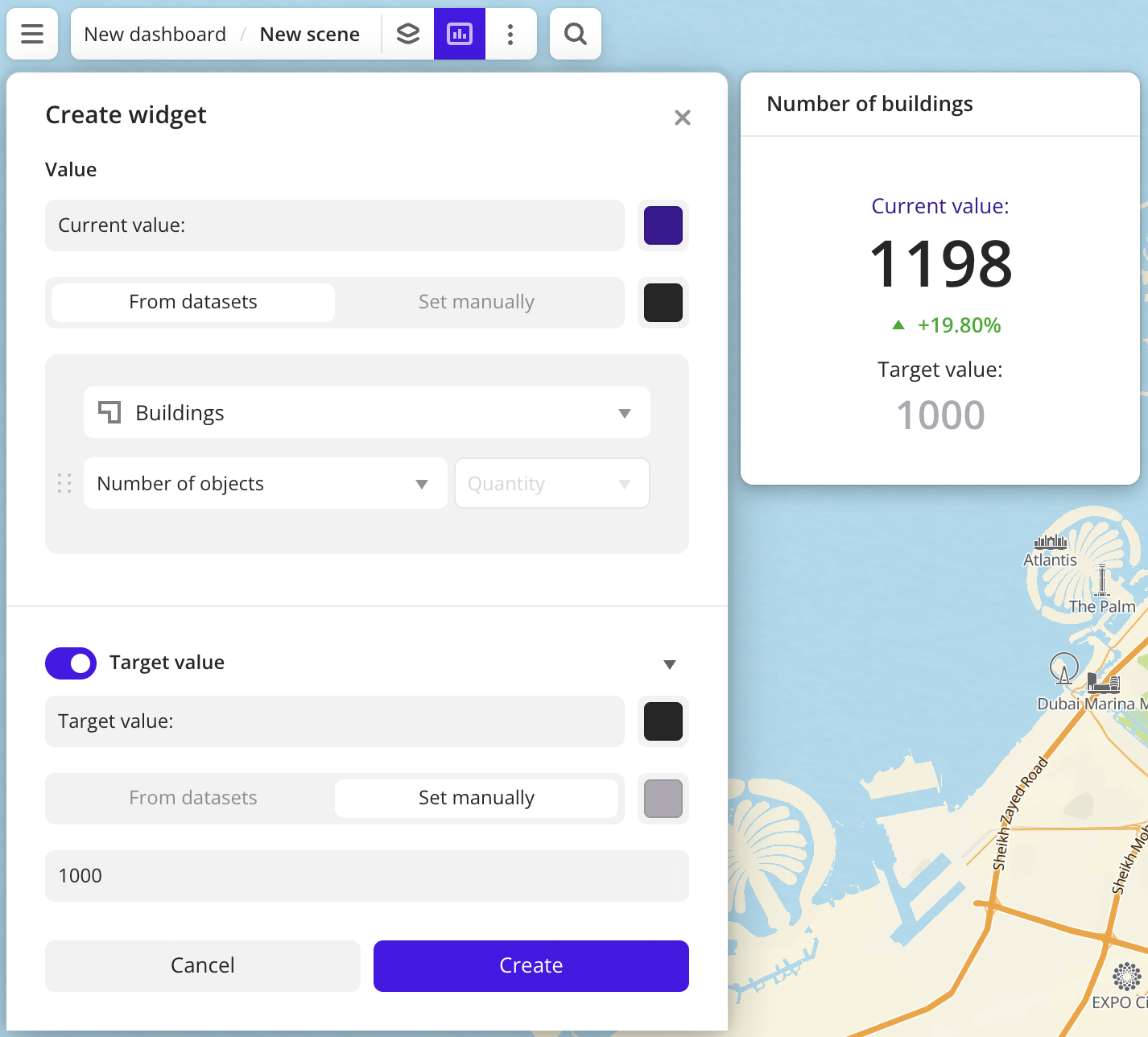
Specify the required parameters. In the Value block, select the current value to display in the widget:
- From datasets: selecting an attribute from the dataset (the value in the widget is updated when the data changes):
- Layer: data layer containing the required attribute. If you work with the uploaded data, make sure it contains at least one attribute.
- Aggregation attribute: attribute used to aggregate data and calculate the value.
- Aggregation type: function used to calculate the aggregation attribute value.
- Set manually: entering the constant value manually.
-
Set the remaining widget parameters if necessary.
-
Click Create.
The new widget is automatically added to the selected dashboard scene.
Parameters
General widget settings
Parameter | Description |
|---|
| Widget name | Widget name. |
Current value
You can set the current value that will be displayed in the widget in one of the following ways:
Additionally, you can configure the current value label.
Current value label
Parameter | Description |
|---|
| Label | Label text in the widget above the current value. The maximum number of characters is 100. |
| Label color | Color of the label above the current value. Select a color from the palette or specify it in the HEX format. |
Selecting a current value
Parameter | Description |
|---|
| Layer | Data layer containing the required attribute. |
| Aggregation attribute | Attribute, which value is aggregated and displayed in the widget:- Text attribute. You can select any attribute values from the data sample. When you modify the sample, the available attribute values are changed.
- Numeric attribute.
- Logical attribute. Available values are
Yes and No/Unknown. - Number of objects.
When the data value changes, the value in the widget is also updated automatically. |
| Aggregation type | Function used to calculate the aggregation attribute value.
For numeric attributes:- Sum: sum of values.
- Mean: mean value.
- Min: minimum value.
- Max: maximum value.
- Median: median value that is equal to or greater than 50% of values in the group.
- 80th percentile: value that is equal to or greater than 80% of values in the group.
- 95th percentile: value that is equal to or greater than 95% of values in the group.
- 99th percentile: value that is equal to or greater than 99% of values in the group.
For text attributes, logical attributes, and number of objects:- Quantity: number of objects in the sample.
|
| Formatting | Format of the aggregation attribute value displayed in the widget. To change the format, click  icon and select a format: icon and select a format:- Without formatting: thousands are separated by commas, and the fractional part is separated by a point.
Example: 12345.6789 → 12,345.6789. - 1.2345 → 1.235: rounding to thousandths (by the rounding rule to the nearest integer).
Example: 12345.6789 → 12,345.679. - 1.2345 → 1.23: rounding to hundredths (by the rounding rule to the nearest integer).
Example: 12345.6789 → 12,345.68. - 1.2345 → 1.2: rounding to tenths (by the rounding rule to the nearest integer).
Example: 12345.6789 → 12,345.7. - 1.2345 → 1: rounding to integers (by the rounding rule to the nearest integer).
Example: 12345.6789 → 12,346. - 1,200 → 1K: compact number notation with indication of magnitude. Only for numbers from 1000.
Examples: 12345 → 12K, 1234567 → 1M. - 1,256 → 1,260: smart rounding to tens. The integer part is rounded to tens, and the fractional part is discarded. Only for numbers from 10.
Example: 12345.6789 → 12,350. - 1,256 → 1,300: smart rounding to hundreds. The integer part is rounded to hundreds, and the fractional part is discarded. Only for numbers from 100.
Example: 12345.6789 → 12,300. - 1,257 → 1,000: smart rounding to thousands. The integer part is rounded to thousands, and the fractional part is discarded. Only for numbers from 1000.
Example: 12345.6789 → 12,000. - 0.12345 → 12.345 %: converting to percentages. The maximum number of decimal places is 3.
Examples: 0.12345 → 12.345%, 1 → 100%. - 1,200,000 → 1.2E6: scientific format (exponential notation).
Examples: 12345 → 1.235E4, 1 → 1E0.
|
| Value color | Color of the current value in the widget. Select a color from the palette or specify it in the HEX format. |
Entering a current value manually
Parameter | Description |
|---|
| Value | Constant current value that does not change until you specify a new one when editing the widget. The maximum number of characters is 16. |
| Formatting | Format of the current value displayed in the widget. To change the format, click icon and select a format:- Without formatting: thousands are separated by commas, and the fractional part is separated by a point.
Example: 12345.6789 → 12,345.6789. - 1.2345 → 1.235: rounding to thousandths (by the rounding rule to the nearest integer).
Example: 12345.6789 → 12,345.679. - 1.2345 → 1.23: rounding to hundredths (by the rounding rule to the nearest integer).
Example: 12345.6789 → 12,345.68. - 1.2345 → 1.2: rounding to tenths (by the rounding rule to the nearest integer).
Example: 12345.6789 → 12,345.7. - 1.2345 → 1: rounding to integers (by the rounding rule to the nearest integer).
Example: 12345.6789 → 12,346. - 1,200 → 1K: compact number notation with indication of magnitude. Only for numbers from 1000.
Examples: 12345 → 12K, 1234567 → 1M. - 1,256 → 1,260: smart rounding to tens. The integer part is rounded to tens, and the fractional part is discarded. Only for numbers from 10.
Example: 12345.6789 → 12,350. - 1,256 → 1,300: smart rounding to hundreds. The integer part is rounded to hundreds, and the fractional part is discarded. Only for numbers from 100.
Example: 12345.6789 → 12,300. - 1,257 → 1,000: smart rounding to thousands. The integer part is rounded to thousands, and the fractional part is discarded. Only for numbers from 1000.
Example: 12345.6789 → 12,000. - 0.12345 → 12.345 %: converting to percentages. The maximum number of decimal places is 3.
Examples: 0.12345 → 12.345%, 1 → 100%. - 1,200,000 → 1.2E6: scientific format (exponential notation).
Examples: 12345 → 1.235E4, 1 → 1E0.
|
| Value color | Color of the current value in the widget. Select a color from the palette or specify it in the HEX format. |
Target value
You can set the target value to compare the current value to in one of the following ways:
Additionally, you can configure the target value label.
Target value label
Parameter | Description |
|---|
| Label | Label text in the widget above the target value. The maximum number of characters is 100. |
| Label color | Color of the label above the target value. Select a color from the palette or specify it in the HEX format. |
Selecting a target value
Parameter | Description |
|---|
| Layer | Data layer containing the required attribute. |
| Aggregation attribute | Attribute, which value is aggregated and displayed in the widget:- Text attribute. You can select any attribute values from the data sample. When you modify the sample, the available attribute values are changed.
- Numeric attribute.
- Logical attribute. Available values are
Yes and No/Unknown. - Number of objects.
When the data value changes, the value in the widget is also updated automatically. |
| Aggregation type | Function used to calculate the aggregation attribute value.
For numeric attributes:- Sum: sum of values.
- Mean: mean value.
- Min: minimum value.
- Max: maximum value.
- Median: median value that is equal to or greater than 50% of values in the group.
- 80th percentile: value that is equal to or greater than 80% of values in the group.
- 95th percentile: value that is equal to or greater than 95% of values in the group.
- 99th percentile: value that is equal to or greater than 99% of values in the group.
For text attributes, logical attributes, and number of objects:- Quantity: number of objects in the sample.
|
| Formatting | Format of the aggregation attribute value displayed in the widget. To change the format, click icon and select a format:- Without formatting: thousands are separated by commas, and the fractional part is separated by a point.
Example: 12345.6789 → 12,345.6789. - 1.2345 → 1.235: rounding to thousandths (by the rounding rule to the nearest integer).
Example: 12345.6789 → 12,345.679. - 1.2345 → 1.23: rounding to hundredths (by the rounding rule to the nearest integer).
Example: 12345.6789 → 12,345.68. - 1.2345 → 1.2: rounding to tenths (by the rounding rule to the nearest integer).
Example: 12345.6789 → 12,345.7. - 1.2345 → 1: rounding to integers (by the rounding rule to the nearest integer).
Example: 12345.6789 → 12,346. - 1,200 → 1K: compact number notation with indication of magnitude. Only for numbers from 1000.
Examples: 12345 → 12K, 1234567 → 1M. - 1,256 → 1,260: smart rounding to tens. The integer part is rounded to tens, and the fractional part is discarded. Only for numbers from 10.
Example: 12345.6789 → 12,350. - 1,256 → 1,300: smart rounding to hundreds. The integer part is rounded to hundreds, and the fractional part is discarded. Only for numbers from 100.
Example: 12345.6789 → 12,300. - 1,257 → 1,000: smart rounding to thousands. The integer part is rounded to thousands, and the fractional part is discarded. Only for numbers from 1000.
Example: 12345.6789 → 12,000. - 0.12345 → 12.345 %: converting to percentages. The maximum number of decimal places is 3.
Examples: 0.12345 → 12.345%, 1 → 100%. - 1,200,000 → 1.2E6: scientific format (exponential notation).
Examples: 12345 → 1.235E4, 1 → 1E0.
|
| Value color | Color of the target value in the widget. Select a color from the palette or specify it in the HEX format. |
Entering a target value manually
Parameter | Description |
|---|
| Value | Constant target value that does not change until you specify a new one when editing the widget. The maximum number of characters is 16. |
| Formatting | Format of the target value displayed in the widget. To change the format, click icon and select a format:- Without formatting: thousands are separated by commas, and the fractional part is separated by a point.
Example: 12345.6789 → 12,345.6789. - 1.2345 → 1.235: rounding to thousandths (by the rounding rule to the nearest integer).
Example: 12345.6789 → 12,345.679. - 1.2345 → 1.23: rounding to hundredths (by the rounding rule to the nearest integer).
Example: 12345.6789 → 12,345.68. - 1.2345 → 1.2: rounding to tenths (by the rounding rule to the nearest integer).
Example: 12345.6789 → 12,345.7. - 1.2345 → 1: rounding to integers (by the rounding rule to the nearest integer).
Example: 12345.6789 → 12,346. - 1,200 → 1K: compact number notation with indication of magnitude. Only for numbers from 1000.
Examples: 12345 → 12K, 1234567 → 1M. - 1,256 → 1,260: smart rounding to tens. The integer part is rounded to tens, and the fractional part is discarded. Only for numbers from 10.
Example: 12345.6789 → 12,350. - 1,256 → 1,300: smart rounding to hundreds. The integer part is rounded to hundreds, and the fractional part is discarded. Only for numbers from 100.
Example: 12345.6789 → 12,300. - 1,257 → 1,000: smart rounding to thousands. The integer part is rounded to thousands, and the fractional part is discarded. Only for numbers from 1000.
Example: 12345.6789 → 12,000. - 0.12345 → 12.345 %: converting to percentages. The maximum number of decimal places is 3.
Examples: 0.12345 → 12.345%, 1 → 100%. - 1,200,000 → 1.2E6: scientific format (exponential notation).
Examples: 12345 → 1.235E4, 1 → 1E0.
|
| Value color | Color of the target value in the widget. Select a color from the palette or specify it in the HEX format. |
Difference
Parameter | Description |
|---|
| Calculation method | Function used to calculate the change in the current value relative to the target value:- Difference: shows the difference between the current and the target values, taking into account the sign. Example:
- Current value:
70 - Target value:
100 - Calculation result:
70 - 100 = -30
- Absolute difference: shows the difference between the current and the target values, ignoring the sign (difference modulus). Example:
- Current value:
70 - Target value:
100 - Calculation result:
|70 - 100| = 30
- Percentage of the target value: shows as a percentage the ratio of the current value to the target value. Example:
- Current value:
120 - Target value:
80 - Calculation result:
(120 ÷ 80) ⋅ 100% = 150%
- Percentage difference: shows as a percentage the ratio of the difference between the current and the target values to the target value. Example:
- Current value:
120 - Target value:
80 - Calculation result:
((120 - 80) ÷ 80) ⋅ 100% = +50%
- Ratio: shows as a coefficient how many times the current value is greater or less than the target value. Example:
- Current value:
200. - Target value:
100 - Calculation result:
200 ÷ 100 = 2
- Relative change: shows the ratio of the difference between the current and the target values to the target value. Example:
- Current value:
120 - Target value:
80 - Calculation result:
(120 — 80) ÷ 80 = +0.50
|
| Indicator icons | Color settings of the icons that show the change in the current value relative to the target value. Select a color from the palette or specify it in the HEX format.
Icon display rules:- Up arrow (▲) is displayed when the current value is greater than the target value. Examples: Difference
> 0 or Percentage of the target value > 100%. - Down arrow (▼) is displayed when the current value is less than the target value. Examples: Difference
< 0 or Percentage of the target value < 100%. - Icons are not displayed when the current value is equal to the target value. Examples: Difference
= 0 or Percentage of the target value = 100%.
Icons are displayed for all calculation methods except the Absolute difference, since this metric has no direction. |
What's next?