Hexbin
The Hexbin visualization method is useful for estimating the density of data distribution on the map. The territory is divided into equal sections: hexbins. The data is aggregated and distributed over the entire area within the hexbin boundaries. The value in each hexbin is calculated using the selected aggregation function.
The method supports a 3D format for displaying data on the map as columns.
Overview
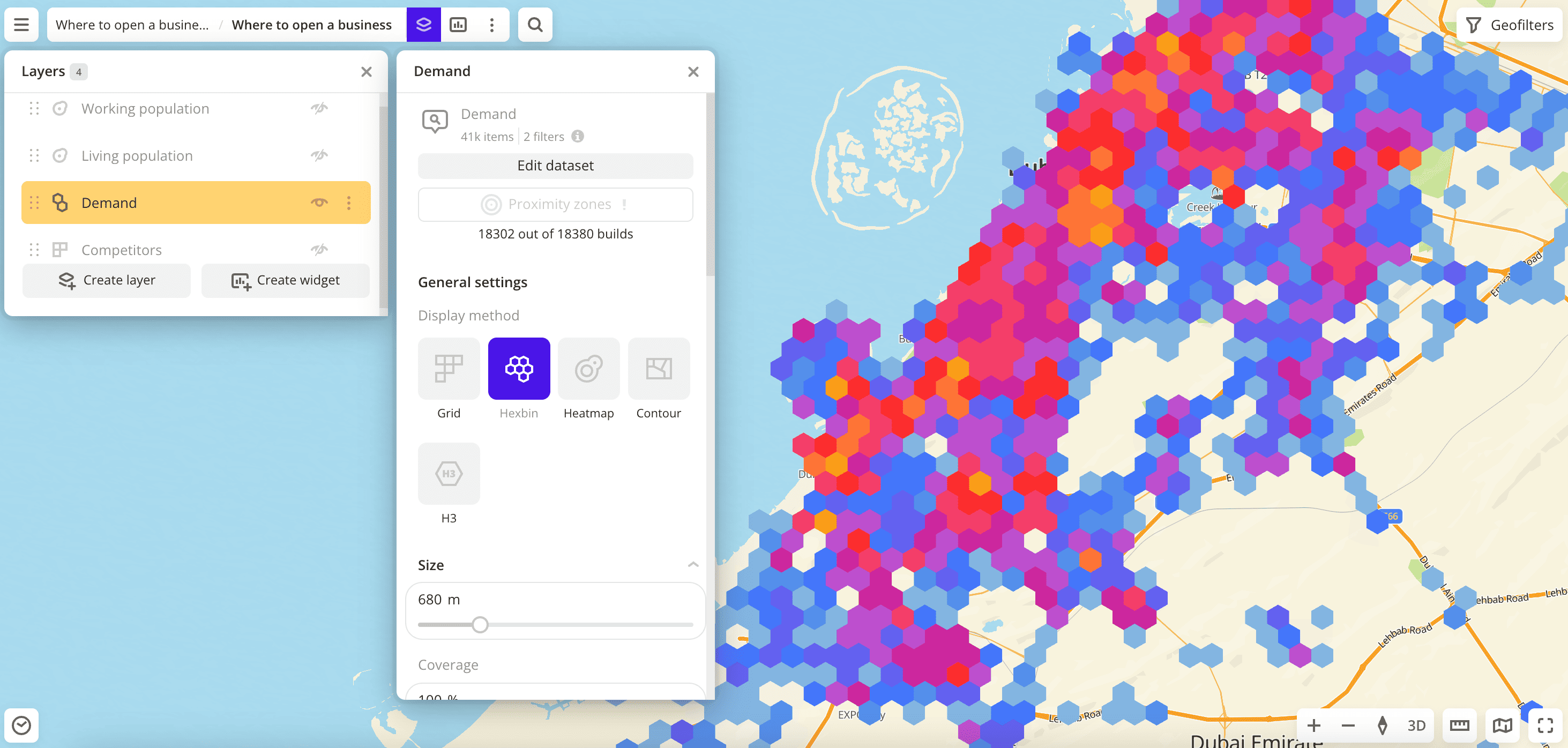
To select a visualization method:
- Go to the Dashboards tab and open the dashboard.
- Open a scene using the arrows
 and
and  . If there is only one scene in the dashboard, it opens automatically.
 - To open the layer, click
 icon and select the required layer.
 - In the General settings block, select the Hexbin visualization method.
- Set the remaining visualization parameters if necessary.
The data is visualized on the map.
Parameters
Tooltip setup
Parameter | Description |
|---|---|
| Tooltip setup | Enable the option to customize the list of attributes that are displayed in the tooltip when hovering over the hexbin on the map. Select the required attributes, change their order, and select an attribute aggregation type if necessary: for more details, see the Configuring a tooltip section. If the option is disabled, the tooltip shows all attributes from the dataset. |
Size
Parameter | Description |
|---|---|
| Size | Size of the hexbin in meters from 5 to 3000. |
| Coverage | Coverage of the territory in percent. Affects the distance between hexbins. |
Caption
Parameter | Description |
|---|---|
| Caption | Enable the option to display hexbin captions. The caption displays the attribute value from the Color basis parameter. |
Color
Parameter | Description |
|---|---|
| Color basis | Numeric attribute that determines the fill color of hexbins on the map and in the legend according to the color palette. Available values depend on the data in the sample. To reset the parameter, click  icon next to its name. icon next to its name. |
| Color aggregation type | Function used to aggregate the attribute values located in one hexbin:
|
| Type of scale | Distribution type used to calculate data ranges in the legend:
|
| Number of ranges | Number of data ranges in the legend and colors in the palette from 1 to 10. Ranges are calculated automatically based on the Type of scale (for Logarithmic, Linear, and Exponential types). To customize ranges manually, enter the required limits or change the order and number of ranges (Adjustable type). In all ranges except the last one, the specified upper (right) limit is not included in the range.To change the order of ranges, hold down  icon next to the range and drag it. To add a range, click icon next to the range and drag it. To add a range, click  icon. To delete a range, click icon. To delete a range, click  icon. icon. |
| Palette | Color palette (a set of prepared color samples). To change the color for a range, click the color in the legend and select a new one from the palette or specify it in the HEX format. To reset the color, hover over it and click icon. The color is also reset when the attribute is changed, but is not reset when the range limits or the number of ranges are changed. Example: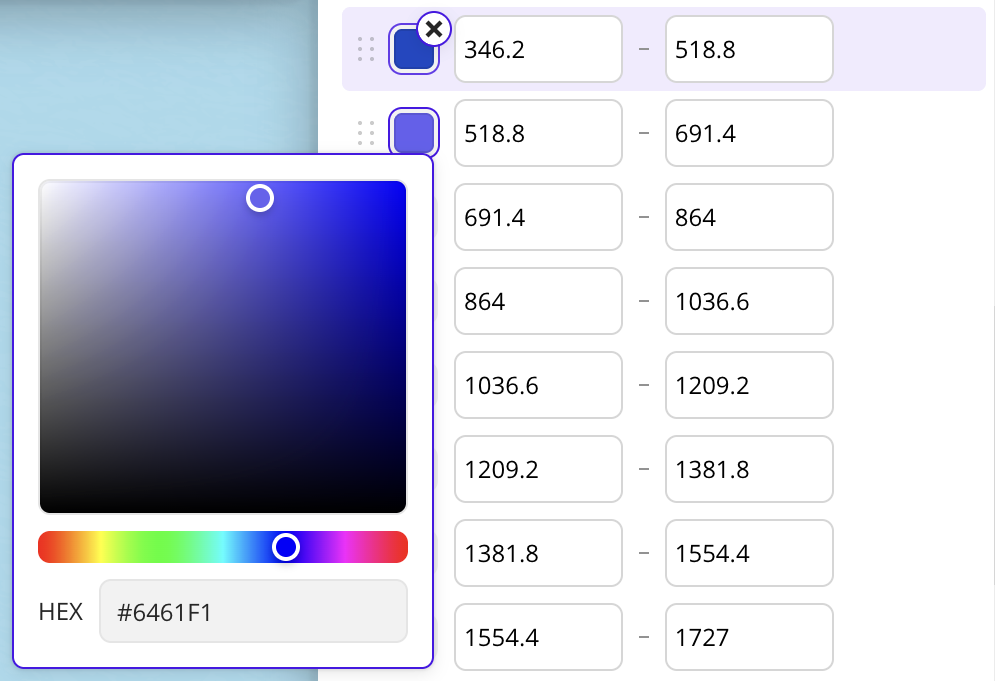 |
| Invert | Enable the option to invert the color palette. All colors in the palette are inverted, except those set manually. |
| Opacity | Opacity of hexbin fill in percent. |
Height
Parameter | Description |
|---|---|
| Height | Enable the option to display the data as 3D columns on the map. To enable 3D display format, select the 3D mode in the bottom-right corner of the map. 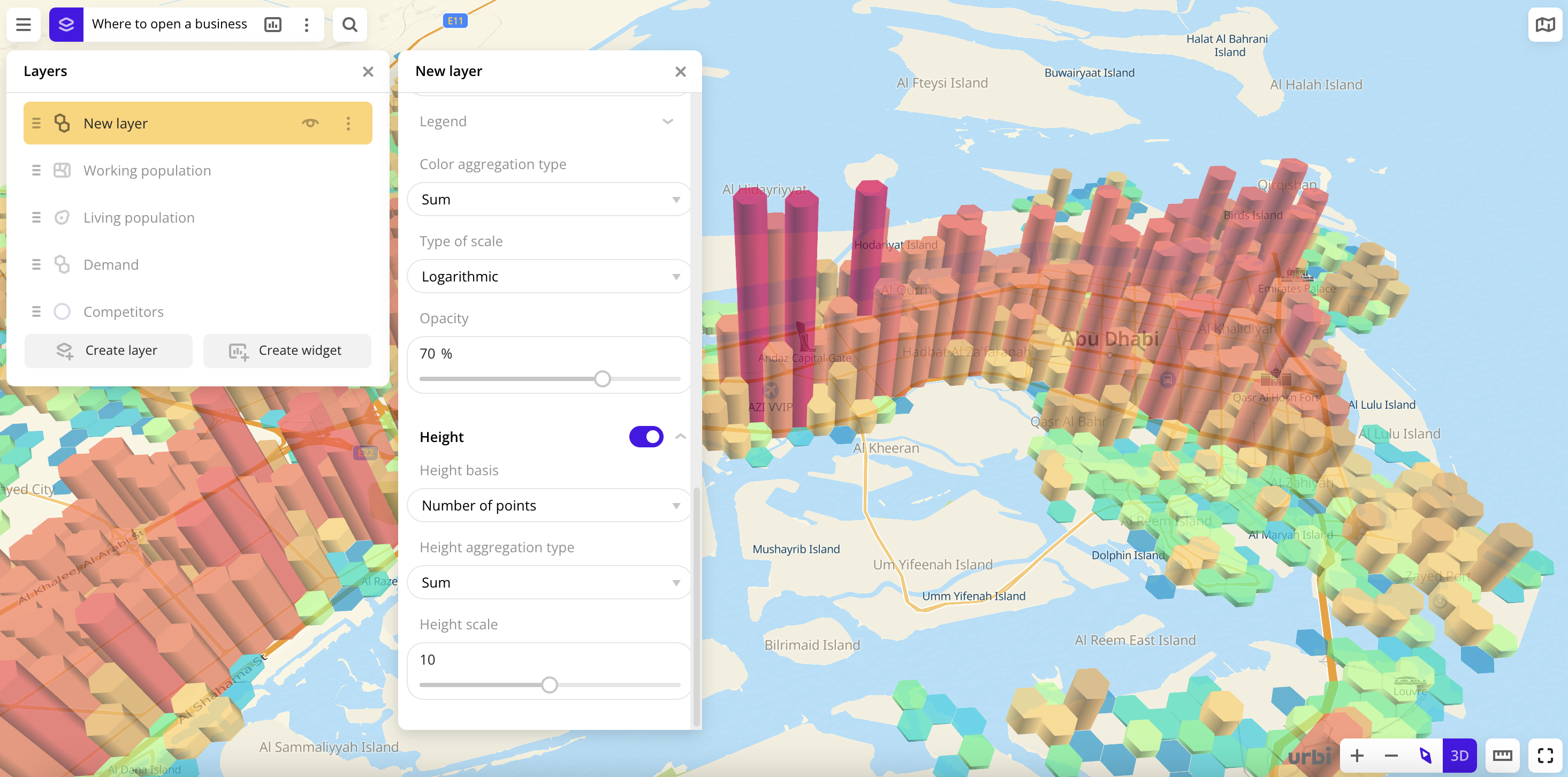 |
| Height basis | Numeric attribute based on which the data is grouped into columns. Available values depend on the data in the sample. |
| Height aggregation type | Function used to aggregate the attribute values located in one column:
|
| Height scale | Column height multiplier from 0.1 to 20. |
What's next?
- Getting started.
- Get to know how to work with Data.
- Learn more about Layers, Dashboards, Scenes, and Widgets.
- Get to know more about other Data visualization methods.
- Learn about ready-made Analytics scenarios.