Working with the Platform Manager
Differences between On-Cloud and On-Premise versions
The Platform Manager is available both On-Cloud (see more in the account documentation) and On-Premise. The available features differ depending on the installation.
| On-Cloud | On-Premise | |
|---|---|---|
| Monitoring services | ✗ | ✓ |
| Uploading custom map styles | ✗ (You can specify the style in map settings) | ✓ |
| Viewing licenses | ✗ | ✓ |
| Viewing statistics on access keys | ✓ | ✓ |
| Testing services in the sandbox | ✓ | ✓ |
| Creating access keys | ✓ | ✗ (Only in the API keys management web interface) |
| Managing access keys | ✓ | ✗ (Only in the API keys management web interface) |
| Managing users | ✓ (See the Managing users) instruction | ✗ (Only in the API keys management web interface) |
| Managing companies | ✓ (See the Managing companies) instruction | ✗ |
Getting started
- Make sure the Platform Manager service is installed and works properly. For details, see the Installing the Platform Manager instruction.
- Go to a URL in the
https://platform.example.comformat that you received after installing the service.
Platform Manager interface
Work with the following tabs in the Platform Manager:
- Status Page: to view the statuses of services installed within the On-Premise software suite.
- Map Styles: to upload and manage custom map styles.
- Licenses: to view information about licenses installed within the On-Premise suite.
- Statistics: to view statistics on access keys and download it as a file.
- Playgrounds: to test the operation of key APIs.
Monitoring services status
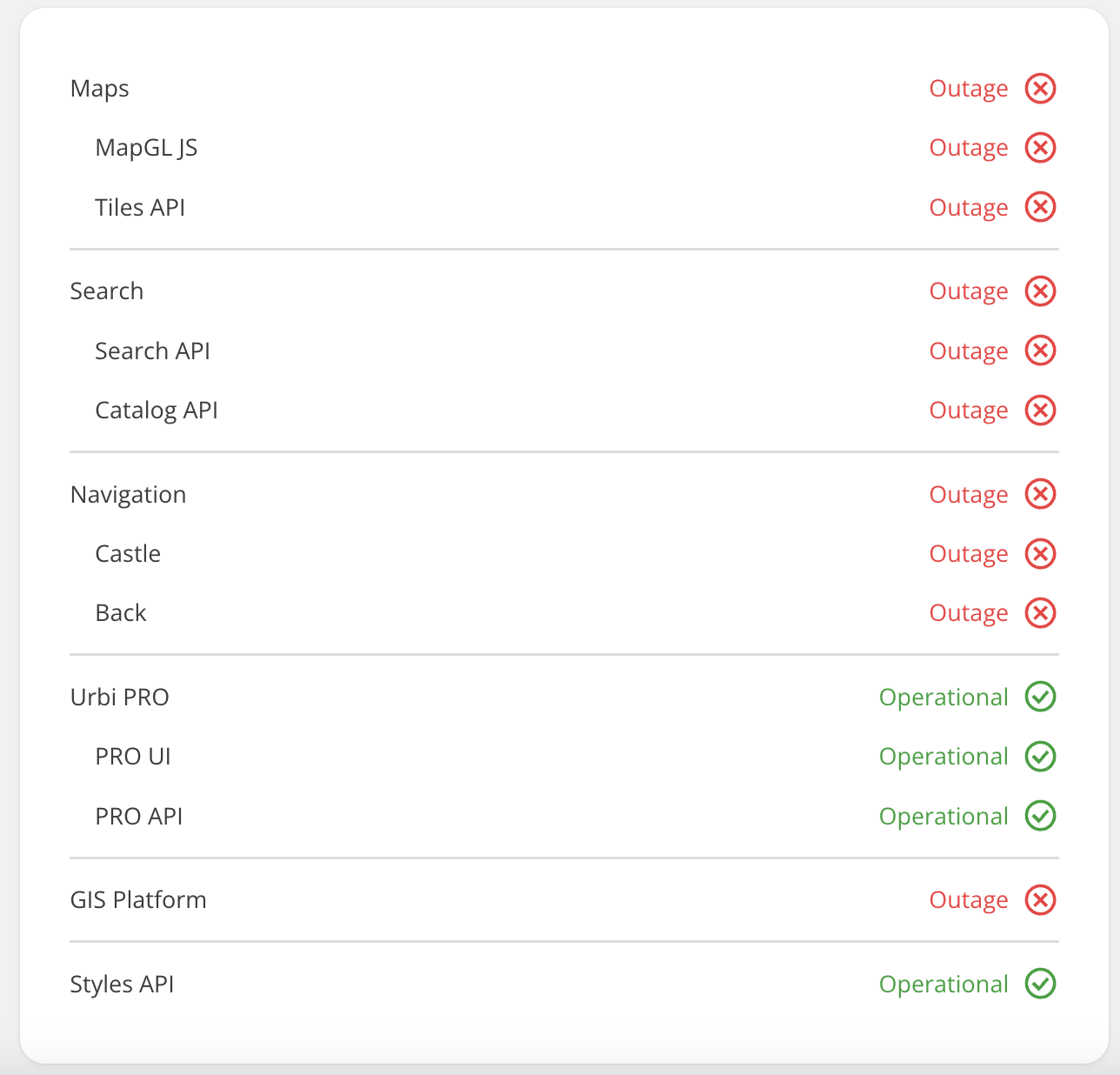
On the Status Page tab, you can:
- view the list of services installed within the On-Premise suite.
- check their status
Managing map styles
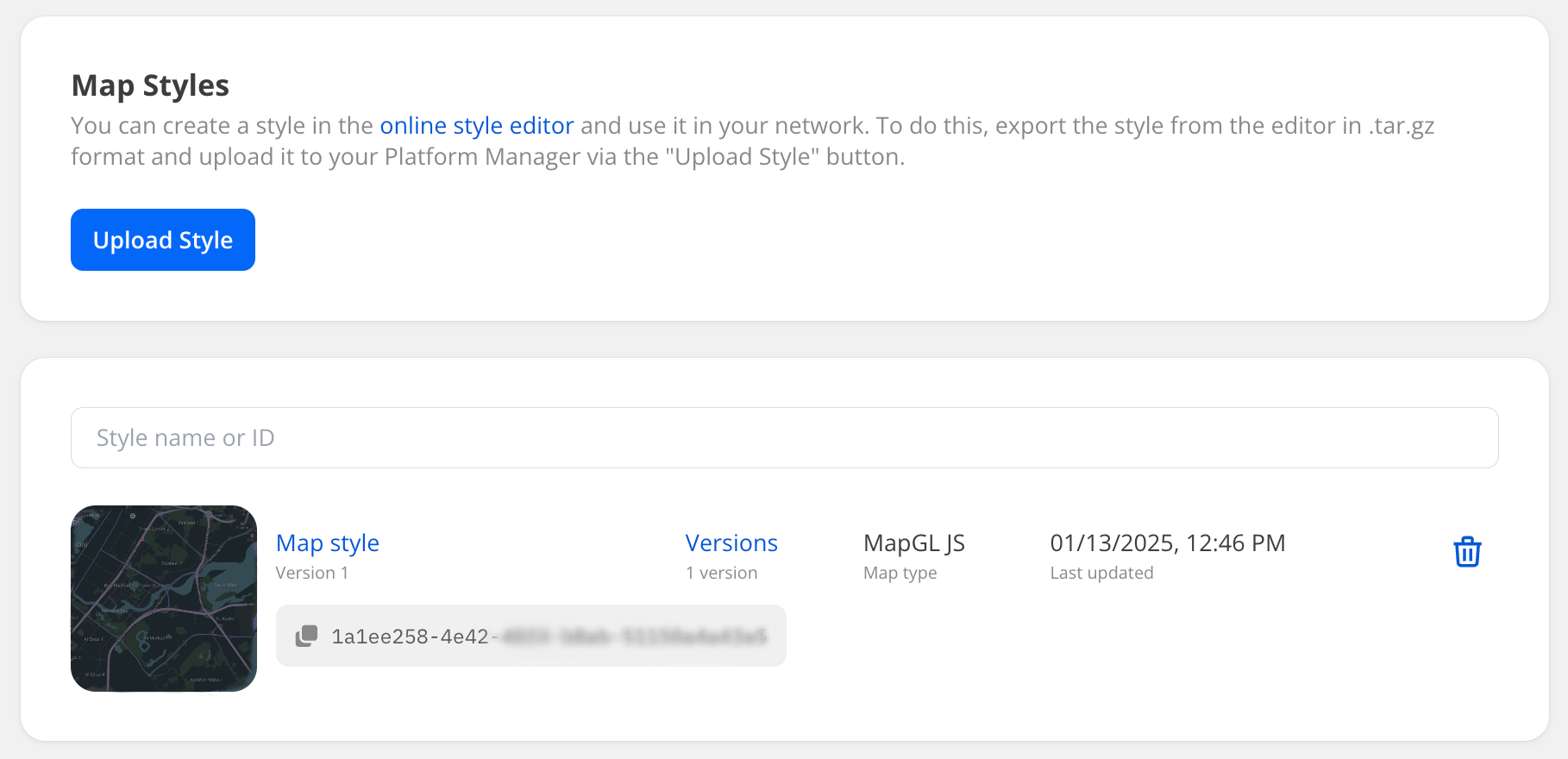
On the Map Styles tab, you can:
- Upload custom map styles to use in a private environment.
- Update map styles and switch between them. You can use new styles or upload updated versions of the same style.
- View the list of uploaded styles along with their details: style ID, version, and the map type they are created for.
- Delete uploaded styles.
Uploading and applying a map style
You can create a unique map style and use it in your environment.
-
Make sure that the Styles API is installed along with other map services.
-
Open the Style editor and create a map style.
See instructions on creating and configuring styles in the Style editor documentation.
-
Export the created style from the Style editor:
-
In the Style editor, open the card of the required style in the My styles block.
-
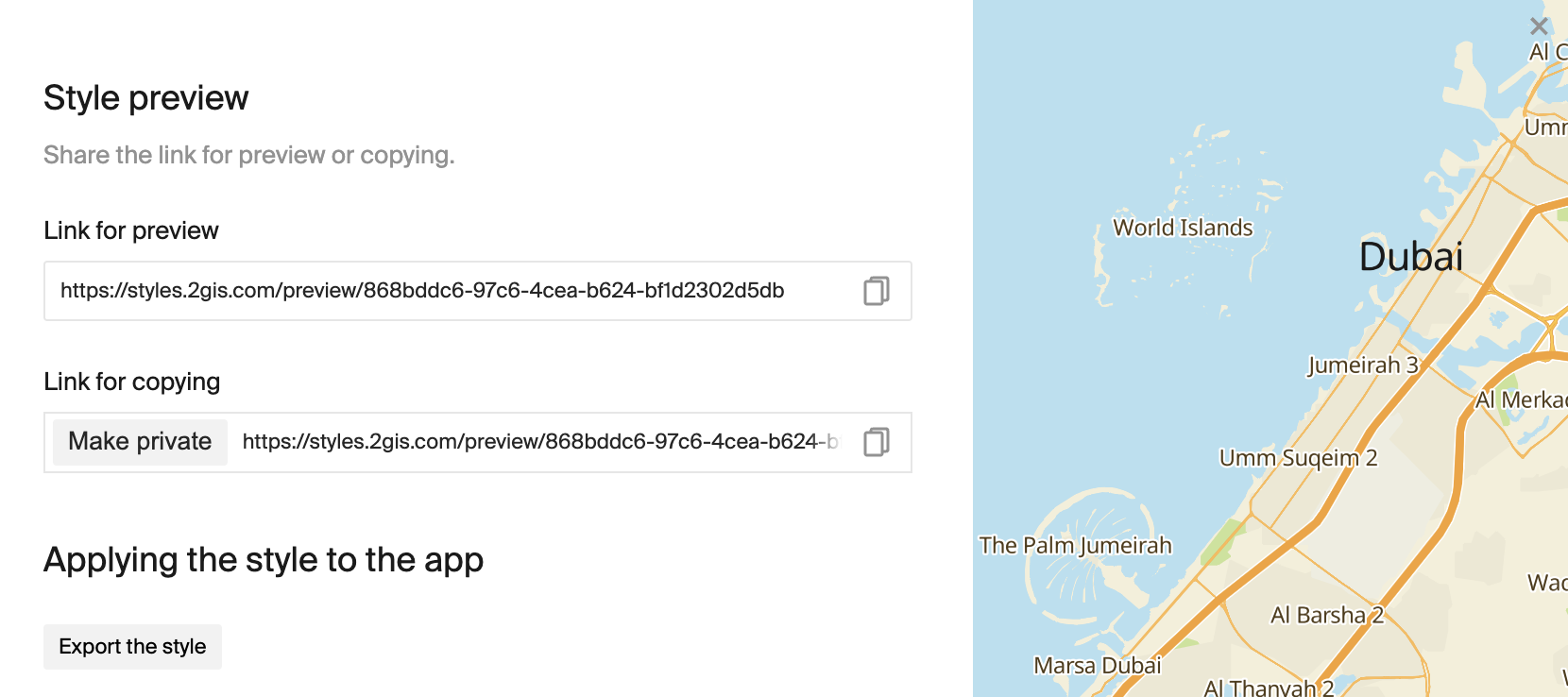
In the top menu, click Share, and then click Export the style in the opened dialog.
-
Select the required style from the list and click Export.
A new panel appears, preparing the archive for download.
-
When the style is in the Done status, select it from the list and click Download the style.
-
Save the generated
.tar.gzarchive locally.
-
-
Upload the style to the On-Premise environment:
- Open the Platform Manager.
- Go to the Map Styles tab and click Upload Style.
- Add the exported
.tar.gzarchive and wait until it is successfully uploaded (the archive status must be Uploaded).
-
To check how the uploaded style looks in the sandbox, on the Map Styles tab, click the required style name.
-
Copy the generated style ID from the Map Style ID field and apply it to the map using the MapGL JS API.
You can upload different versions of one style and switch between them in the Platform Manager: for more details, see the Updating a map style section.
Updating a map style
You can apply a new style to the map or update a previously created one.
-
Open the Style editor and create a new style or edit an existing one.
See instructions on creating and configuring styles in the Style editor documentation.
-
Follow the steps to export the style from the Style editor and upload it to the Platform Manager.
-
If you upload an updated version of the existing style, its ID does not change. The Platform Manager detects the update as a new version of the style. You can switch between versions of one style.
-
If you upload a new style, copy the generated style ID from the Map Style ID field and apply it to the map using the MapGL JS API.
Deleting a map style
Before deleting a style, make sure it is not applied to any active map. Otherwise, the map may display incorrectly when the style is removed.
- Go to the Map Styles tab.
- Click
 icon next to the required style.
Viewing licenses
On the Licenses tab, you can view information about licenses installed within the On-Premise suite.
For each license, the following information is displayed:
- service the license is issued for
- license ID
- validity period
- status:
Active,Expiring soon(appears 10 days before expiration), andExpired
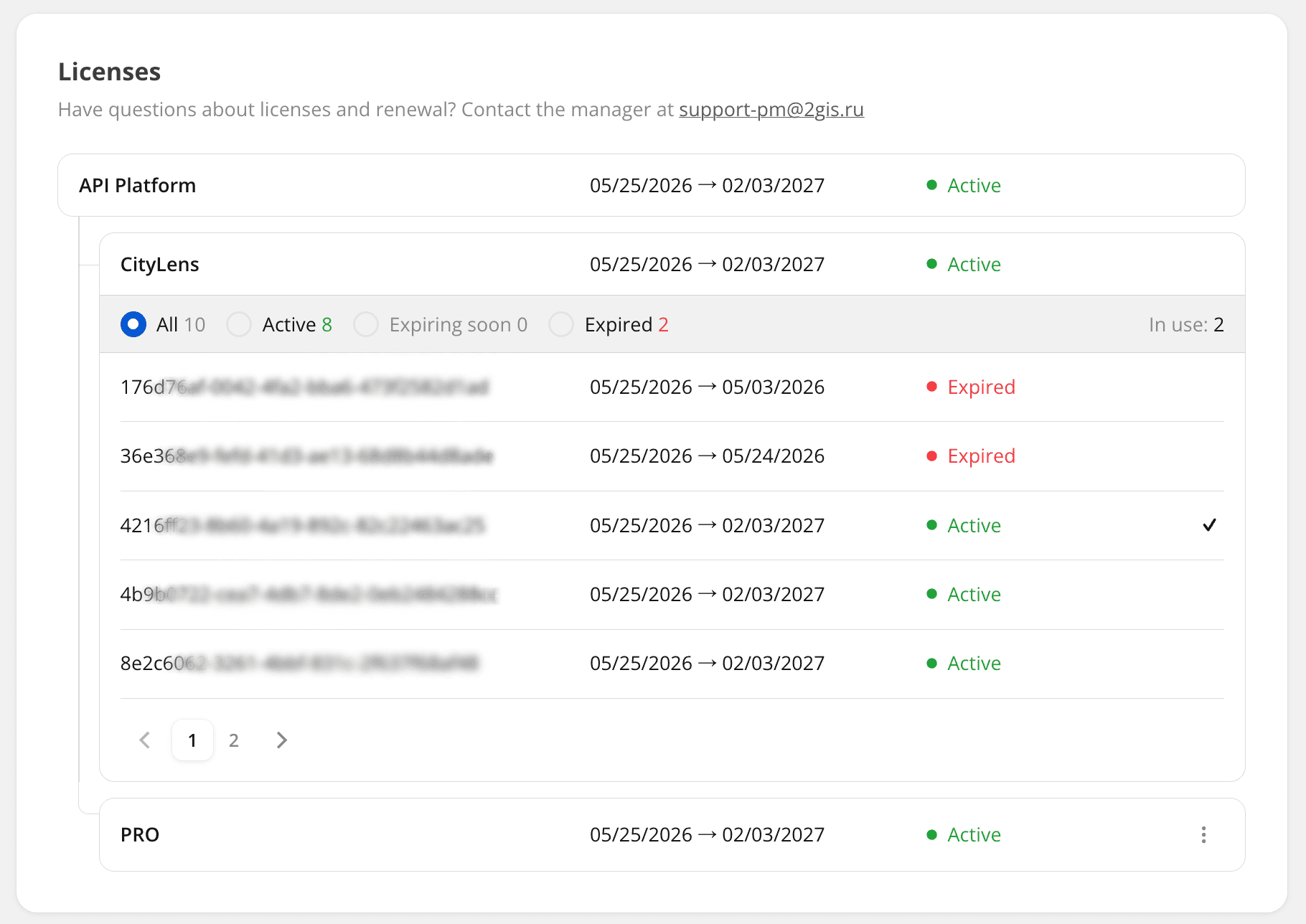
To view the JSON file with additional license parameters, click  icon next to the license.
Viewing statistics
On the Statistics tab, you can view detailed data on the number of requests. You can filter the data by time period, service, and API key.
Example of statistics display:
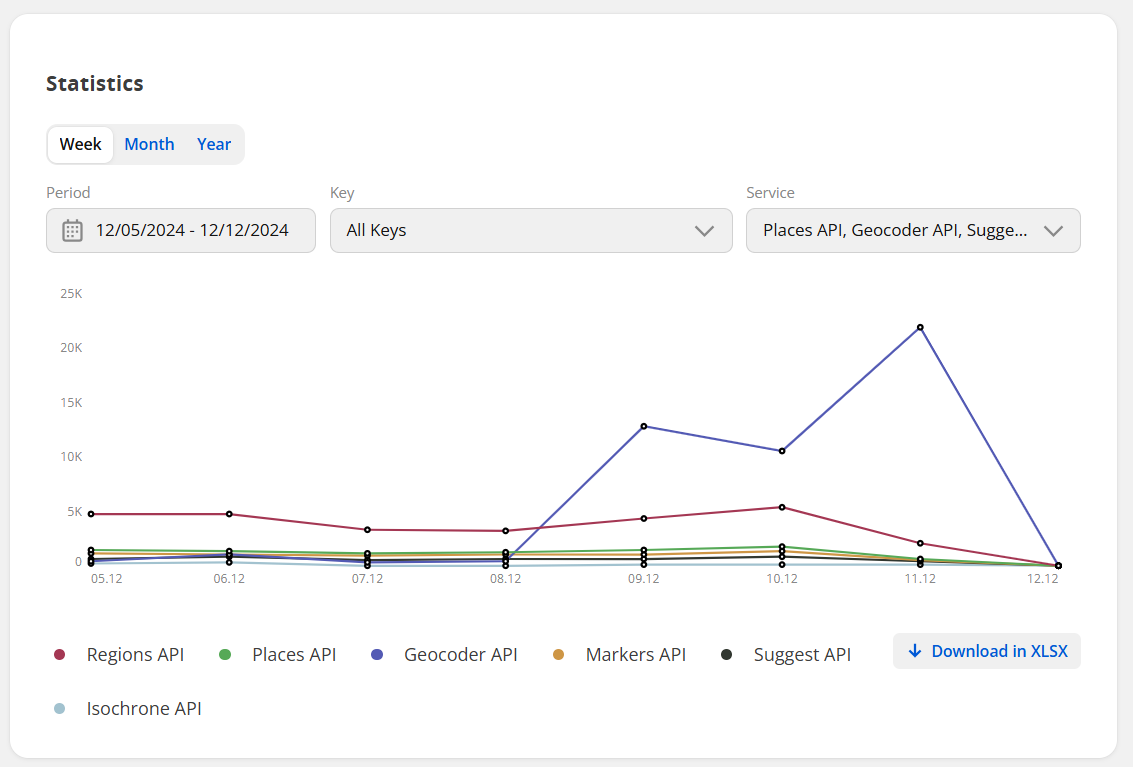
The graph displays the number of requests to services for each day of the selected period.
Data on all graphs is updated after a delay of several minutes.
Request distribution statistics
To view the statistics of request distribution:
-
Go to the Statistics tab.
-
Select the period for which you need to get the statistics (today, the last week, month, or year) or specify a custom period of time in the Period field. Date and time are specified in UTC format.
-
In the Key field, select the access keys for which you need to get the statistics. To select all keys, select Select all.
To filter keys by status and usage mode, click
 icon, select the key status (
Active,Inactive) and mode (Demofor a demo key andProdfor the main key). -
In the Service field, select the services for which you need to get the statistics. To select all services, select Select all.
Downloading a file with the statistics
You can download the statistics as a file with a table in .xlsx format. The table contains the following fields:
- Key: key ID.
- Date: request date.
- Service: service to which a request is sent.
- Mode: key usage mode (
demofor a demo key orprodfor a main key). - Method: endpoint to which a request is sent.
- Result: request result (
Success,Empty response, orError). - Result code: code of a request result.
- Requests amount: number of requests during a day specified on a date.
- Organizations: number of organizations that are received via the Places API, the Suggest API, and the Markers API.
- Geo objects: number of geo objects that are received via the Search APIs.
- Routes: number of routes that are built via the Navigation APIs, excluding the Isochrone API.
To download a file containing the statistics of request distribution:
- Go to the Statistics tab.
- Select a period, keys, and service.
- Click Download in XLSX.
Working with playgrounds
On the Playgrounds tab, you can test the operation of key APIs (you do not need to install services to work with playgrounds):
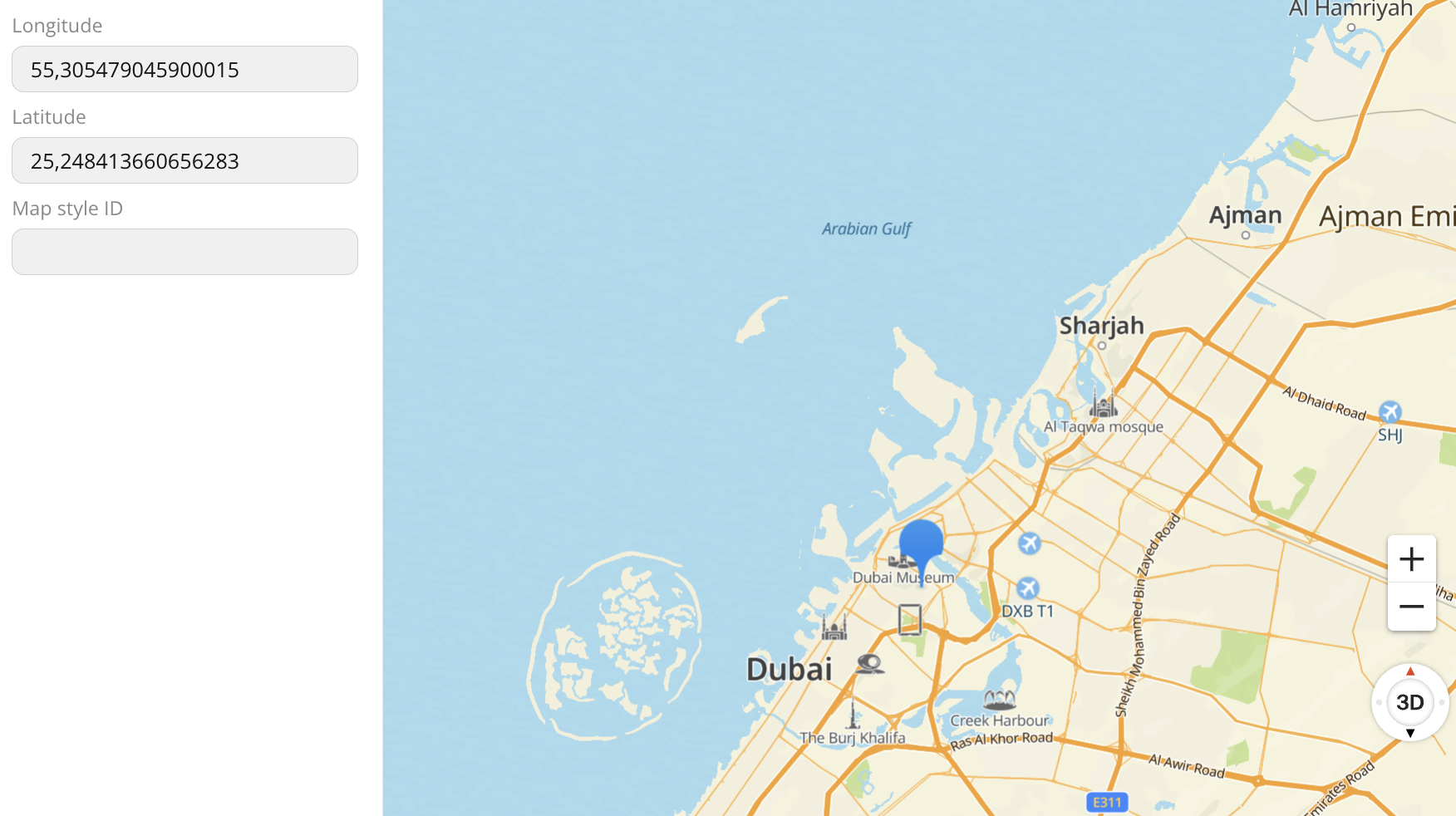
- Map Tiles API: 3D interactive map based on the WebGL engine with MapGL JS.
- Static API: static maps without using JavaScript.
- Geocoder API: search API for determining the coordinates of an object by address (direct geocoding) and vice versa (reverse geocoding).
- Directions API: navigation API for building car, bicycle, and pedestrian routes.
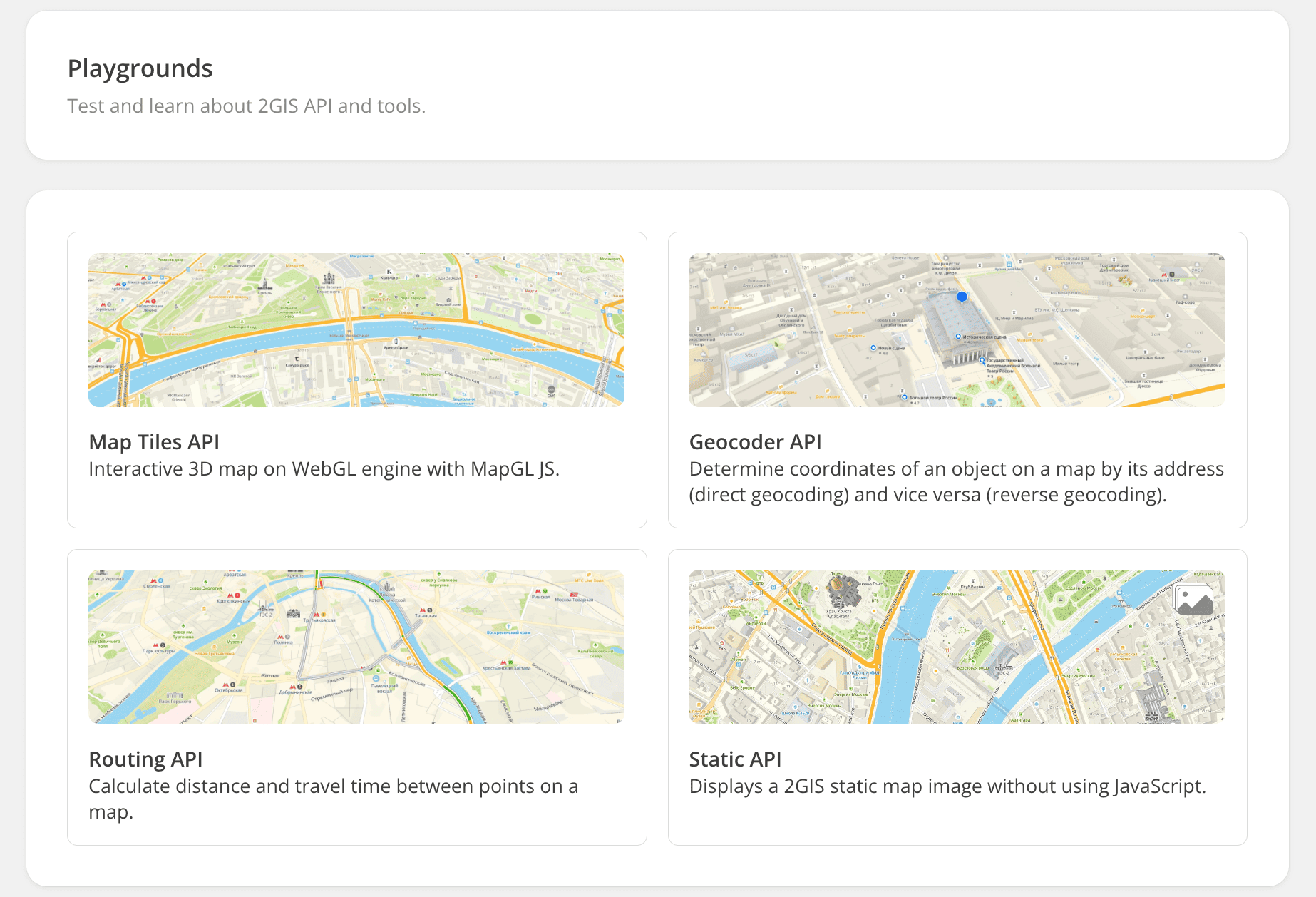
Example of working in the Map Tiles API playground: