Shifts
The documentation provides a description of the interface in Russian.
Shift is a period for planning agent work (for example, a day or night shift). You can specify the start and end time, the shift recurrence, and the list of agents added to the shift. Shifts can overlap: for example, multiple shifts with agents (including the same ones) can run at the same time.
With the Main administrator, Company administrator, and Dispatcher roles, you can work with shifts on the Planning → Shifts tab:
With the Agent group manager role, you can only view shifts of your group.
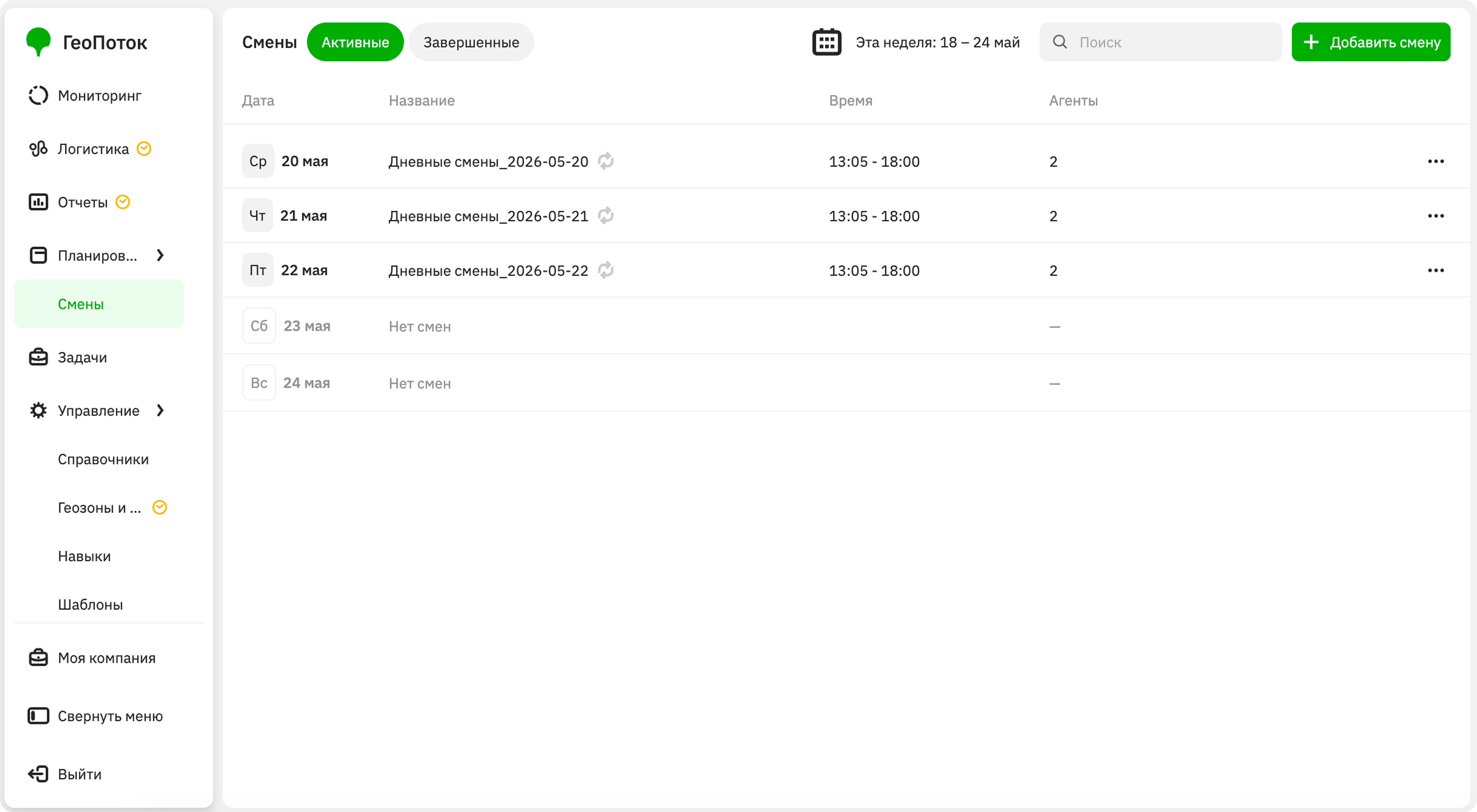
Creating a shift
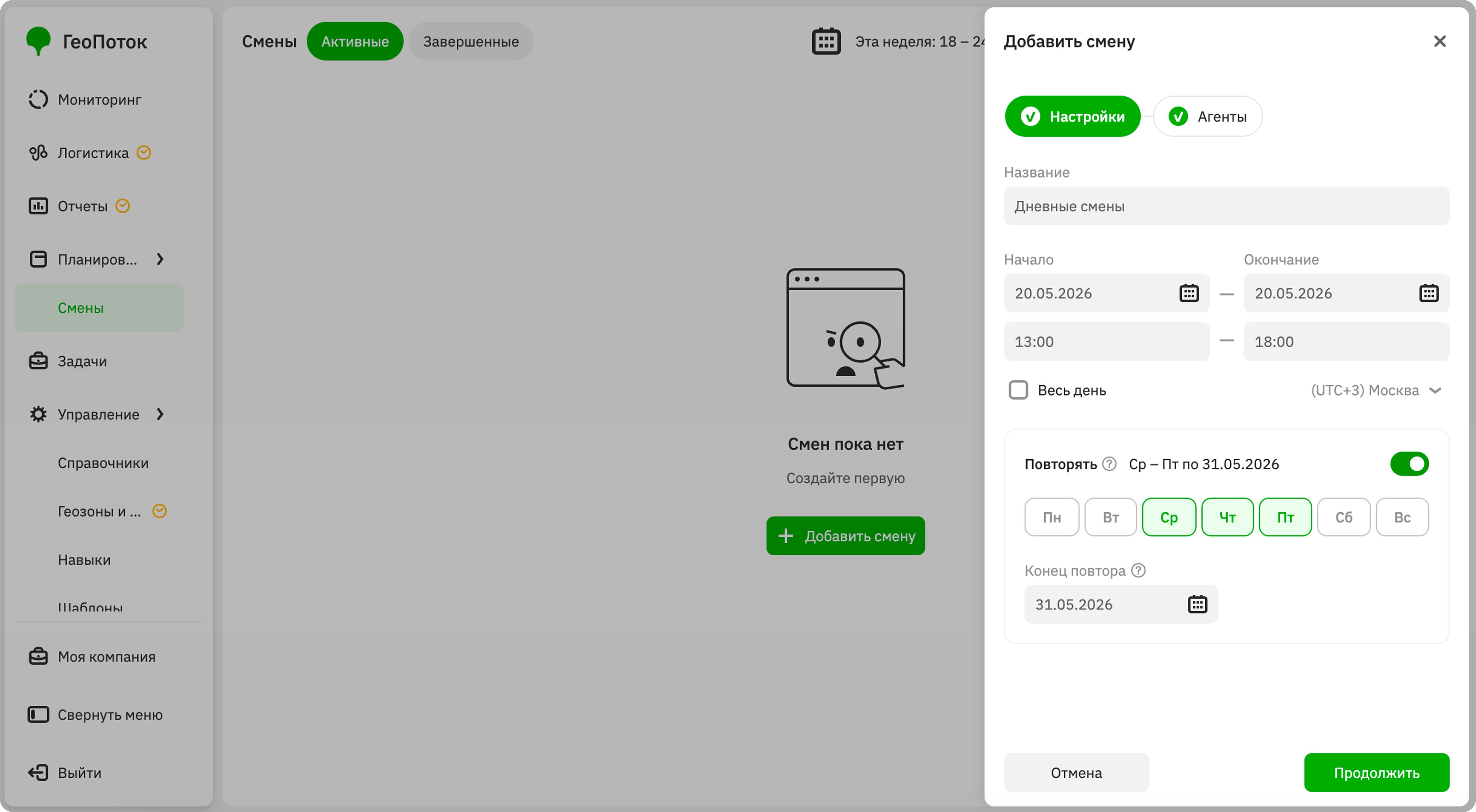
You can create shifts for a particular day or set up a recurring schedule. Shifts automatically start and end at the time you specify. To create shifts, at least one agent must be created.
-
Go to the Planning → Shifts tab.
-
Click Add shift.
-
Specify shift parameters:
-
Shift name (mandatory parameter): shift name.
-
Start (mandatory parameter): start date and time of the shift. The shift must start in the future. If you want to plan a shift for today, specify a time later than the current time.
-
End (mandatory parameter): end date and time of the shift. The minimum shift duration is 1 hour, the maximum is 24 hours.
-
All day: select the checkbox if the shift should last the entire day (from 00:00 to 23:59).
-
Time zone (mandatory parameter): time zone for the specified time.
-
Repeat: to repeat the shift on a schedule at the same time, enable the option and specify the parameters:
- Repeat days: select the days of the week on which the shift repeats.
- Repeat end (mandatory parameter): end date for the shift recurrence series (the start date of the last shift in the series).
Click Continue.
-
-
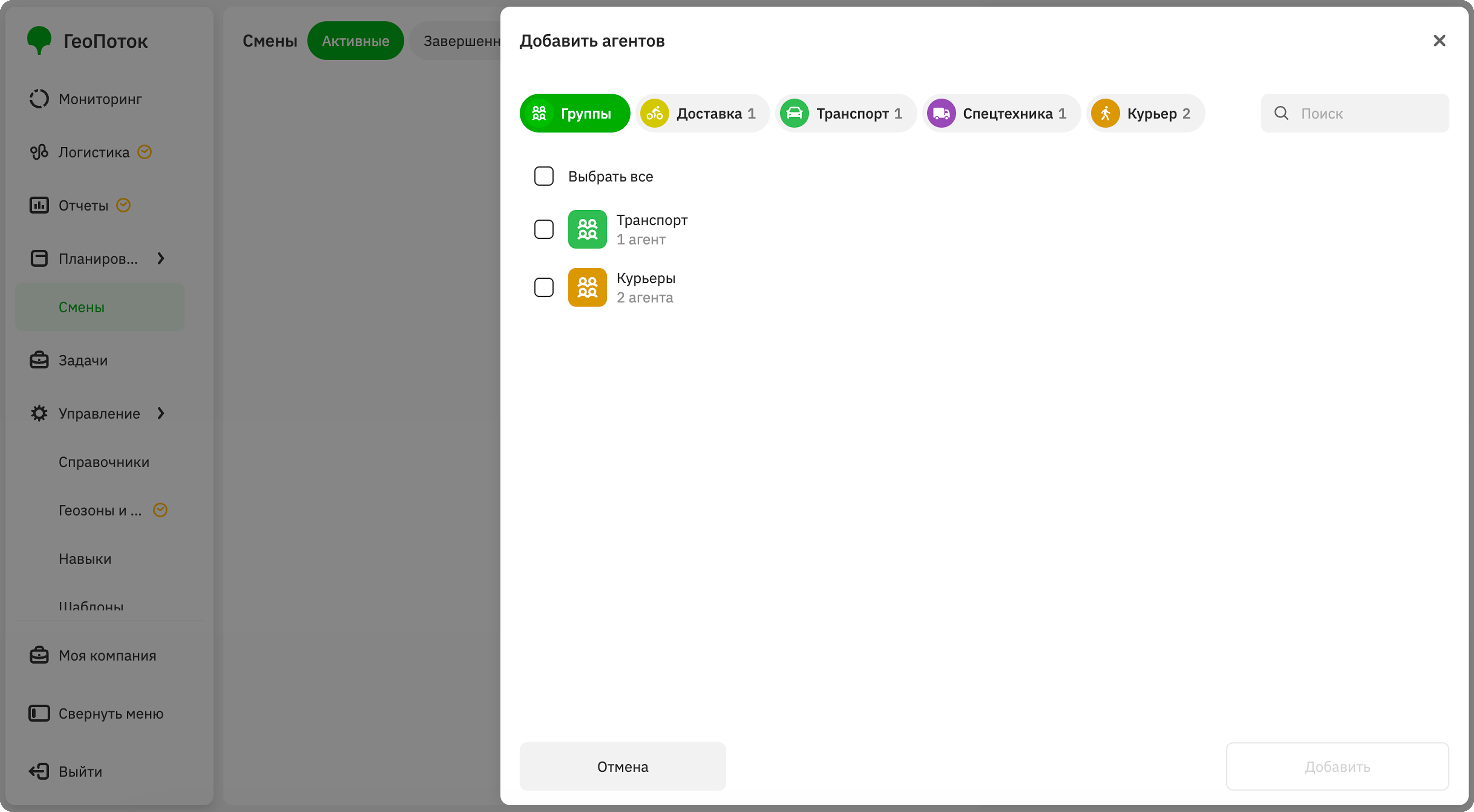
To add agents to work on the shift, click Add. You can use search by agent name, sorting by agent type (template), and selecting agent groups. Select the checkboxes next to the agents or groups. Click Add.
If you specified the repeat option in the previous step, the agents will be copied to all shifts in the series. To add different agents to each repeat, edit the shifts.
-
Click Save.
Viewing shift information
- Go to the Planning → Shifts tab.
- Open the shift card. You can use filtering and sorting by date, as well as by shift status: active or completed.
The shift card displays:
- Date and time: shift start and end date and time.
- Repeat: days of the week on which the shift repeats and the recurrence end date.
- Agents: list of agents added to the shift.
Editing a shift
You can only edit future shifts: change the name, start and end date and time, recurrence schedule, and add or remove agents from the shift.
If a recurrence schedule is set for the shift, you can change either a specific shift or the shift series. When changing the series, the settings will only apply to future shifts, and the current active shift will remain unchanged.
-
Go to the Planning → Shifts tab.
-
To change a single shift, in the shift list click
 icon next to the shift and select Edit shift.
To change the shift series, select Edit series. Only the selected shift and subsequent shifts will be changed. Previous shifts will not be affected.
-
Apply changes to the shift.
-
Click Save.
Duplicating a shift
When duplicating a shift, all agents from the original shift are automatically copied to the new one. If necessary, you can edit the shift.
- Go to the Planning → Shifts tab.
- In the shift list, click icon next to the shift and select Duplicate.
- Apply changes to the shift if necessary.
- Click Save changes.
Deleting a shift
A deleted shift cannot be restored.
You can only delete future shifts. If a recurrence schedule is set for the shift, you can delete either a specific shift or the shift series.
-
Go to the Planning → Shifts tab.
-
To delete a single shift, in the shift list click
icon next to the shift and select Delete shift.To delete the shift series, select Delete series. Only the selected shift and subsequent shifts will be deleted. Previous shifts will not be deleted.
-
Confirm the deletion.