Reports
Demo project
The documentation provides a description of the demo project with examples of the interface in Russian. The sets and names of tabs, fields, and objects may differ in your project.
Work reports are generated based on templates configured during the 2GIS GeoFlow integration. For example, reports on mobile employees working during a shift or reports on attendance at a briefing. The reporting period is also configured during the integration.
Report data is stored in the system for one month.
You can view and export reports on the Reports tab.
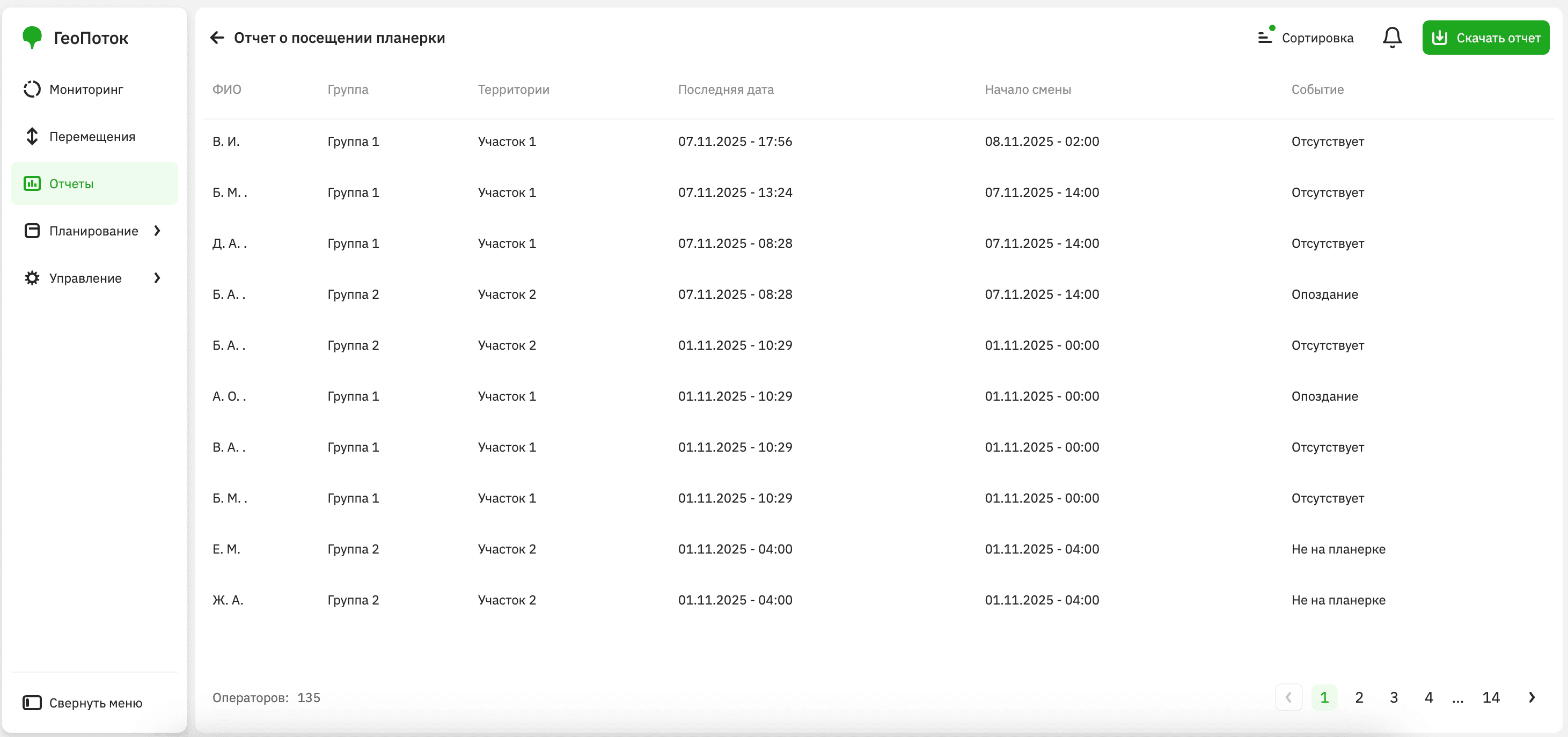
Viewing a report
- Go to the Reports tab.
- Select the required report.
- Open the card with information about the required employee. You can use sorting by event date.
In the employee card, the following information is displayed:
- Full name: full name of the employee.
- Group: group the employee belongs to.
- Territory: geozone where the employee was active. For example, in a briefing attendance report, at the start of each shift, the system checks which employees are in the briefing geozone.
- Last date: date and time when the employee was last online.
- Shift start: date and time when the reporting shift began.
- Event: reporting event. For example, whether the employee was present or absent at the briefing.
Exporting a report
You can export reports to a .xlsx file.
- Go to the Reports tab.
- Select the required report.
- Click Download report.