Timeline
A timeline allows you to view how data has changed over time: for example, how the demand for purchasing real estate changed in different seasons. With the timeline, you can:
- Filter layer data by an attribute with the
Datetype without changing a data sample. To do this, you can select a time period on the timeline to display layer data on the dashboard scene. - Play an animation of data changes for the selected period.
- View a graph with the distribution of the number of objects depending on the time period.
You can use the timeline for layers with any data visualization methods, except for the Buildings method.
Example of working with the timeline:
Configuring a widget
-
Go to the Dashboards tab and open the dashboard.
-
Open a scene using the arrows
 and
and  . If there is only one scene in the dashboard, it opens automatically.
 -
Click
 icon in the lower-left corner.
 -
Specify the timeline parameters.
-
Manage the data viewing with the player using any of the following ways:
- Use the
 and
and  buttons (not available for the Contour visualization method).
 - Use the arrows and .
- Move the slider manually.
- Use the
Parameters
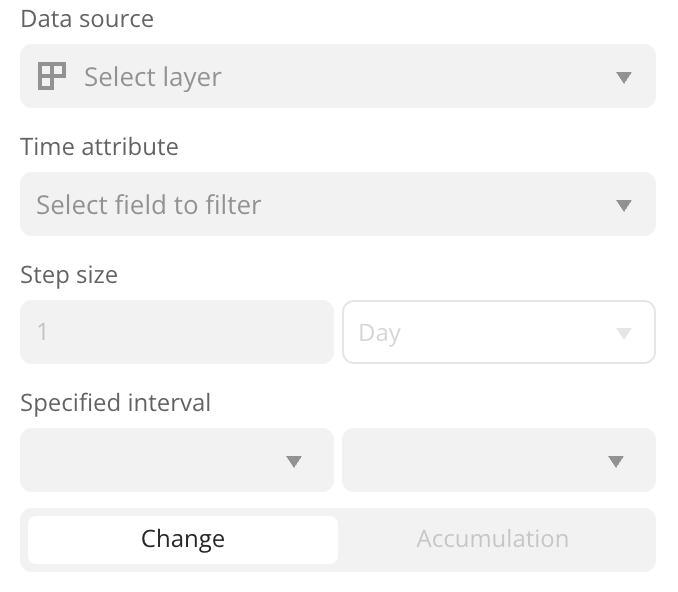
| Parameter | Description |
|---|---|
| Data source | Data layer. |
| Time attribute | Data attribute with the Date type: date only, date and time, or date and time with a timezone. Make sure that when uploading data as a file, you specified the data in supported date and time formats and selected the Date value in the Type column. |
| Step size | Step size used to shift the time interval limits when playing the animation. The timeline graph displays the distribution of the number of objects depending on the specified step size. You can specify any value in seconds, minutes, hours, days, months, or years. |
| Specified interval | Limits of the time interval used to display data. |
| Playback mode | How the specified time interval shifts along the timeline when the animation is playing:
|
| Animation speed | Speed at which the data on the dashboard scene is updated when the animation is playing. Configured in the lower-left corner of the timeline. For example, 1.0 is once per second, 2.0 is twice per second, etc. |
What's next?
- Get to know more about other Widgets types.
- Getting started.
- Get to know how to work with Data and Data visualization.
- Learn more about Layers, Dashboards, and Scenes.
- Learn about ready-made Analytics scenarios.